1. UnityOne AI™
Introduction
UnityOne AI is an advanced Cloud Management Platform (CMP) designed to unify and simplify the management of modern hybrid and multi-cloud environments. Through a single intelligent dashboard, organizations gain centralized visibility and operational control across data centers, public clouds (AWS, Azure, GCP, OCI), and private cloud platforms (VMware, Hyper-V, OpenStack and more). UnityOne AI empowers enterprises to seamlessly manage both physical infrastructure and virtual assets, enabling consistent governance, improved operational efficiency, and optimized performance across the entire cloud ecosystem.
As a comprehensive standalone platform, UnityOne AI brings together critical capabilities required to operate and scale modern IT environments. The platform integrates cloud cost optimization, container and Kubernetes management, infrastructure and device management, sustainability monitoring, service mesh management, user, and access governance, ITSM workflows, DevOps automation, and intelligent alerting into a single cohesive solution. By consolidating these capabilities into one platform, UnityOne AI enables organizations to accelerate innovation, reduce operational complexity, and drive greater business value from their infrastructure investments.
A) Before You Begin
i) Access and Permissions
| Requirement | Description |
|---|---|
| UnityONE Portal Access | User must be able to log in to the UnityONE tenant at https://unity.unitedlayer.com. |
| Unity Setup Permission | User must have access to the Unity Setup menu and Onboarding module. |
| Collector Host Access | User or deployment engineer must have administrator or Sudo access on the collector host. |
| Download Permission | User must be allowed to download the collector file and certificates from the portal. |
| Command Execution Permission | User must be permitted to run the generated installer commands on the target host. |
ii) Collector Host Readiness Checklist
| Checklist Item | Acceptance Criteria |
|---|---|
| Host reachable by administrator | Deployment engineer can log in to the target server or VM. |
| Host IP address identified | The correct IP address is known before requesting access. |
| Host name identified | The intended collector name is unique and recognizable. |
| Outbound network access available | The host can initiate outbound HTTPS/gRPC 443 traffic. |
| Docker available | The run command screen includes Docker validation; Docker runtime should be present and operational. |
| Time sync configured | Host time should be accurate to avoid certificate validation issues. |
| Certificate TTL selected | The TTL in days reflects the expected duration for the access request and certificate validity window. |
iii) Collector Host Configuration
These VM sizing prerequisites define the minimum compute, storage, discovery, monitoring, and OTEL ingestion capacity required to deploy the UnityOne Zero Touch Collector inside a customer environment. The VM should be provisioned based on the expected number of managed devices, remote sessions, monitoring metrics, and OTEL data points.
| Sizing Tier | RAM | CPU / vCPU | Storage | Discovery Devices | Remote Sessions | Monitoring Devices | Monitoring Metrics | OTEL Sources | Max OTEL Data Points |
|---|---|---|---|---|---|---|---|---|---|
| Small | 8 GB | 6 vCPU | 64 GB | 25 | 25 | 25 | 1,000 | 25 | 1,500 |
| Medium | 16 GB | 8 vCPU | 128 GB | 250 | 100 | 250 | 15,000 | 50 | 80,000 |
| Large | 32 GB | 12 vCPU | 256 GB | 500 | 150 | 500 | 50,000 | 150 | 250,000 |
| Enterprise | 64 GB | 24 vCPU | 512 GB | 1,000 | 200 | 1,000 | 100,000 | 300 | 500,000 |
B) Onboarding Process Summary
| Step | Action | Description | Primary Role |
|---|---|---|---|
| 1 | Access Portal | Open browser and navigate to https://unity.unitedlayer.com. | Customer Admin |
| 2 | Open Unity Setup | Use the left navigation menu to select Unity Setup. | Customer Admin |
| 3 | Open Onboarding | Click Onboarding to access the collector onboarding flow. | Customer Admin |
| 4 | Request Access | Start a new access request for the collector. | Customer Admin |
| 5 | Enter Collector Details | Provide host name, host IP address, and TTL in days. | Customer Admin |
| 6 | Download Package | Download the collector file and certificates. | Download the collector file and certificates. |
| 7 | Run Commands | Run generated installation and validation commands on the collector host. | Deployment Engineer |
| 8 | Submit and Verify | Submit the workflow and validate status in the dashboard. | Customer Admin and Operations |
2. Dashboard
The dashboard is the central interface that provides users with an overview of key data, system status, and quick links to frequently used features.
Dashboard is of two types:
2.1 Default
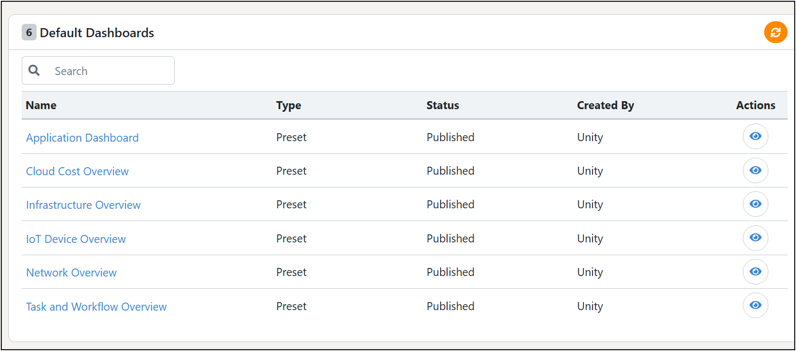
This page lists all pre-configured dashboards available in the system. These dashboards are created by the platform and provide ready-to-use insights across key functional areas such as applications, infrastructure, cloud cost, and network monitoring.
2.1.1 Purpose
Default dashboards help users quickly visualize important metrics and system health without creating dashboards from scratch.
2.1.2 How to Create a Custom Dashboard
To create a dashboard that can be set as default:
- 1. Navigate to the Dashboards section of the application.
- 2. Click Create Dashboard.
- 3. Enter a dashboard name and select the required layout.
- 4. Add widgets or visualizations as needed.
- 5. Save the dashboard.
The newly created dashboard is added to the dashboard list and becomes available for use.
NoteDefault dashboards listed under Default Dashboards are preset and system defined. Custom dashboards are created from the Dashboards module.
2.1.3 How to set a Dashboard as Default
To set a dashboard as the default:
- 1. Open the dashboard you want to set as default.
- 2. Click Set as Default (or equivalent option in the dashboard menu).
- 3. Confirm the selection when prompted.
Once set, this dashboard automatically loads whenever the user accesses the dashboard page.
2.2 My Dashboard
My Dashboard allows users to create, customize, and manage their own dashboards based on individual requirements. Unlike Default Dashboards, which are preset and system-defined, dashboards in My Dashboard are user-owned and fully configurable.
2.2.1 Purpose
My Dashboard enables users to track metrics, KPIs, and visualizations that are personally relevant, providing a tailored monitoring and reporting experience.
3. Unity View
Unity View provides a high-level overview of your infrastructure. This is the first section in the navigation menu of UnityOne AI, and it is solely purposed for the summary view of the infrastructure offering details about monitoring, dashboard, health status, utilization, alerts & ticketing, etc.
Navigation
To navigate this section, go to Menu > Unity View. From the drop-down, you may also view other sub-sections inside of it.
3.1 Monitoring
The Monitoring section enables users to view and track system operations, performance metrics, and activity logs to ensure everything is functioning as expected.
3.1.1 Configure Monitoring for Single and Bulk Devices
Navigate to the Main Menu > Unity View > Monitoring
In this page you can observe three different tabs under monitoring section, NOC view, System, Configuration. To set up monitoring select the configuration tab.

Here you can see three different tabs under the monitoring section:
- 1. Configuration
- 2. NOC View
- 3. System
3.1.2.1 Configuration
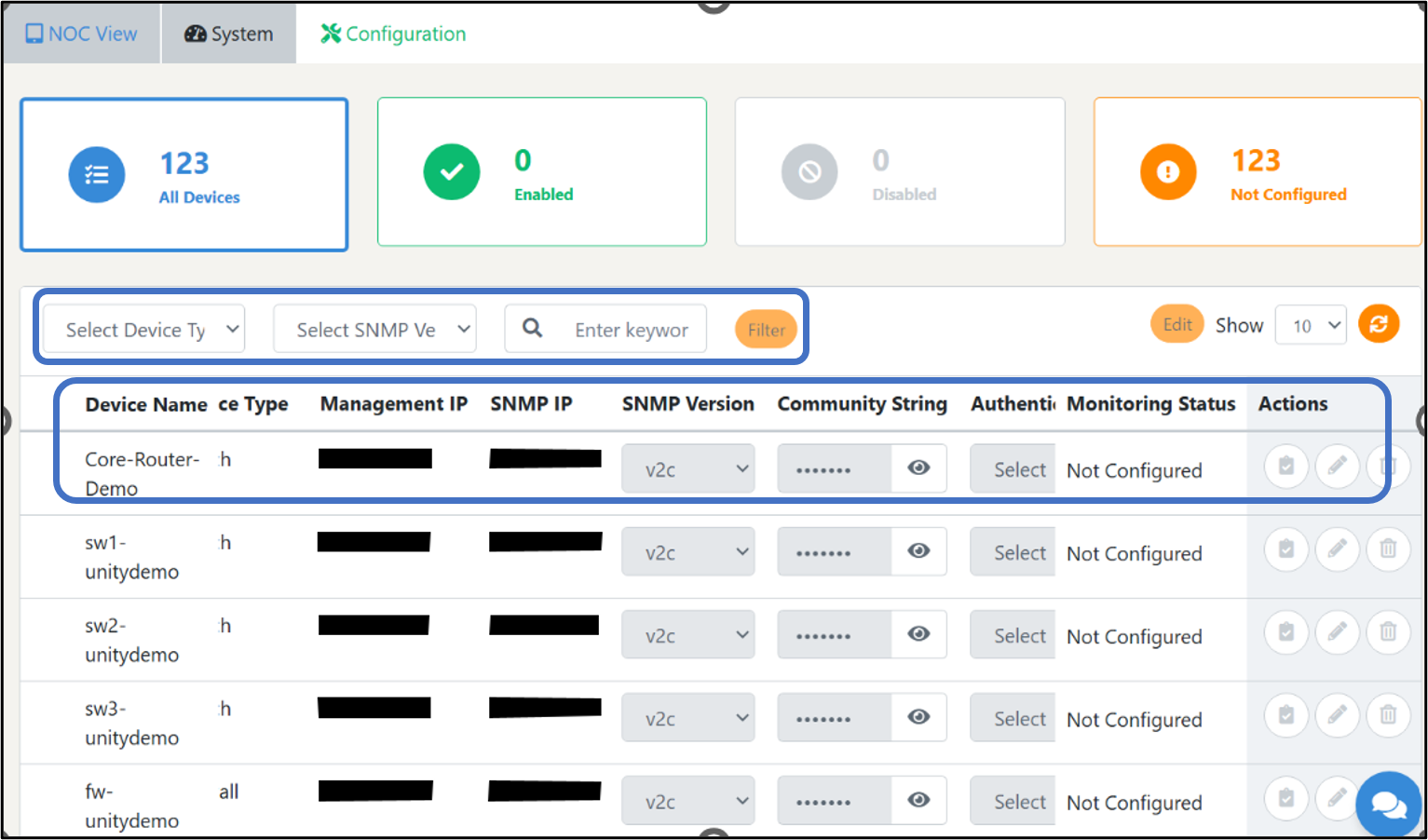
- 1. This section provides detailed information on the monitoring status of each device. And suppose any of the device's monitoring is not activated. In that case, you can select it to click on edit and provide connection type (if it is SNMP, then provide protocol version, or if it is an agent, then provide agent IP).
- 2. Also, you can select multiple devices as well. You can choose the device for which you want to enable monitoring, click on edit, provide the relevant SNMP details, and activate the monitoring. You may also use the available filters to narrow down your search based on parameters like SNMP version, device type, or even through keywords.
- 3. This configuration window also has a tabular column with action buttons that provides device name, type, management IP, SNMP IP and Version, Community String, and authentication level details.
3.1.2.2 NOC View
- 1. By default, the page will be blank. To set up the configuration of the NOC view, the first step is to create a group. To create a group, follow the instructions given below:
- i. Click on the “Pencil” icon from the top right corner
- ii. Click on the option, “Add Group”
- iii. Enter the name and brief description of your group
- iv. Click on “Submit” to create a group
- 2. Once your group is successfully created, you can add your devices to that group by clicking on the + icon (Add new device).
- 3. Adding a new device to the NOC view
- i. Select the preferred device category from the drop-down.
- ii. Select the device list from the existing devices from the above-mentioned category and click on “Add.”
- 4. You can follow the same process to add any new device into the NOC view.
- 5. This section visually tracks all the enabled devices graphically, displaying the status (green for uptime, orange for downtime) and the number of faults, all from a single dashboard.
3.1.2.3 System
- 1. This page displays the monitoring charts and graphs for devices such as firewalls, PDUs, hypervisors, switches, etc. This section acts as a dashboard to view all the graphs configured for monitoring. You can add your graphs to this section by following the steps below:
- i. To add widgets, click on “Add widget” from the top.
- ii. Select the device type and the device list from the drop-down
- iii. Select the available graph list from the drop-down.
- iv. Click on “Submit”
It will take a few minutes to fetch and display the graphs on this page.
NoteYou can only select the graphs that are already created for the device from the configuration section.
If you need help setting up graphs for monitoring, navigate to:
Menu > UnityOne AI > Private Cloud > Device Name > Device Statistics
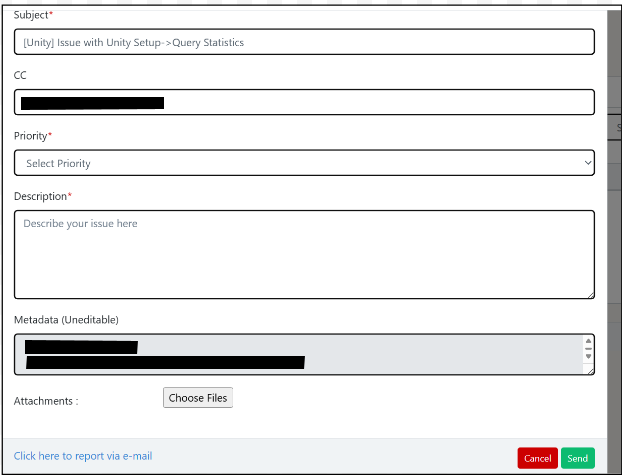
Here you can find an option to “Create Graph” from where you can create your own graphs by providing the following details:
1. Graph Name: You can enter your choice of graph name
2. Select Graph Type: You can select a graph type such as normal, stacked, pie, or exploded.
3. Items: From here you can select different metrics that you might be interested to monitor any graphical view.
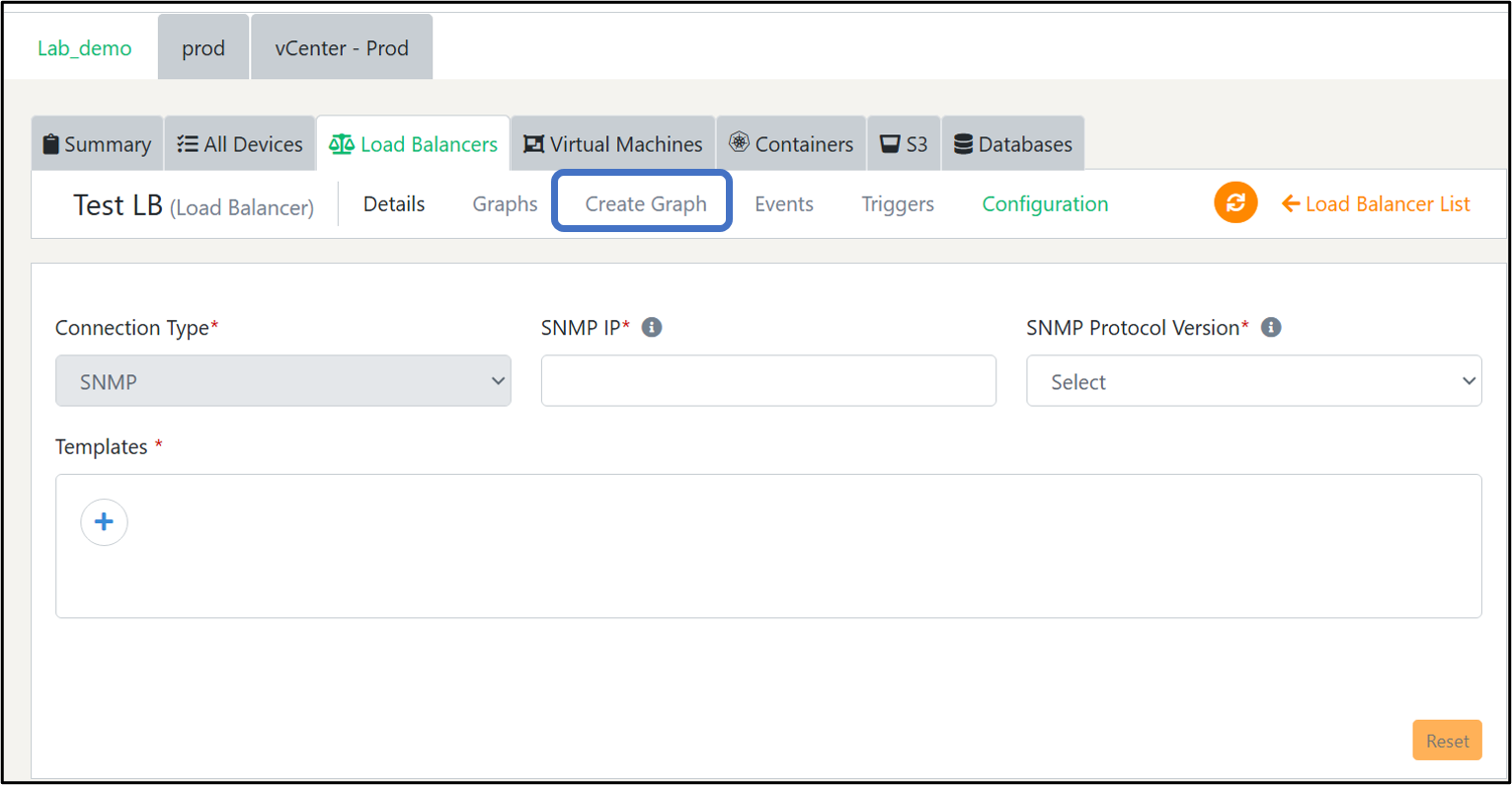
Please note you can select a maximum of 10 items for a graph
3.2 Activity Log
The activity log keeps information about all the actions undertaken by different users within your organization. Also, it records the changes made so that these logs can be viewed whenever needed.
This page by default displays the activity logs for the past 15 days.
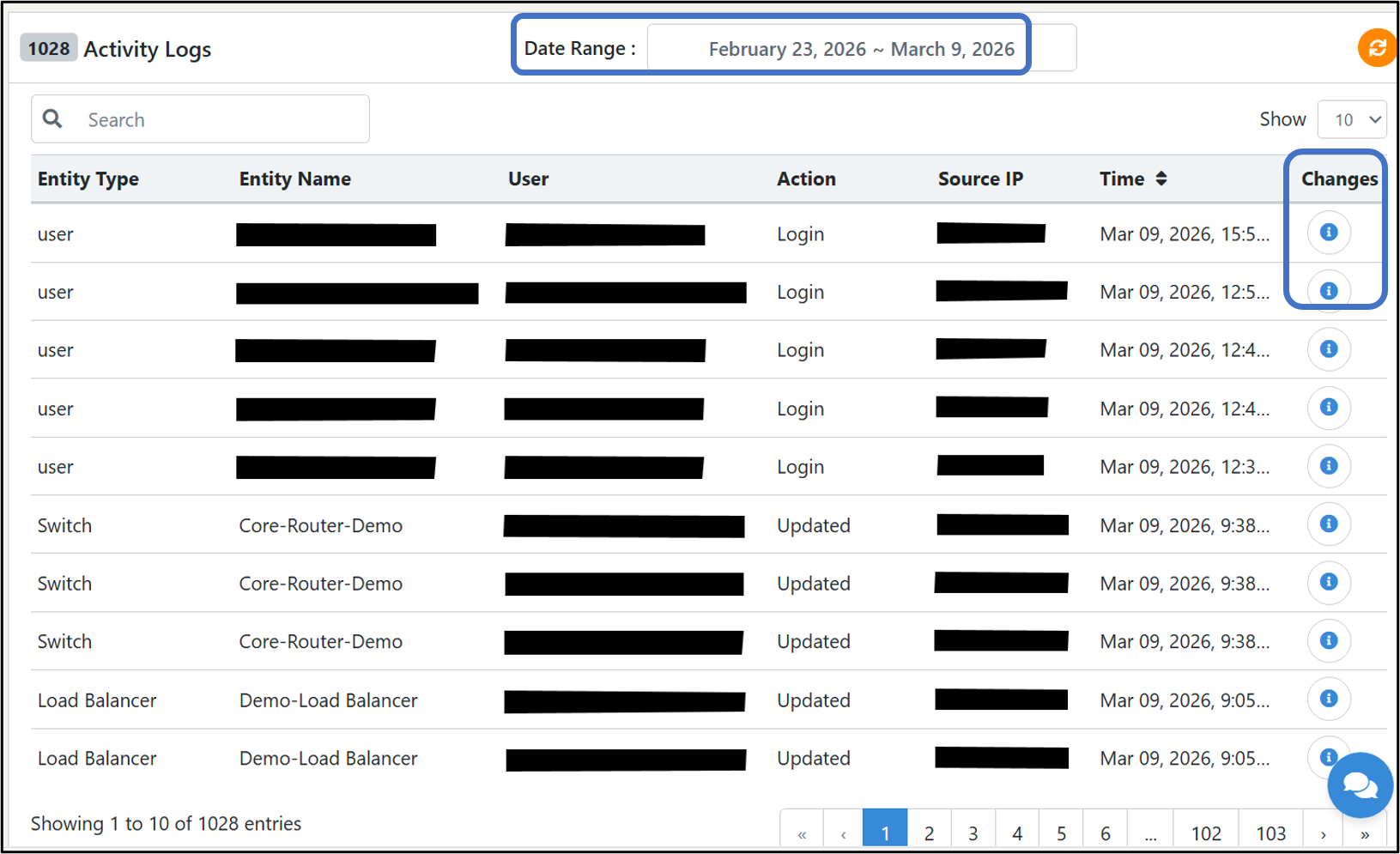
- 1. You can select a date range to modify your preferences and view the relevant activity logs accordingly. You may download your data as an excel sheet by using the download option on the right side.
- 2. The present screen will display information such as the entity type and name, the user's email address, action, the source IP address, and the time of action performed.
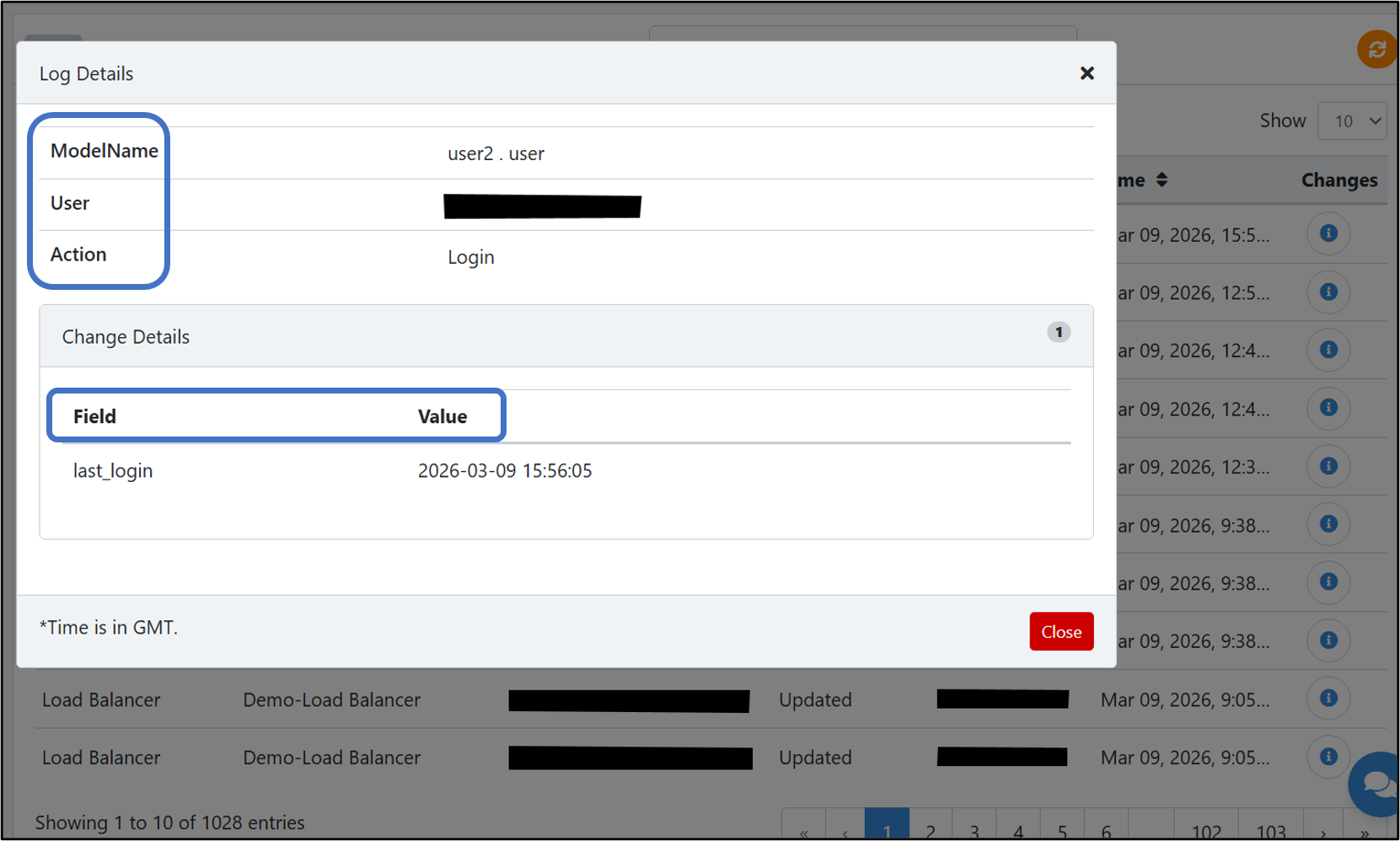
- 3. Click on "Changes" to see the following information:
- i. Model Name
- ii. User
- iii. Impersonated By
- iv. Action
- v. A table displaying details like field and value.
3.3 Network Topology
This is a page where you can find a graphical representation of the network topology of your entire organization’s architecture. You can graphically view your infrastructure’s network nodes and corresponding neighbouring devices. The main functionality of this page is to display the whole network hierarchical tree from a single dashboard view.
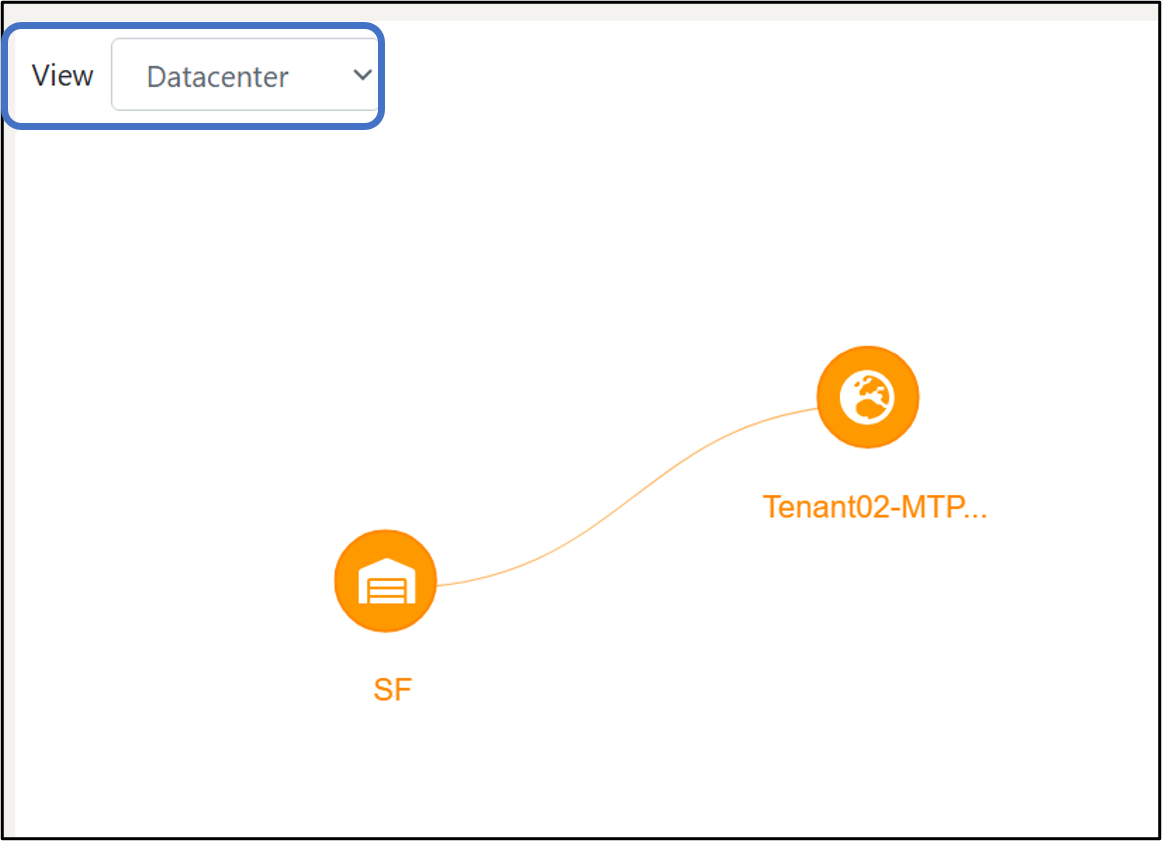
You can group the network topology by data center, private cloud, and all devices from the top left-hand corner.
3.3.1 Datacenter
3.3.1.1 SF
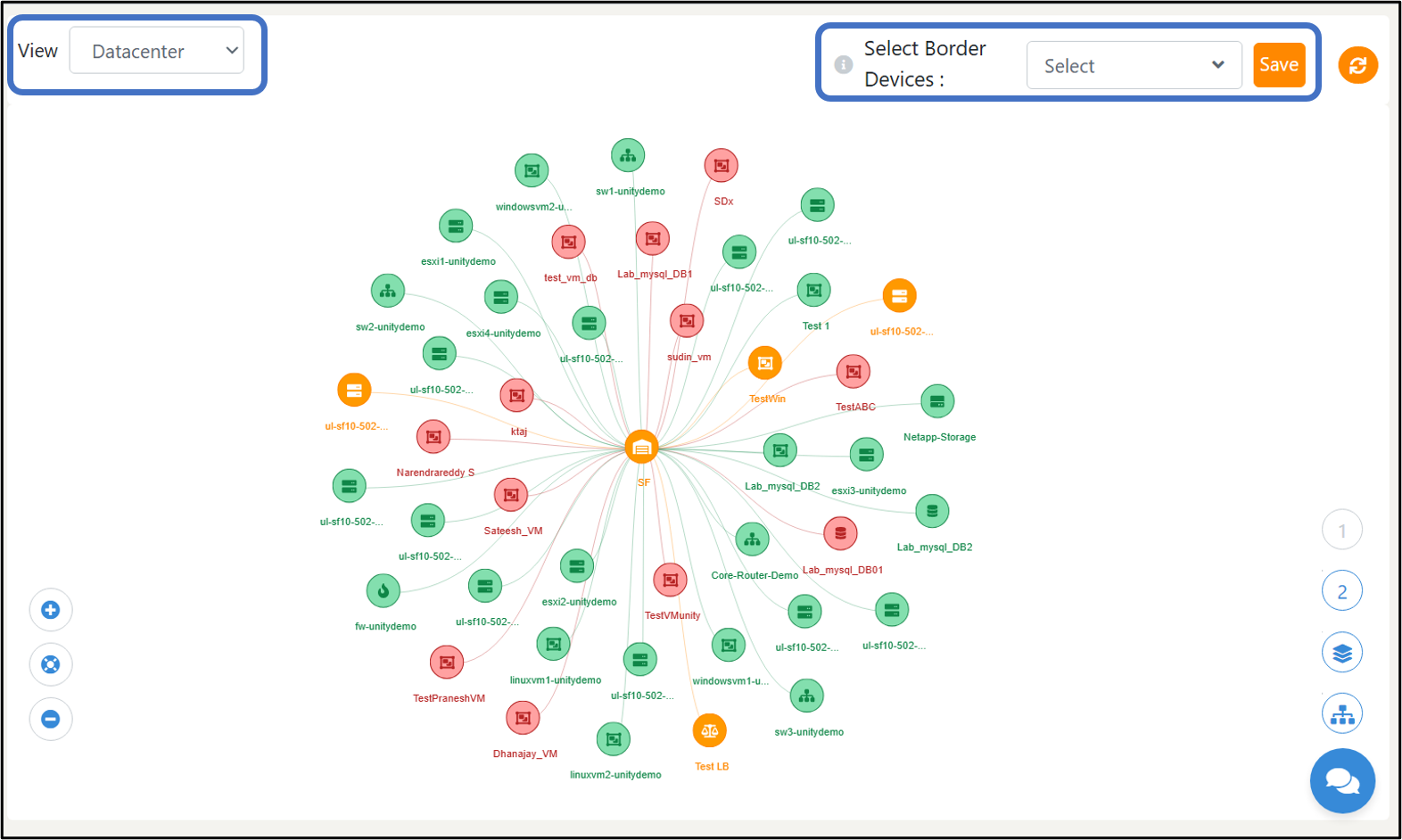
A diagram will appear which shows centralized view of all resources connected to a node SF, with color‑coded status indicators. Each spoke represents a virtual machine, Switch, Hypervisor, or Firewalls that relies on or interacts with SF.
This network diagram explains the main infrastructure components. Each component plays a specific role in how the system operates and communicates.
3.3.1.1.1 Firewalls
Firewalls provide network security by controlling and filtering traffic entering or leaving the datacenter.
- 1. Color‑coded to show status (green = healthy, red = error, orange = warning).
- 2. Usually connected close to the core device to represent traffic routing and security control.
What Users Can Understand:
- 1. Whether firewall policies are being enforced correctly.
- 2. If any firewall is down or unreachable.
- 3. The flow of protected traffic between internal devices and external networks.
3.3.1.1.2 Hypervisors
Hypervisors manage virtualization by hosting and running multiple Virtual Machines on a single physical server.
- 1. Placed between the core device and VMs to show the virtualization hierarchy.
- 2. Color‑coded to reflect host health (green/red/orange).
What Users Can Understand:
- 1. Which VMs belong to which hypervisor.
- 2. Hypervisor performance or connectivity issues affecting all hosted VMs.
- 3. The virtualization structure of the datacenter.
3.3.1.1.3 Virtual Machines (VMs)
VMs run applications and workloads within the datacenter on top of a hypervisor.
- 1. Connected beneath a hypervisor indicating they are hosted on that machine
- 2. Color‑coded to reflect operational health.
What Users Can Understand:
- 1. VM status (running, warning, or down).
- 2. Dependency on hypervisors and network devices.
- 3. How many VMs are active within the datacenter.
3.3.1.1.4 Switches
Switches connect devices within the datacenter and manage internal network communication.
- 1. Often linked to multiple devices to represent distribution of network traffic.
- 2. Color-coded to indicate operational state.
What Users Can Understand:
- 1. Network connectivity between devices.
- 2. Whether any switch is causing communication failures.
- 3. Device groupings and data flow routes.
3.3.2 Private Cloud
A private cloud is a cloud computing model where services and infrastructure are dedicated to a single organization. The private cloud can be hosted on-premises or by a third-party service provider.
This diagram shows SF as the central datacenter, with multiple cloud platforms and environments connected to it. Each surrounding node represents a cloud system or virtualization platform that integrates with SF.
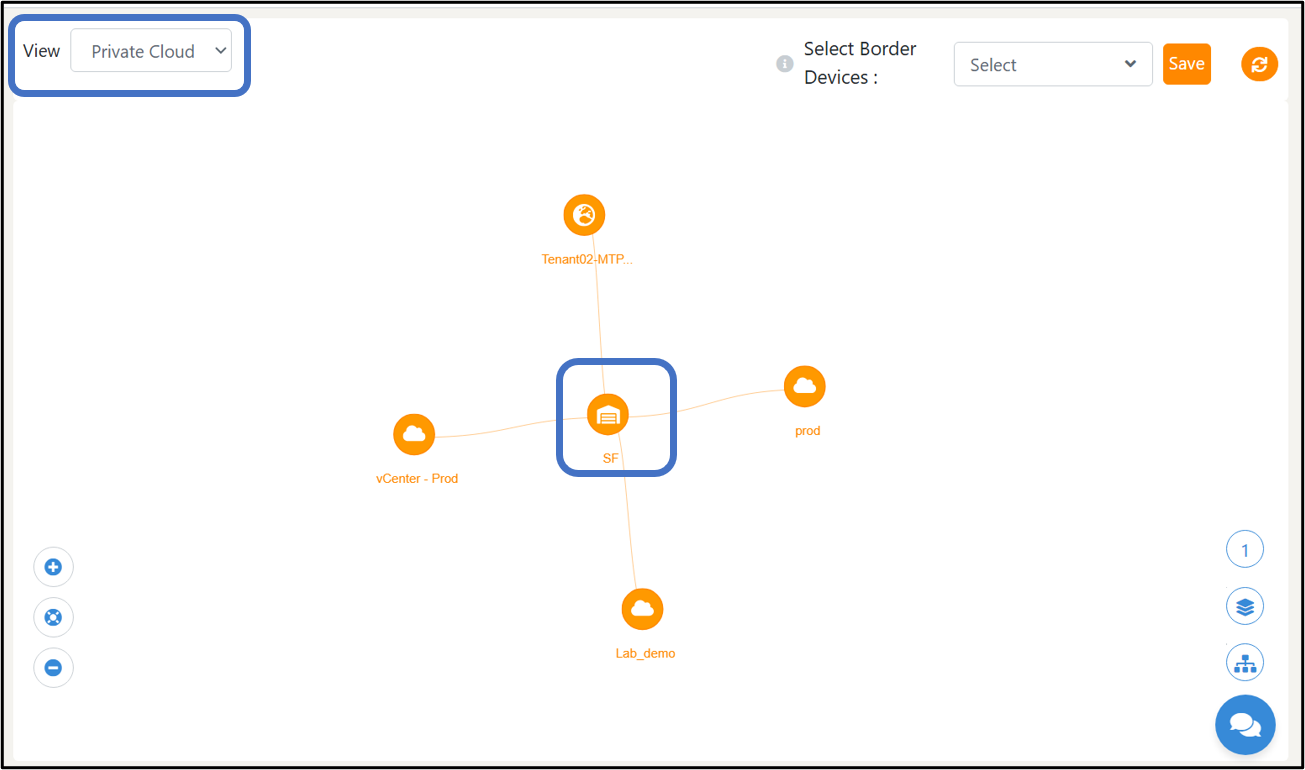
Orange nodes represent active and connected environments (e.g., vCenter, Lab Demo, prod).
The connecting lines represent communication or dependency links between SF and each cloud platform. This layout provides a quick visual summary of all cloud integrations and highlights any environments needing attention.
3.3.2.1 Vcentre
A detailed diagram appears showing the Vcentre as the central management node connected to two healthy hypervisor systems. The green nodes represent active and reachable servers under this Vcentre. The connecting lines indicate active communication and dependency between the Vcentre and its managed hosts.
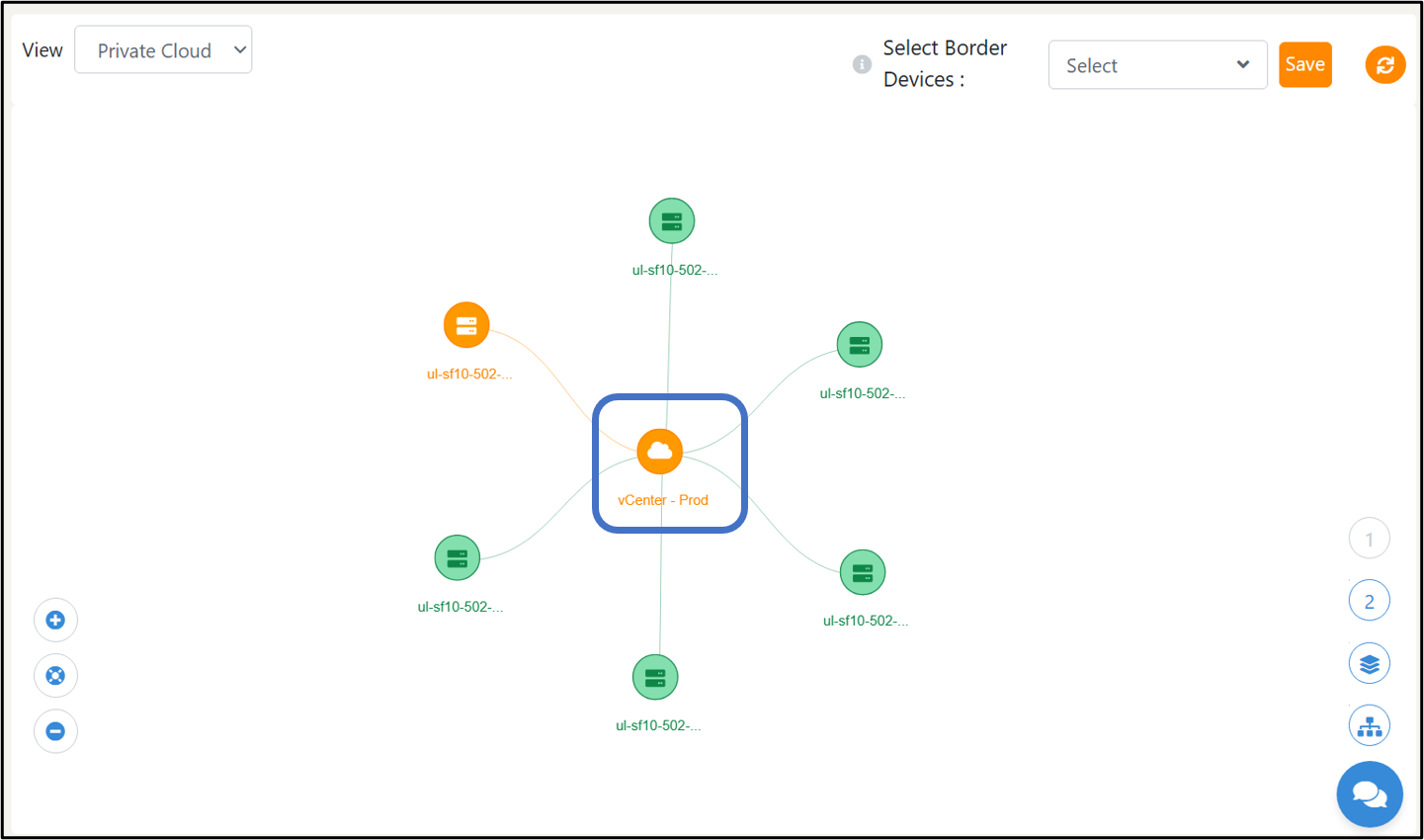
When we click on any of the hypervisor system, a diagram shows a Private Cloud host at the center, along with all the virtual machines connected to it. Each VM is represented as a node, and the lines indicate the communication or dependency path between the host and each VM.
- i. Green nodes represent healthy and active virtual machines.
- ii. Orange nodes highlight partial connectivity within the private cloud structure.
This visual layout helps users quickly understand the health status of all VMs under the Private Cloud host and identify which systems may require attention.
3.3.3 Public Cloud
A public cloud is a cloud computing model where services such as virtual machines, applications, and storage are provided over the internet by third-party providers like AWS, Microsoft Azure, and Google Cloud. These services are available to the public and can be accessed from anywhere with an internet connection.
Select the cloud and account from top left-hand corner.
3.3.3.1 Azure Cloud with Demo azure account
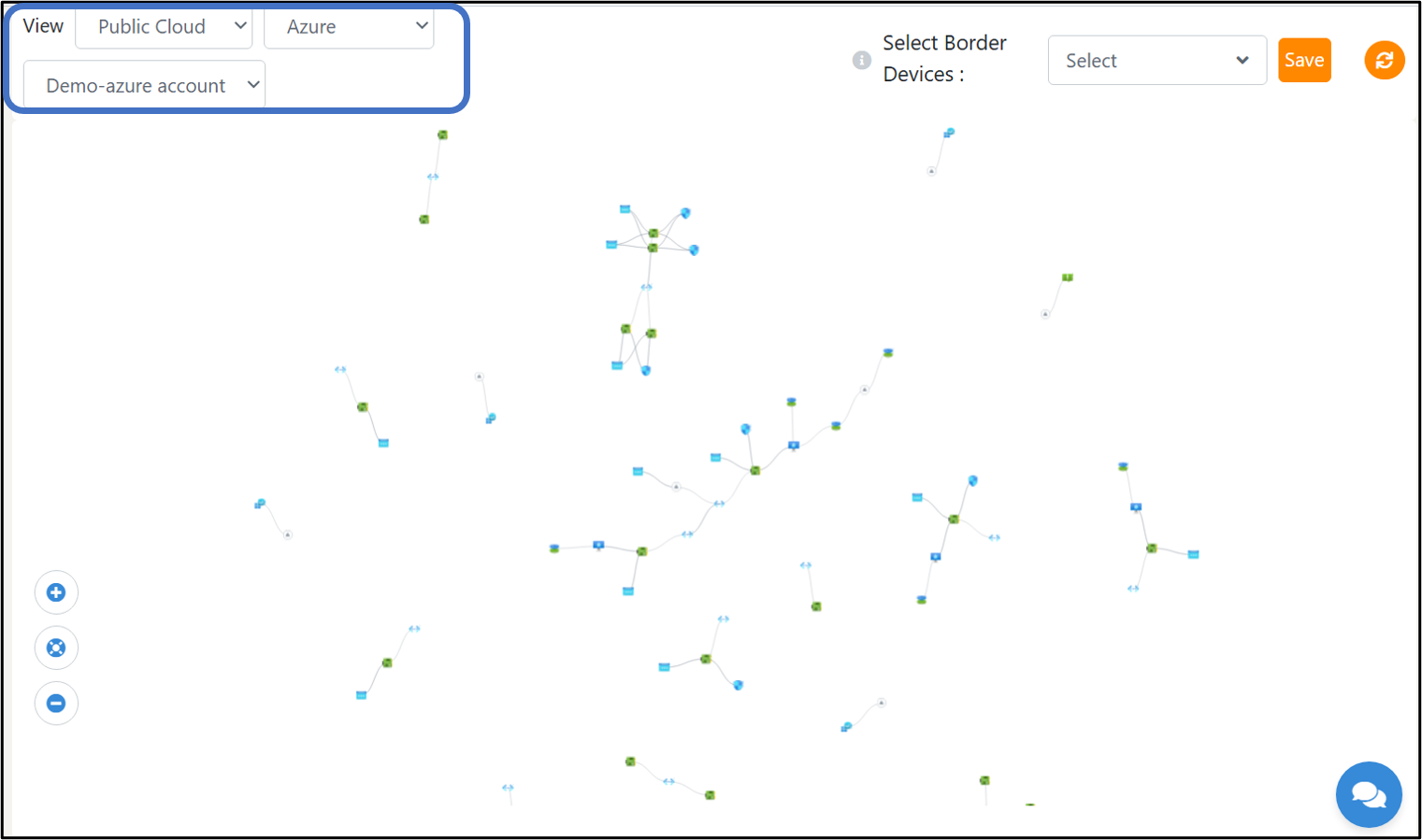
The Azure Topology View displays all discovered Azure resources and their connections within the selected cloud account. It provides a quick visual map of VMs, networks, subnets, and related components.
Key Highlights
- 1. Cloud Selectors: Choose the cloud type (Public Cloud), provider (Azure), and account (Demo‑azure account).
- 2. Topology Map:
- a. Shows Azure resources as nodes (VMs, VNETs, NICs, disks, etc.).
- b. Blue nodes represent compute/network resources.
- c. Green nodes represent active/healthy components.
- d. Grey nodes represent inactive or unreported items.
- 3. Connections: Lines show relationships such as VM → NIC → Subnet → VNET.
- 4. Border Device Filter: Helps identify externally exposed resources like public-facing VMs or endpoints.
- 5. View Controls: Options to zoom, reset, and navigate within the topology.
- 6. Save: Stores the current layout and selections.
4. Unity Cloud
Unity Cloud is a centralized platform that provides cloud services for managing Unity projects, including asset storage, version control, build automation, and team collaboration.
4.1 Private Cloud
A Private Cloud is a computing environment dedicated to a single organization and not shared with any other parties. It provides the benefits of cloud computing, such as scalability and on-demand access to resources, while ensuring greater control, security, and privacy over the infrastructure and data. Private clouds are typically implemented within an organization's data center or through a third-party service provider that offers dedicated single-tenant environments.
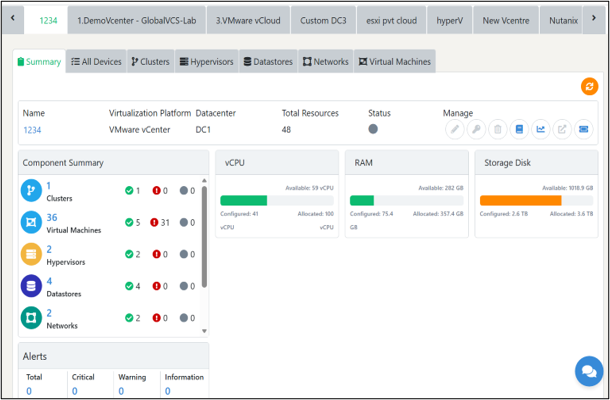
SummaryIn the present screen, you can observe three sections.
The first section displays information about the cloud's name (Lab demo), virtualization platform, the number of installed hypervisors, provisioned virtual machines, and
1. Edit – You can edit the information of your added Private Cloud from this button.
2. Delete – You can deregister or unmap your added Private Cloud from this button platform.
3. Manage by creating a support ticket – From this action button, you can manage your Private Cloud by raising a ticket with the support team.
The next section presents a component summary, which covers information on the various components in your Private Cloud, such as the number of hypervisors, bare metals, virtual machines, containers, storage devices, Mac mini, switches, firewalls, load balancers, and so on.
The final widget will display progress bars that display the graphical view of vCPU, RAM, and storage disks from where you can find information on:
1. Configured - This indicates the total number of resources configured on Virtual machines
2. Available – This indicates the total number of resources that are available
3. Allocated – This indicates the total number of resources allocated for the customer on this cloud.
Types of Private cloud Virtualizations
UnityOne AI supports several types of Private Cloud virtualizations mentioned below:
i.	VMware
ii.	Esxi
iii.	HyperV
iv.	Nutanix and more
Navigation
To navigate this section, go to Menu > Unity Cloud. Select “Private Cloud” from the drop-down to view the management page. Note that you must grant Read access using the UnityOne AI API when integrating Private Clouds with UnityOne AI.
4.1.1 Integrate a Private Cloud into UnityOne AI
Simply click on the three dots (︙) in the top right corner to add your Private Cloud.
Mandatory data to add a Private Cloud into UnityOne AI
Select your cloud type:
4.1.1.1 Cloud Type – ESXi
ESXi is one of the primary components in the VMware infrastructure software suite which is a Type 1 bare-metal hypervisor, that runs directly on system hardware without the need for an OS.
Note: : If you have multiple standalone ESXi hosts, you can combine them to create a Private Cloud. You can also register the hosts to manage and monitor them together from the platform.
1. Cloud Name – Here you must enter the name of your cloud.
2. Data Center – Select a data center from where your Private Cloud is located.
Click on “Submit” to automatically add your Private Cloud to the platform.
NOTE: If you get an error after clicking submit, please ensure again that all the provided information is correct and if the issue persists, contact the UnityOne AI support team.
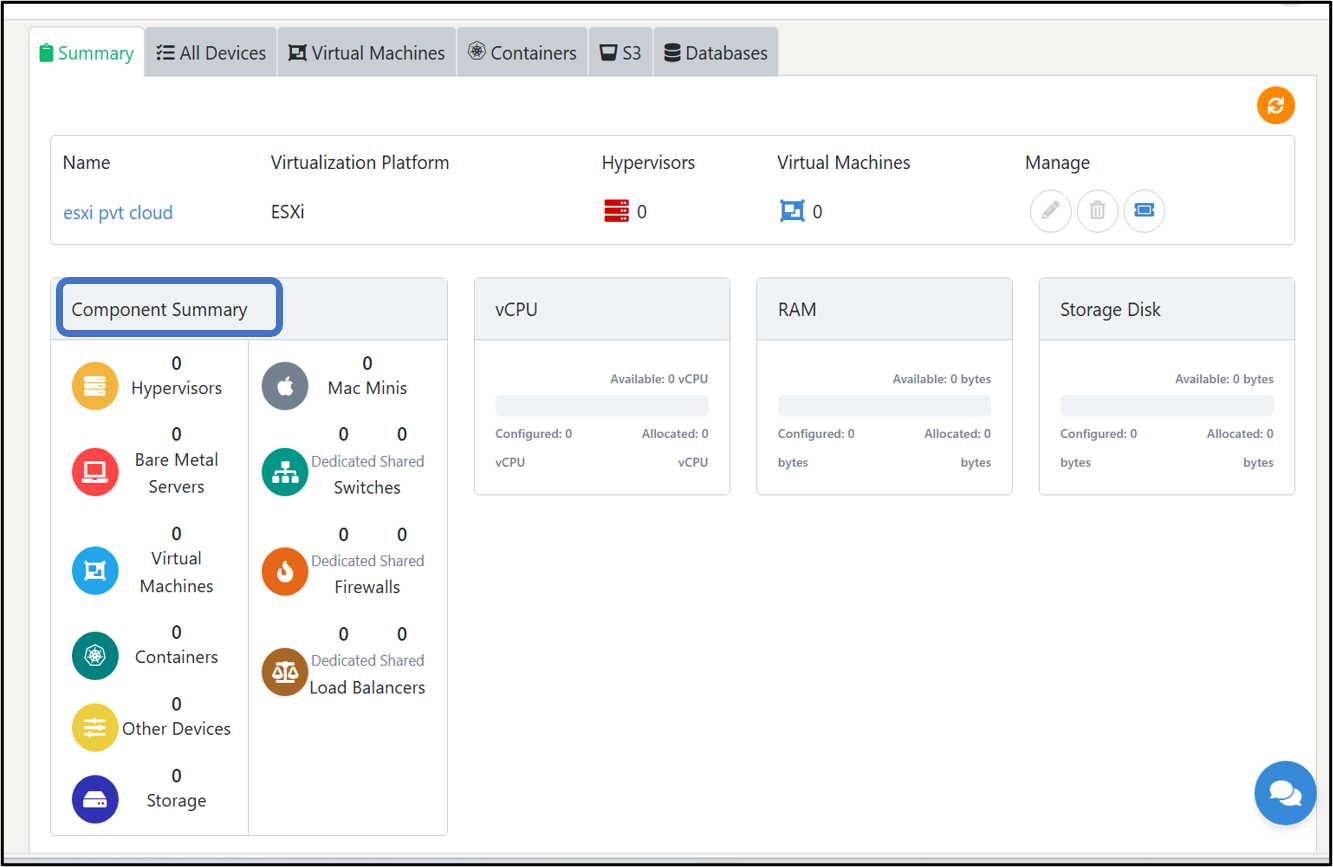
Component Summary
This section lists all infrastructure components present in the datacenter:
- 1. Physical servers: Host and run virtual machines.
- 2. Hypervisors Bare Metal Servers: Dedicated physical servers used without a virtualization layer.
- 3. Virtual Machines: Software‑based machines running workloads within the datacenter.
- 4. Containers: Lightweight, isolated application environments sharing the host OS.
- 5. Other Devices: Additional hardware or external devices connected to the environment.
- 6. Storage: Dedicated storage systems used for hosting data and VM files.
- 7. Mac Minis: Apple Mac Mini hardware used for macOS‑based workloads.
- 8. Dedicated Shared Switches: Network switches providing shared connectivity across workloads.
- 9. Dedicated Shared Firewalls: Firewalls used to secure and control network traffic.
- 10. Dedicated Shared Load Balancers: Devices that distribute traffic across servers or applications.
4.1.1.2 Cloud Type –Nutanix
1. Cloud Name – Here you must enter the name of your cloud.
2. Data Center – Select a data center from where your Private Cloud is located.
3. Host Address – Enter the Nutanix Prism Central IP address that you added while configuring your Nutanix Prism Central connection
4. Username – Use the admin username associated with your Nutanix Prism Central or the enterprise connector configuration (same credentials you configured during Enterprise Connector setup)
5. Password – Finally, enter your password here (You can use the same password which was set for accessing the Private Cloud).
Click on “Submit” to automatically add your Private Cloud to the platform.
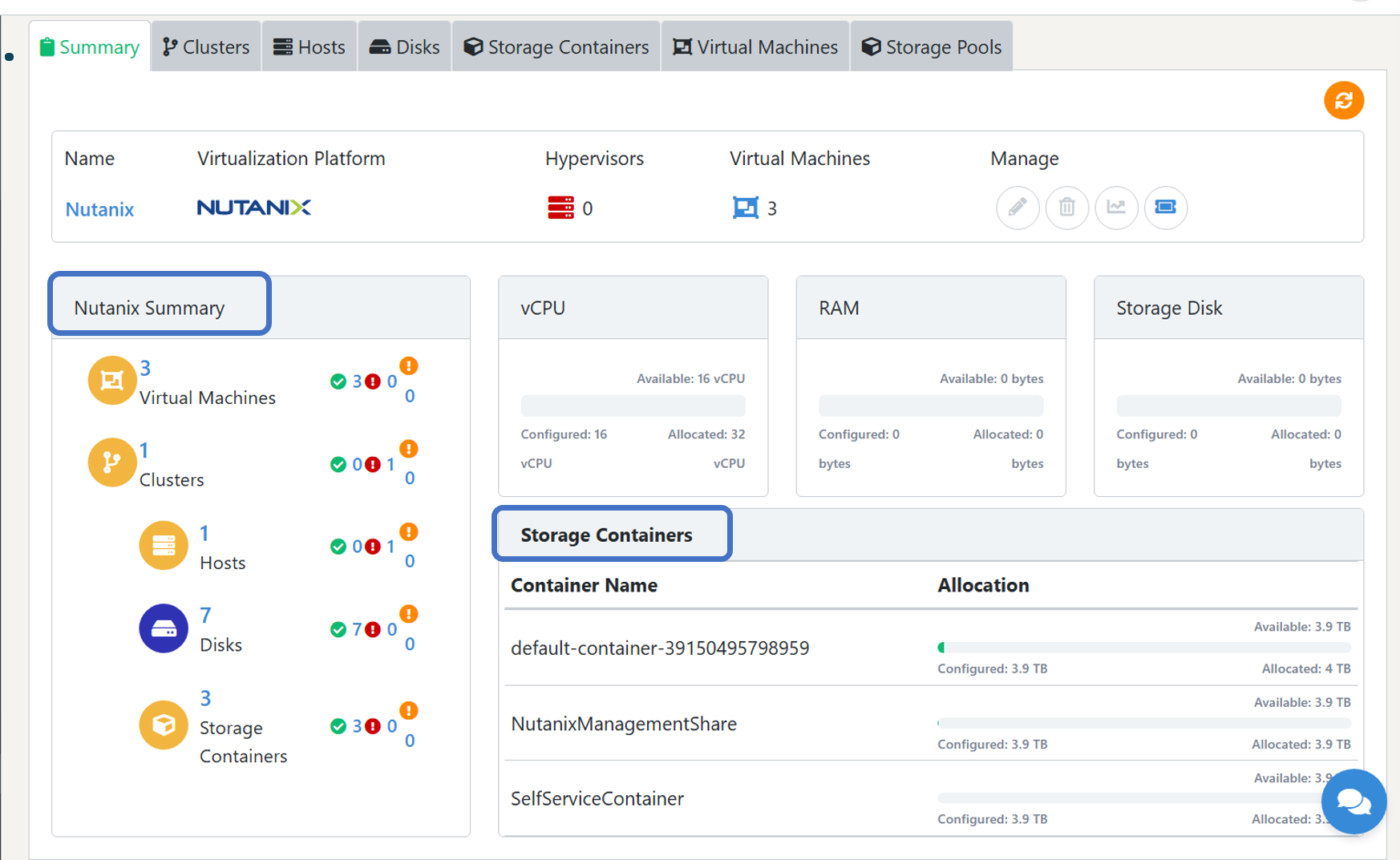
Component Summary
1. Virtual Machines – Shows total VMs with healthy, warning, or critical states.
2. Clusters – Total number of clusters and their status
3. Hosts – Indicates the available host server and its condition.
4. Disks – Shows the total number of storage disks and their health indicators.
5. Storage Containers – Lists configured storage containers with health distribution.
Storage Containers
The Storage Containers section lists all Nutanix storage containers along with their configured size, allocated usage, and available capacity. It helps users quickly understand how storage is distributed and how much space remains in each container. Each entry shows:
- 1. Container Name
- 2. Configured Capacity (total assigned storage)
- 3. Allocated Capacity (storage currently used)
- 4. Available Capacity (free space remaining)
This section allows administrators to monitor storage consumption and manage capacity efficiently.
4.1.1.3 Cloud Type – Custom
If you want to onboard individual virtual machines, you can use a custom cloud. Once you create a custom cloud, navigate to the Virtual machine tab and add them individually to the cloud.
1. Cloud Name – Here you must enter the name of your cloud.
2. Data Center – Select a data center from where your Private Cloud is located
Click on “Submit” to automatically add your Private Cloud to the platform.
NoteIf you get an error after clicking submit, please ensure again that all the provided information is correct and if the issue persists, contact the UnityOne AI support team.
Now that you have configured your Private Clouds, UnityOne AI will give you details to monitor and manage your assets.
You can access the newly created Private Cloud accounts by navigating the tabs at the top of the Private Cloud page.
Let us now explore the various widgets available in your Private Cloud accounts.
4.1.1.4 All Devices
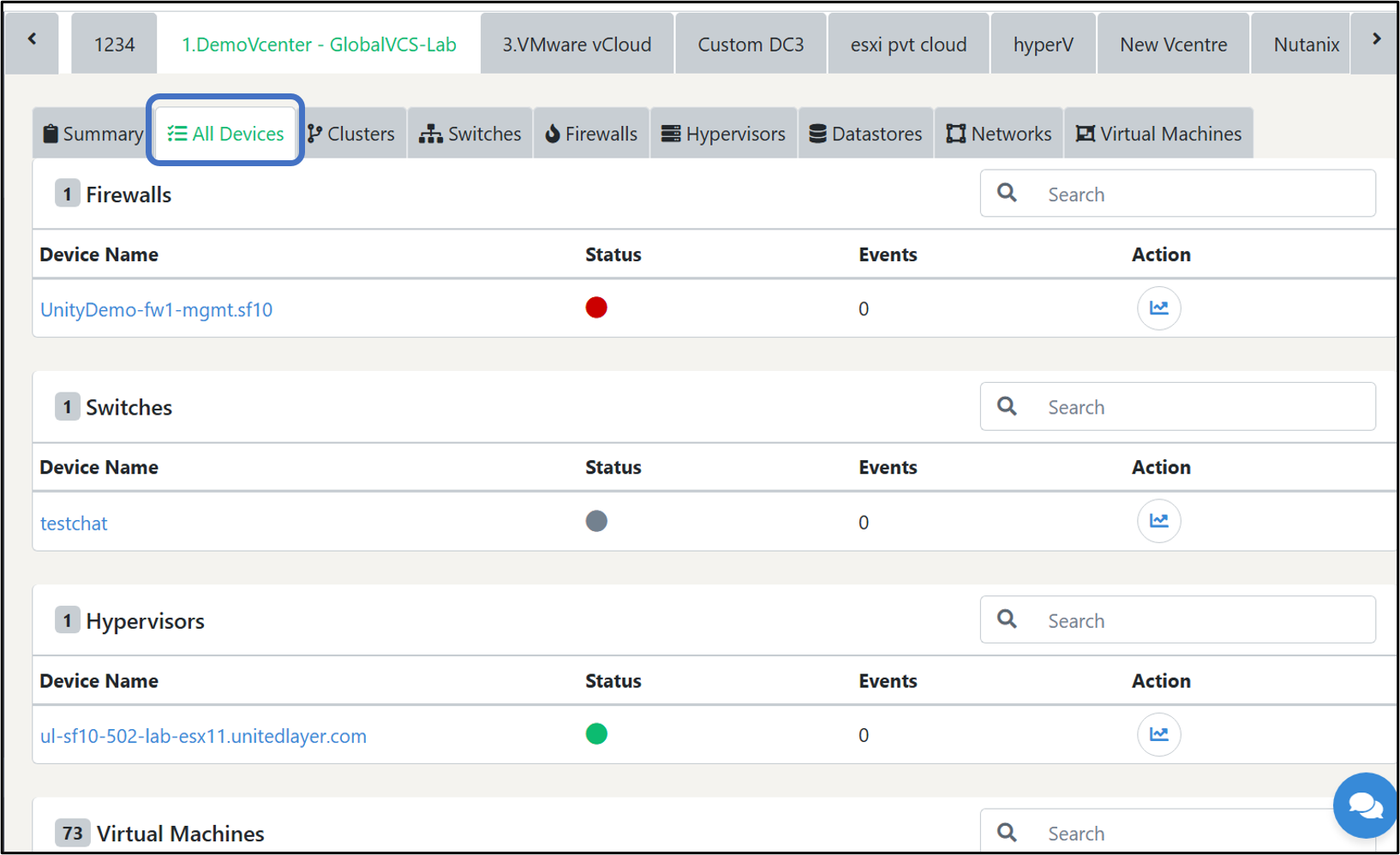
This section will have details on the “All Devices” tab of UnityOne AI
The current screen shows you information about your hypervisors, firewalls, load balancers, switches, bare metals, and virtual machines. You can also access details about a specific component, including Device Name, Status, Alerts, statistics, and status indicators.
- i. Green status indicator denotes that the device is up
- ii. Red status indicator denotes that the device is down
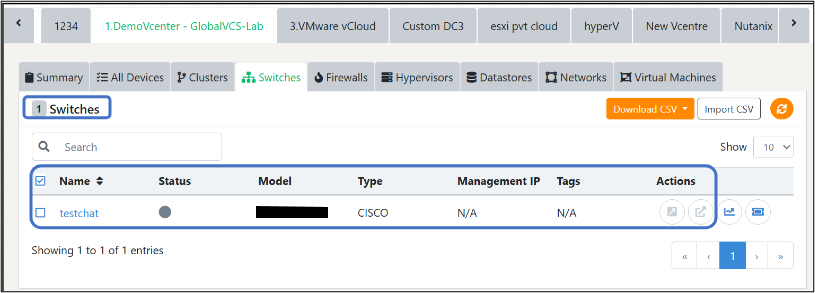
4.1.1.4.1 Switches
UnityOne AI can manage and monitor all your switches manufacturers.
This page shows the switch's name, status indicator, model and type, management IP, and associated tags.
NoteTo add a new Switch to this cloud, you must go to the “Devices” page and then add a Switch.
Action Buttons
1. Manage in the same tab: This action button will assist you to manage the devices via SSH in the same tab (as a floating terminal)
2. Manage in the new tab: This action button will help you to manage your SSH in the new tab
3. Switch statistics: You can get advanced monitoring data of the switch from this action button
4. Manage by creating support ticket: From this action button, you can manage your hypervisor by raising a ticket with the support team.
4.1.1.4.2 Firewalls
UnityOne AI can manage and monitor all your firewall manufacturers.
This tab will give you details about the name of the firewall, status indicator, model and type, management IP, and associated tags.
NoteTo add a new firewall to this cloud, you must go to the “Devices” page and then add a Switch.
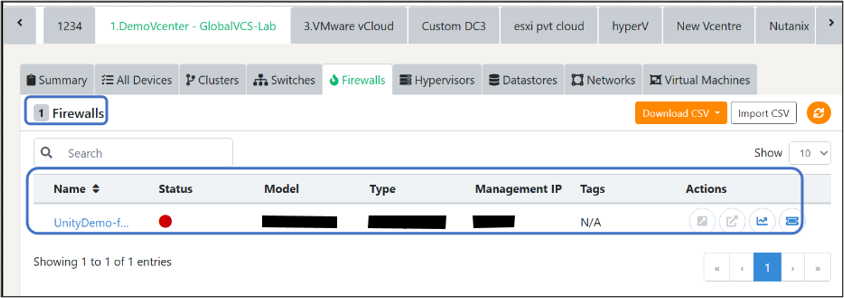
Action Buttons
1. Manage in the same tab: This action button will assist you to manage the devices via SSH in the same tab (as a floating terminal)
2. Manage in the new tab: This action button will help you manage your SSH in two ways. The first one is via web access which redirects to the web portal for management. The other is via console access which redirects you to the command terminal for device management. (If your web access is not configured, you can request web access from UnityOne AI support by clicking on the ‘Request web access’ button).
3. Firewall statistics: You can get advanced monitoring data of firewalls from this action button
4. Manage by creating support ticket: From this action button, you can manage your firewalls by raising a ticket with the support team.
4.1.1.4.3 Hypervisor
When your Private Cloud is registered with UnityOne AI, hypervisors are automatically discovered.
This screen will give you access to Hypervisor under the specific Private Cloud, a health status indicator (red for down, green for up), the virtualization type of respective hypervisors, operating system details, management IP, and associated tags.
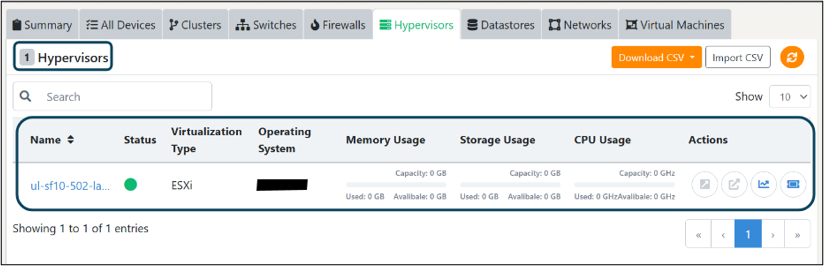
Action Buttons
1. Manage in the same tab: This action button will assist you to manage the devices via SSH in the same tab (as a floating terminal)
2. Manage in the new tab: This action button will help you manage your SSH in two ways. The first one is via web access which redirects to the web portal for management. The other is via console access which redirects you to the command terminal for device management. (If your web access is not configured, you can request web access from UnityOne AI support by clicking on the ‘Request web access’ button).
3. Hypervisor statistics: You can get advance monitoring data from this action button.
4. Manage by creating support ticket: From this action button, you can manage your hypervisor by raising a ticket with the support team.
4.1.1.4.4 Virtual Machines
Once you register your Private Cloud into UnityOne AI, your VMs running on the respective Private Cloud will be automatically fetched into the platform. A VM is a Virtual Computer that runs programs and deploys apps on your cloud ecosystems. With multiple VMs hosted across various Private Cloud locations, managing VMs without a unified VM management feature is often complex. Here, we offer customers a centralized VM management dashboard where admins can view and manage all VMs from a single window.
In this section, you can perform the following actions:
1. Names - of your Virtual Machines on UnityOne AI
2. Health status indicator - This indicates the status of the VM whether it is up or down (red for down, green for up)
3. Type of your VM - This button will give you the details on whether it is a Virtual Machine or a Template
4. Operating system details - This will give details on the OS running on the Virtual Machine
5. Tags - Here you can add tags to the VMs (any number of tags can be added to a single VM)
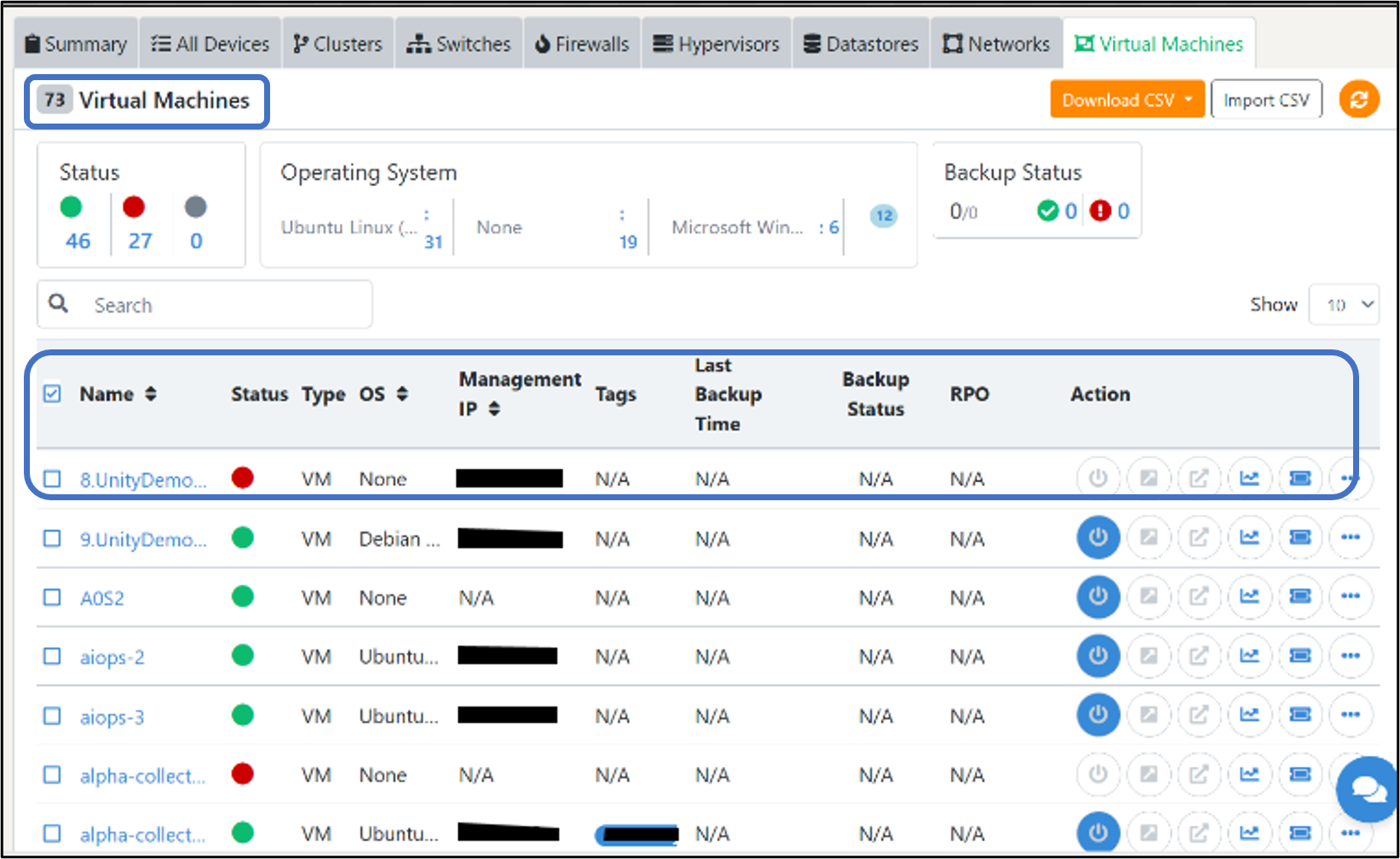
Action Buttons
UnityOne AI has multiple actions in this tab. You can click on the icons mentioned below to perform various actions:
1. Power on/off - Once you click on this, you will be asked to provide the Private Cloud credentials then you can use this action button to start or stop your VM
2. Create VM - This action button will help you create a new VM directly from UnityOne AI
3. Manage in same tab – This action button will assist you to manage the devices via SSH in the same tab (as a floating terminal)
4. Manage in new tab – This action button will help you to manage the device via SSH in the new tab
5. Web console – This action button help you get VM console access.
6. Virtual machine statistics – From this action button, you can get advanced monitoring data of your VM. This action button will help you configure monitoring if it is not activated yet. (If the monitoring is already configured, then it will show you the statistics)
7. Manage by creating a support ticket – From this action button, you can manage your VMs by raising a ticket with the support team.
Click on the three-dotted icon (...) to find other actions listed below:
1. Edit Settings – This action button will assist you to edit your VM Properties.
2. Clone VM – You can use this action button to replicate a VM
3. Reboot VM – This action button will help you to reset your VM
4. VM info – Use this action button to get server details of the VM
5. Shutdown Guest OS – This action will help you in turning off the OS.
6. Mount VMware tools – This action button will help you mount VMware tools.
7. VM info – This action button will help you to get server details of your VM.
8. Update management IP - You can action button to update the IP of a VM (The IP address of the VMs will not be visible if VMware tools are not installed; in that case, you can manually update the VM IP to the Unity database, which will help you remotely manage the VM)
9. Update tag – Use this action button to update a VM with another tag.
4.2 Public Cloud
A Public cloud is a type of computing where resources are offered by a third-party provider via the internet and shared by organizations and individuals who want to use or purchase them.
NoteAll major public clouds are supported within the UnityOne AI platform.
Navigation
From your left menu panel, navigate to Unity Cloud > Public Cloud to onboard and manage public cloud subscriptions.
Prerequisites
To integrate a public cloud subscription with UnityOne AI, you must provide the subscription details while registering with the platform.
The public cloud module is user-specific, and every user should register the subscription explicitly to View, manage, and monitor the Public Cloud services through the UnityOne AI platform.
4.2.1 How to add a public cloud into UnityOne AI
You can add your public cloud subscriptions by clicking on the 'Add account' button in the upper right of the page.
The UnityOne AI platform's current version supports integration with AWS, Microsoft Azure, Google Cloud Platform (GCP), and Oracle Cloud Infrastructure (OCI) subscriptions. If you do not see the Public Cloud provider in the list and would like it to be integrated with the platform, please raise a support request.
4.2.1.1 AWS
This module will help you to add or register your AWS subscription with the UnityOne AI portal. You can add as many subscriptions as possible to the module to get a consolidated view of the services and to manage & monitor the same.
AWS subscriptions are integrated via API, and valid API keys should be generated for your account to register with the platform.
This segment contains information about your AWS account, including options like assigned usernames and account names and a region selection.
NoteAWS cloud services are only accessible after specifying your region from the drop-down list of available regions since AWS cloud is managed per region.
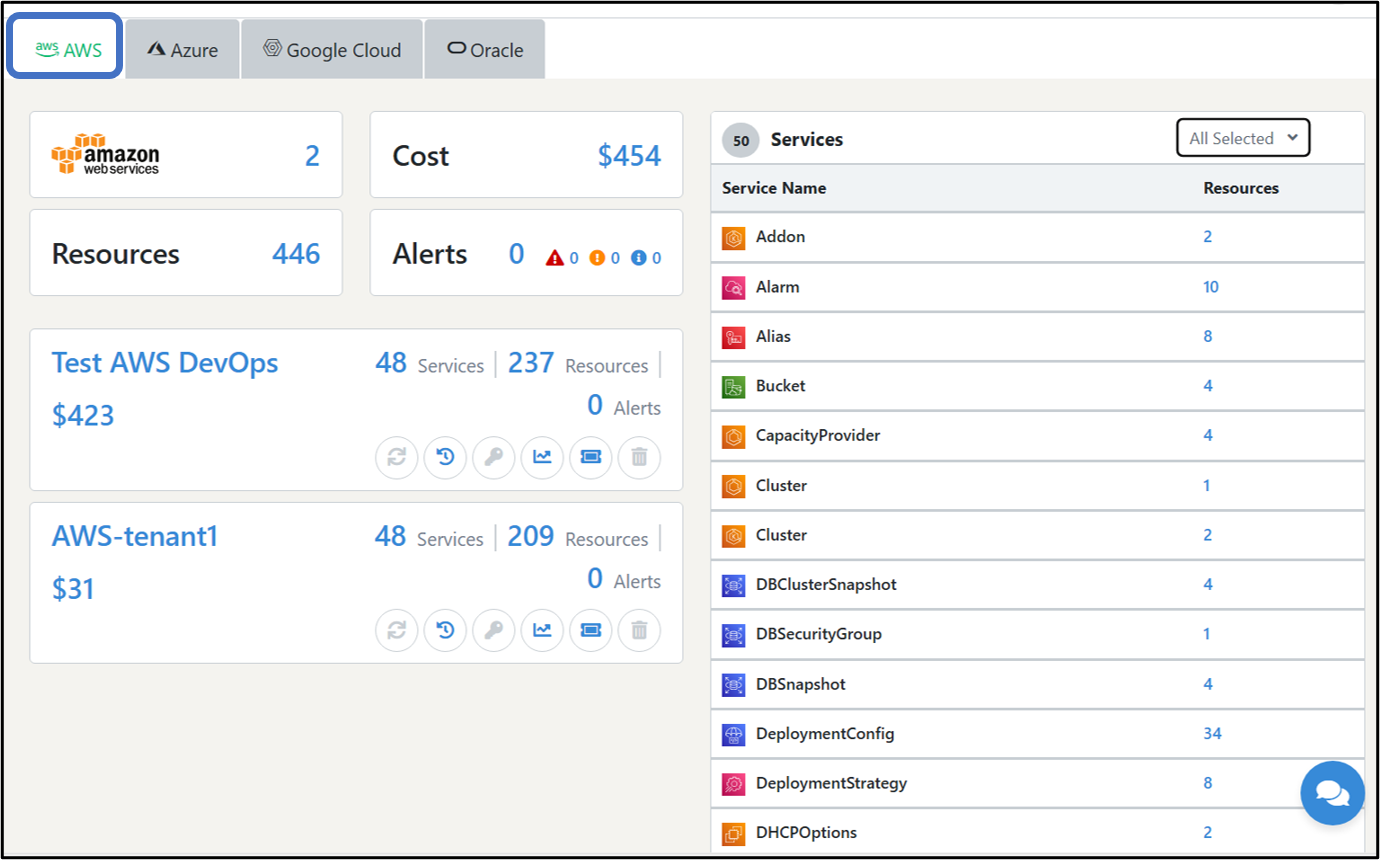
4.2.1.1.1 How to Add an AWS account into UnityOne AI
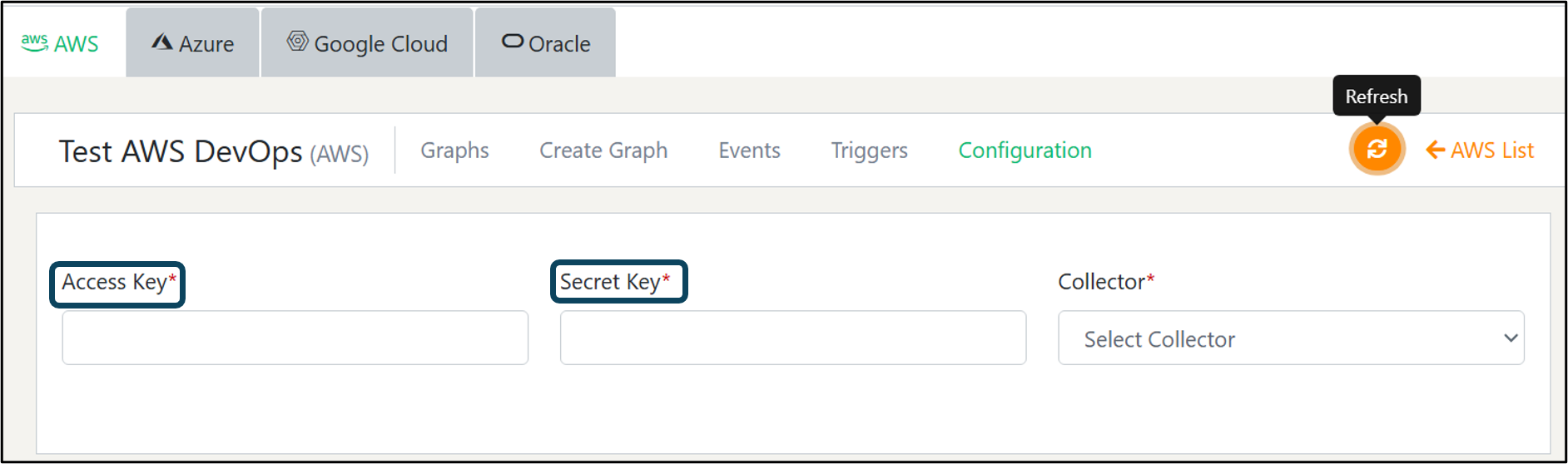
To Register your AWS subscription, click on ‘Add Account’ and fill out the form with the required information. Details are given below:
- 1. Account Name (Enter a user-friendly account name to differentiate the subscriptions)
- 2. Access Key (Enter the Access Key of your AWS account)
- 3. Secret Key (Enter the Secret key of your AWS account)
NoteTo generate the AWS access key and secret key, follow the instructions written below:
- 1. Login to your AWS IAM console
- 2. On the navigation menu select users
- 3. Choose your IAM username
- 4. Open the security credentials tab
- 5. Choose ‘Create Access Key’
- 6. Once the access key is generated, click on ‘Show’ to view your Access key ID and Secret Key
- 7. You can also download the key pair by clicking on ‘Download.csv file’
Actions Buttons
1. Show Inventory: This button will give you the details on all the subscribed services under this subscription (Choose the region before you select this action).
2. Change API Keys: This button will assist you in changing API keys by providing the Access Key and Secret Key details. Any changes in the API keys can be updated using this action button (Access Key or Secret Key are provided at the time of the registration).
3. Edit: Use this button to edit the subscription name provided at the time of adding the subscription to UnityOne AI.
4. Manage by creating a support ticket: From this action button, you can manage your storage devices by raising a ticket with the support team.
5. Delete: Using this button, you can delete the subscription from the UnityOne AI portal.
4.2.1.1.2 Show AWS Inventory
Once you select the region from the regions section and click on the ‘Show Inventory’ icon. All the cloud resources subscribed to your AWS account will be displayed on the page.
UnityOne AI supports the management of all available services on AWS, such as S3, EC2 instances, AWS ECS, Amazon EBS, Amazon RDS, Amazon VPC, Amazon Auto-scaling, Amazon Cloud Watch, and Amazon IAM, Amazon app mesh, Amazon API gateway, etc.
NoteThis user guide includes the widely used AWS services, but you can request us to add new services to your UnityOne AI portal.
4.2.1.1.2.1 Instances
You may see your EC2 instance information by clicking the instances tab. This includes the instance ID, instance type, account name associated with the VM, public IP address, availability zone, and launch time.
4.2.1.1.2.1.1 How to create a new EC2 instance on AWS from UnityOne AI
By clicking on the ‘Create Instance’ icon, one can easily create a VM instance by providing the mandatory information which are mentioned below:
1. Image ID - Here you must select an option from the available drop-down
2. Availability Zone - Here you must select the availability zone of the region from the drop-down
3. Instance Type- Here you must select the instance type from the drop-down
4. Number of Instances- You must enter the count of instances here
5. VPC - You must select VPC from the available drop-down here
6. Shutdown behaviour - Here you must select the ‘Stop’ or ‘Terminate’ option
7. Key pair behaviour- Here you must select an option from the drop-down
8. Storage Size - You must enter the storage type (min 3 GiB) here
9. Storage Type- You must select storage type from drop-down menu here
10. Delete on termination - Tick or untick the box as per your choices
11. Security group - Here you must elect the security group from the drop-down
12. Tags key- You must enter the tags key here
13. Tags value - You must enter the value of the tag here
14. Tags applicable- You must select tag applicability here
When you are satisfied with your selections, click on "Submit," and a VM instance will be created for you.
NoteIf you get an error after clicking submit, please ensure again that all the provided information is correct and if the issue persists, contact the UnityOne AI support team.
1. Power on – This action button will assist you to switch on/off a VM. Terminate – This action button will help you to terminate a VM
2. Instance Statistics – This action button will help you to monitor a VM.
3. Show cloud watch statistics- This action button will show stats of an instance from AWS cloud watch
4. Manage by creating support ticket- From this action button you can manage your VMs by raising a ticket with the support team.
5. VM info - This action button will help you to get AWS instance details.
6. Create an image - This action button will assist you to create an image from UnityOne AI.
7. Attach auto scaling group - This action button will assist you to attach an auto scaling group to a VM.
8. Attach network interface - You can attach a network interface from this action button.
4.2.1.1.2.2 Snapshots
Get the details of all the snapshots created in your AWS public cloud account, including the description of snapshots, size in GB, status, encryption, start time and progress.
Action Buttons
1. Copy snapshot - You can copy a specific snapshot from this action button.
4.2.1.1.2.3 Volumes
This section contains information on the volumes in your AWS account, including the availability zone, encryption, volume type, size, state, IOPS, and tags.
4.2.1.1.2.4 S3
This section details the S3 buckets you have created, such as the bucket name, region, size, and creation date. You can also create a new bucket by clicking on the “Create S3 Bucket” option.
Action Buttons
1. Delete - You can delete a S3 bucket from this action button.
2. Upload a file - This action button will assist you to upload a file into the bucket
3. Upload a file history - This action button will help you to upload the history of files.
4.2.1.1.2.5 Auto Scaling Groups
This page shows information about each auto-scaling group, including its name, instances, availability zones, minimum, and maximum sizes, and desired capacity.
4.2.1.1.2.6 Security Groups
This tab makes it easier to access details about the security groups set up to secure the resources in your AWS account. The name, ID, description, VPC ID, and owner ID of the security group are all included in this dataset.
4.2.1.1.2.7 Network Interfaces
Analyze the details of your network interface, such as your AWS network interface ID, availability zone, status, MAC address, private IP address, and private DNS name.
4.2.1.1.2.8 Containers
This page displays details on the containers you have in the AWS cloud. By selecting ‘Add controller,’ you can add controllers to Kubernetes or Docker and provide the required details.
Required Details:
If your controller type is Kubernetes:
1. Name: In this field, you must enter your preferred name.
2. Host Name: In this field, you must enter the name of the pod in which your container is running.
3. Username: In this field, you must enter the associated email ID.
4. Password: In this field, you must enter your password.
If your controller type is Docker:
1. Name: In this field, you must enter your preferred name.
2. Host Name: In this field, you must enter the name of the pod in which your container is running.
3. Client Certificate: Upload the client certificate configured by a directory.
4. Client Key: Upload the client key associated with the docker.
5. Client Certificate Authority (CA): In this field, you must upload the certificate authority for the docker registration.
4.2.1.1.2.9 Users
In this section you can see information about users connected to your AWS account. The user details include Name, creation date, and Amazon Resource Names.
Action Buttons
1. Show user group - This action button gives you details about Group Name, Created Date, Group ID, ARN, and Path.
4.2.1.2 Azure Cloud
Microsoft Azure, often referred to as Azure, is a cloud computing platform, which offers access, management, and development of applications and services.
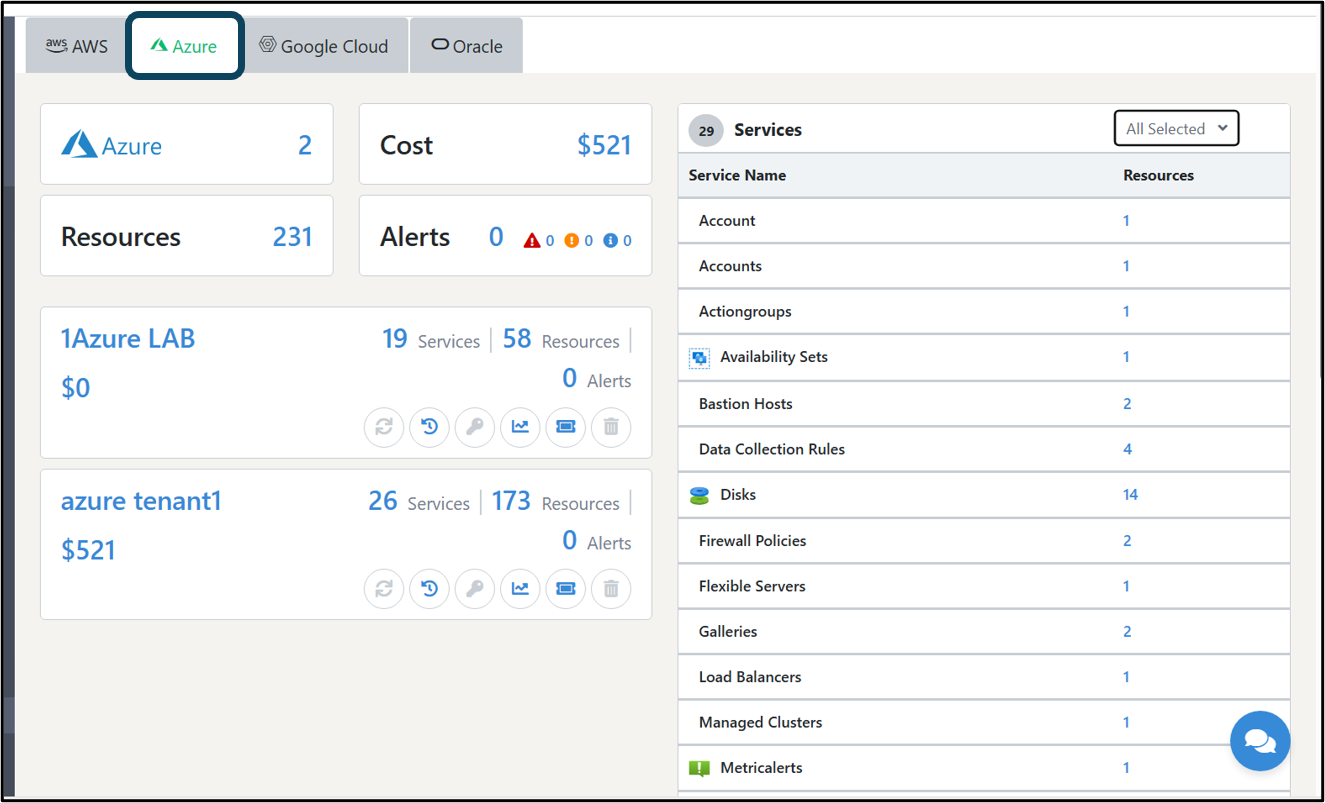
We have a dedicated tab under the Public Cloud Module that will give you the option to manage your Azure accounts within UnityOne AI.
4.2.1.2.1 How to add a new Azure account into UnityOne AI
In this section, we will explain the steps to add an Azure account to UnityOne AI
To add an Azure account to UnityOne AI, click on the ‘Add Account’ option available on the top right-hand side, then fill all the fields that are mentioned below:
1. Account name – You must provide an account name of your choice in this field
2. Email – Here you must provide the Email ID which is registered with your Azure account
3. Password - In this field, you must provide the password of your Azure account
4. Subscription ID - You must provide the subscription ID of your Azure account
Click on ‘Submit’ to add your Azure account.
NoteIf you get an error after clicking ‘Submit,’ ensure all the provided information is correct. If the issue persists, contact the UnityOne AI support team.
Once your Azure account is added, you will be able to see the information of your accounts, such as account name, Subscription ID, and other details.
A detailed explanation of each of the action buttons is given below:
Actions Buttons
1. View Resource Groups - Select this button to view the resource groups of your Azure account
By performing this action, you can view the resource group name, location, and tags associated with them.
2.1.2.2 Additional Details Under Resource Groups:
1. Create NIC – This action button will help you to create a new NIC
2. Show inventory – This action button will show you the resources under your azure account such as VM, containers, storage, network, etc.
3. Delete group – You can use this button to delete a resource from a group.
4.2.1.2.3 How to add a resource group
On the top right hand of the resource groups page, click on the ‘Add resource group,’ fill in the details such as resource group name, select location, enter a tag, and click on ‘Submit’ to create a new group.
NoteIf you get an error after clicking submit, please ensure again that all the provided information is correct and if the issue persists, contact the UnityOne AI support team.
4.2.1.3 Google Cloud
Google Cloud Platform (GCP) is a suite of cloud computing services that runs on the same infrastructure that Google uses internally for its end-user products, such as Google Search, Gmail, Google Drive, and YouTube.
4.2.1.3.1 How to add a Google Cloud account into UnityOne AI
To add your Google Cloud account, click on the ‘Add Account’ button, which is available on the top right-hand side of the page, and fill in the details as listed below:
1. Account Name – Here you must provide a name of your choice.
2. Email - Enter the email address associated with your Google Cloud account
3. Service Account info - Enter the service account info which is associated with your GCP account
Click on ‘Submit’ to add your google cloud account to the UnityOne AI platform.
Note: If you get an error after clicking submit, please ensure again that all the provided information is correct and if the issue persists, contact the UnityOne AI support team.
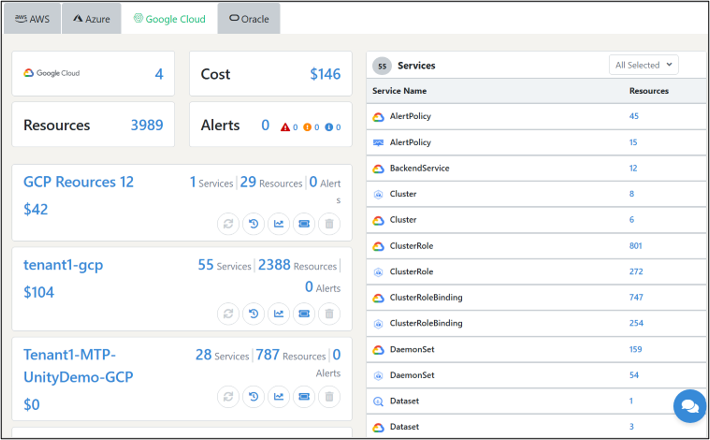
Once your Google cloud account is added to UnityOne AI, you will find the following details:
- 1. Name of your GCP account
- 2. Email address
- 3. Project ID
- 4. Regions (a drop-down list of regions added by you in your GCP account)
You must select a region from the drop-down section, after you select your region, you will be able to perform multiple actions, which are mentioned below:
Action Buttons
1. Show inventory – This button will help you to view your Google Cloud inventory of the selected region.
Once you click on ‘Show inventory,’ the page will display 3 different tabs: Virtual Machines, Snapshots, and Containers.
4.2.1.3.1.1 Virtual Machines
The Virtual Machines tab will display the details like Name, VM (Running status of VM: Red and Green), Zone, CPU Platform, Operating System, Account Name, Internal and External IP, Tags, and the following action buttons:
Action Buttons
1. Power: You can use this button to switch on/off your VMs
2. Manage by creating a support ticket: From this action button you can manage your VMs by raising a ticket with the Unity support team.
4.2.1.3.1.2 Snapshots
This tab will display the details of your google cloud snapshots from where you can view and manage them simultaneously.
4.2.1.3.1.3 Container
If you do not have any containers added to your Google cloud account, you can do it by clicking on ‘Add Controller’ button from the top right-hand side.
Once you click on add controller, you will be prompted to select the controller type (Kubernetes, Docker) and based on your choice you will be required to fill the following details:
If your controller type is Kubernetes:
1. Name: In this field, you must enter your preferred name.
2. Host Name: In this field, you must enter the name of the pod in which your container is running.
3. Username: In this field, you must enter the associated email ID.
4. Password: In this field, you must enter your password.
If your controller type is Docker:
1. Name: In this field, you must enter your preferred name.
2. Host Name: In this field, you must enter the name of the pod in which your container is running.
3. Client Certificate: Upload the client certificate configured by a directory.
4. Client Key: Upload the client key associated with the docker.
5. Client Certificate Authority (CA): In this field, you must upload the certificate authority for the docker registration.
From this tab, you can view the details of your containers hosted on the Google cloud platform which includes details like clusters, nodes, pods, and other related services.
1. Add billing details – Use this action button to add your billing detail.
Once you click on the ‘Add billing details’ button, you need to fill the mandatory data mentioned below:
1. Account Name: In this field, you must enter the account name of your Google Cloud Account for which you want to add the billing details.
2. Billing Account: You must select the billing account details from the drop-down.
3. Datasets: In this field, you must select datasets.
Click on ‘Submit’ to add your billing details to the Google Cloud account successfully.
NoteIf you get an error after clicking submit, please ensure again that all the provided information is correct and if the issue persists, contact the UnityOne AI support team.
1. Edit - This action button will assist you to edit your GCP Account details
2. Delete account - This action button will help you to delete the GCP account
3. Manage by creating a support ticket – From this action button you can manage your containers by raising a ticket with the support team.
4.2.1.4 Oracle Cloud
Oracle Corporation provides Oracle cloud, which offers services such as storage, network, compute, and applications globally via its global network of data centers. Since it is an emerging cloud service provider, we have added OCI management under our public cloud management.
4.2.1.4.1 How to add an Oracle Cloud account into UnityOne AI
To add an Oracle cloud account to UnityOne AI, first, you need to click on the ‘Add Account’ button from the top right-hand side of the page; then, you will be asked to fill in the details listed below:
1. Name - In this field, you must enter a user-friendly name for your Oracle Cloud account
2. User ID- Here you must enter the User ID of your Oracle account.
3. Tenancy ID - In this field, you must enter your tenancy ID that was initially assigned to your account.
4. Region - In this section, you must select your region from the drop-down.
5. Fingerprint- Here you must enter your fingerprint details.
6. Private Key - Here you must upload your private key file.
After entering the details, click ‘Submit’ to add your Oracle Cloud account to UnityOne AI.
Note: If you get an error after clicking submit, please ensure again that all the provided information is correct and if the issue persists, contact the UnityOne AI support team.
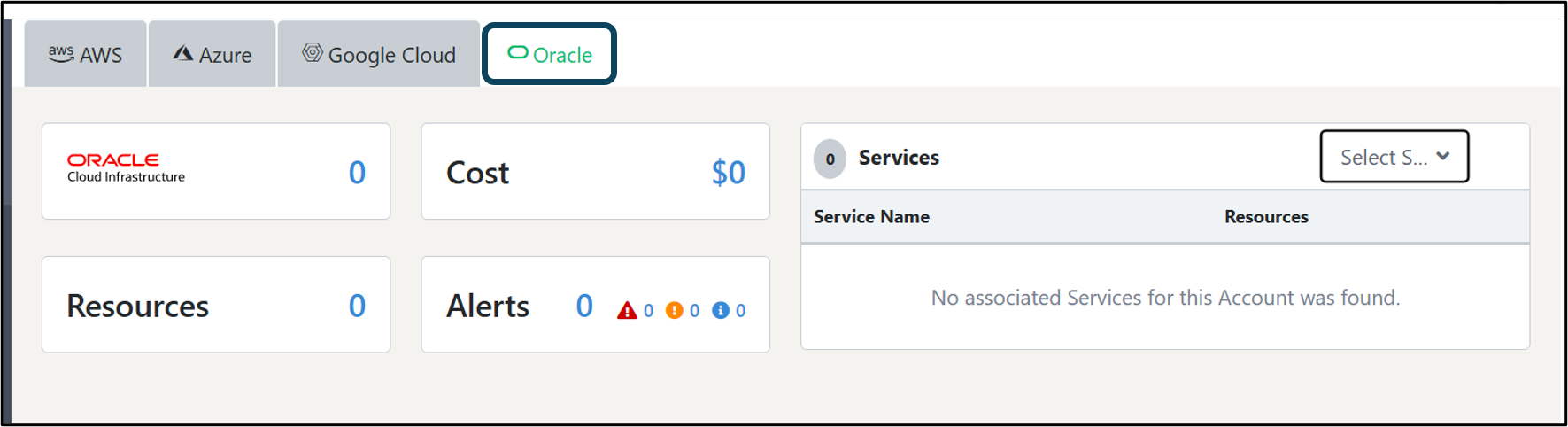
In the Oracle cloud tab, once your accounts are successfully enrolled within UnityOne AI, you can see information about the name of your account, region, and user ID. Along with that, you are given the below action buttons to manage your account.
Action Button functionality
1. Show Inventory - This button will provide information about your cloud resources such as VM, storage, network interfaces, users, etc.
Once you click on ‘Show inventory,’ the page will display 3 different tabs: Virtual Machines, Users, and Storage Services.
4.2.1.4.1.1 Virtual Machines
On this page, you will find details like Name, Status (VM Running status), Image Name, Region, Availability Domain, IP Address, Tags, and the below mentioned action buttons:
1. Start: Use this action button to start your VM.
2. Terminate: Use this action button to terminate or stop your VM.
3. Update Tags: You can use this action button to edit the existing tag or add a new tag to the VM.
4. Manage by creating a support ticket : From this action button you can manage your VMs by raising a ticket with the support team.
4.2.1.4.1.2 Users
This page will display the details of added users such as name, email, status, email verification, and description.
4.2.1.4.1.3 Storage Services
If you have not created any buckets yet, you can do this by clicking on the ‘Create Bucket’ option. After you click on ‘Create Bucket,’ you must enter the details of your bucket name.
NameThe bucket name must be unique.
On this page, you will be able to view the details of your storage services including details like name, E Tag, and the following action buttons:
1. Show Files: This will display the files associated with the bucket (you can also delete the files from here).
2. Delete: This action button will help you delete the bucket.
3. Upload a file: Through this, you can upload files to the bucket.
4.3 Data Center Infrastructure Management (DCIM)
A data center is a building or a space with dedicated servers mounted. Systems are used for storage, networking, hosting, processing data, and other business applications operating via the help of physical devices and servers. It includes switches, routers, load balancers, PDU, storage devices, etc.
Navigation
From the left-hand side menu widget, navigate to Unity Cloud > Data Center from the drop-down to view the data center management page.
4.3.1 Add a Data Center
Navigate to Menu > Unity Cloud > Data Center When you click on the three dots (︙) in the top right corner, you will find options like “Add,” “Edit,” and “Delete.” Click on “Add” and follow the instructions below:
1. Name – Enter the preferred name of your data center.
2. Location – Once you enter the location, you will find it in the available drop-down
Click on ‘Submit’ to add your data center.
Note If you get an error after clicking submit, please ensure again that all the provided information is correct and if the issue persists, contact the UnityOne support team.
4.3.2 Data Center Page UI
You will find multiple tabs on this page with the names of available data centers added to UnityOne. You can also select them to view and manage your data center.
Once you have selected your data center, you can find tabs such as cabinets, PDUs, Private Cloud, etc.
NoteThe same applies to all the data centers.
4.3.2.1 Cabinet
From the cabinets tab, you can view, details of cabinets, such as the name of the cabinet, model, vacant units, capacity, and CO2 emission.
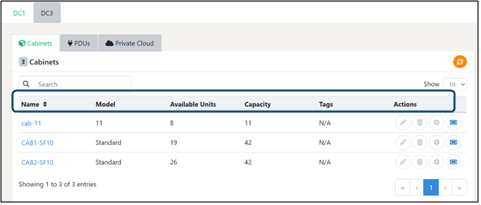
You can manage your cabinets by using the action buttons mentioned below:
Action Buttons
1. Edit cabinet- This action button will help you to edit your cabinet details
2. Delete cabinet- This action button will assist you to delete your cabinet
3. Manage panel- This action button will help you to manage your panel you can edit, add, and delete your panels)
4. Manage by creating a support ticket- From this action button you can manage your cabinets by raising a ticket with the support team.
4.3.2.1.1 How to add a cabinet into UnityOne
Navigate to the ‘Add’ button from the top-right hand side and fill in the cabinet details like:
1. Name: Enter a name for your cabinet
2. Model: In this field, you must select the model from the drop-down
3. Size: Enter the size of the cabinet.
4. Contract start date: Select the contract start date from the calendar grid.
5. Contract end date: Select the contract end date from the calendar grid.
6. Renewal: In this section, you must enter the renewal date of your contract.
7. Cost: Enter the cost per month.
8. Annual escalation: Enter the percentage of escalation annually.
9. Enter a new tag: From this section, you can create a new tag.
Now click on ‘Submit’ to successfully add a cabinet to UnityOne
NoteIf you get an error after clicking submit, please ensure again that all the provided information is correct and if the issue persists, contact the UnityOne support team.
4.3.2.1.2 Cabinet View
To visualize the rear and front view of your cabinets, click on Cabinet Name, which will redirect you to a new page, and select your preferred view.
For viewing the heat map of your data center, a check box is provided on top of the page.
From the visual view of your physical cabinets, you can remotely view, monitor, and manage various devices such as firewalls, load balancers, bare metals, switches, storage, and hypervisor.
Click on the arrow mark beside the device name to view more device information. Here you will find details of manufactures, management IP, uptime, temperature, last rebooted, device type, name, and model. Additionally, you can monitor your devices from the monitoring tab.
From UnityOne, you can blink your bare metal servers in your data center remotely.
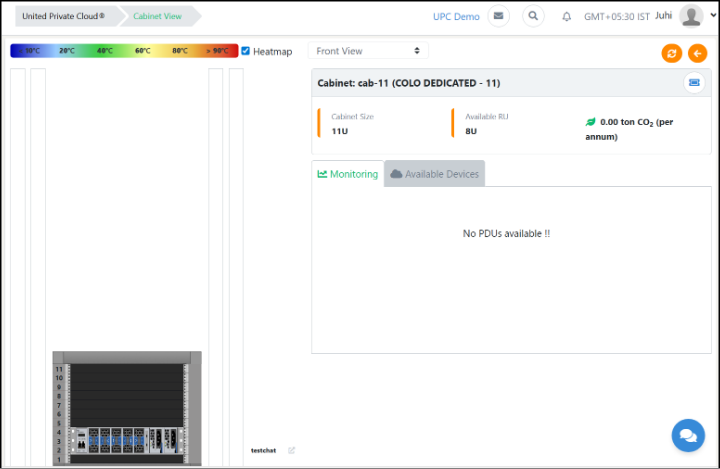
UnityOne helps technicians to locate the device in the data center with an action button (in the shape of a bulb) labelled ‘Blink Server’ in the upper right-hand corner of the bare metal server info widget (this action is only available to authorized users).
4.3.2.2 Power Distribution Unit (PDUs)
A PDU is a device for controlling electrical power in a data center. They are designed to provide standard electrical outlets for data center equipment and have monitoring and remote access capabilities.
4.3.2.2.1 How to add a PDU into UnityOne
From the top right-hand corner, click on the ‘Add PDU’ button; you will be prompted to fill in the required details:
1. Name: Enter a name for your PDU
2. Asset tag: Enter a tag if it exists
3. Manufacturer: Select a manufacturer from the drop-down
4. Select PDU model: Select the model from the drop-down
5. Select PDU Type (Horizontal/Vertical): Select the orientation of your PDU.
6. Select power circuit: Select the available power circuit from the drop-down.
7. Select cabinet: Select cabinet from the drop-down.
8. Size: Enter the size of the PDU.
9. Cost: Enter the cost per month.
10. Sockets: Enter the number of sockets inside the PDU.
11. Position: For horizontal PDU type, enter the device position in the format of numbers. For vertical PDU type, enter the device position in the format of alphabets.
12. Device Management IP: Enter the device IP address for management.
13. Annual escalation: Enter the percentage of escalation annually.
14. Enter a new tag: From this section, you can create a new tag.
Click on ‘Submit’ to successfully add a PDU.
NoteIf you get an error after clicking submit, please ensure again that all the provided information is correct and if the issue persists, contact the UnityOne support team.
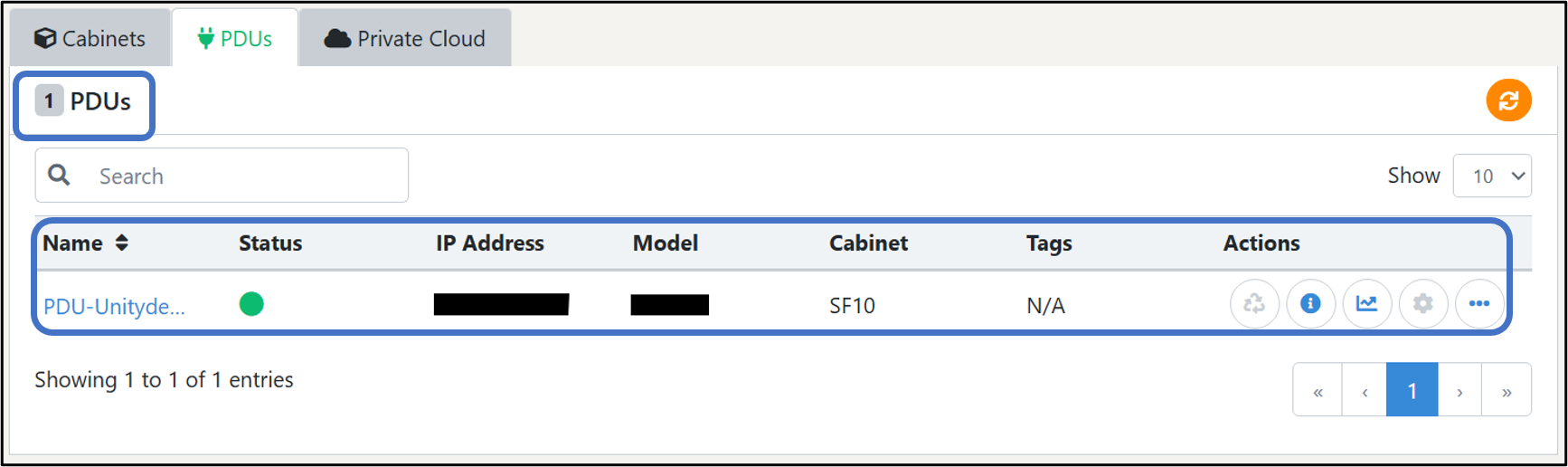
From the PDUs tab, you can find information about the name of the PDU, status (green for up, red for down), IP address, model, cabinet location, CO2 emission value, tags, and multiple action buttons to manage PDUs.
Action Buttons
1. Recycle – This action button will help you to recycle your PDU (only authorized users are allowed to do it)
2. PDU info – This action button will help you to fetch your PDU details
3. PDU statistics – Use this action button to provide users with advanced monitoring that includes graphs, health status, current, power, voltage, port info, and alerts.
4. Configure socket mapping – This action button will assist you to map your PDU sockets.
From the configure socket mapping functionality, you can map the devices to your PDU socket. As soon as you click on the action button, you will see a pop-up from where you can map the required device by selecting it from the drop-down to a particular PDU socket number.
Click on “Submit” to reflect the applied socket mapping configurations.
Click on three dots (...) to view more actions
1. Alert Notification - This action button will help you enable alert notifications for a particular user.
2. Manage by creating a support ticket - From this action button you can manage your hypervisors by raising a ticket with the support team.
3. Edit - You can use this to edit details of your PDU Delete- Use this action button to delete a PDU from UnityOne
4.3.2.3 Private Cloud
In the Private Cloud module, you can view the details of your Private Cloud resources, such as VM, hypervisors, containers, switches, firewalls, load balancers, and other devices to manage your Private Cloud resources.
NoteTo learn how to add a private cloud, please view the Private Cloud section of this user guide.
4.4 Devices
In the Devices module, you can view, monitor, and manage all physical and virtual devices mapped into UnityOne. You can also add new devices, such as switches, load balancers, firewalls, hypervisors, bare metal servers, etc., from the same module by using CRUD operations.
We support 300+ manufacturers of physical devices, and all those supported devices can be manually entered into UnityOne.
4.4.1 Devices Page UI
On the devices page, you will find different tabs on the top grid; by navigating into each tab, you will view information about all your devices, such as switches, load balancers, firewalls, etc.
NoteFor every device, you can configure monitoring by simply clicking on the configure monitoring button that is present in each of the respective device tab. If you have already configured the monitoring, you can view statistics of the device from the same action button.
4.4.1.1 Switches
A switch is a device that connects multiple devices on the same network within a data center, and it is widely used to connect servers and creates a network of shared resources.
A few of our supported switch manufacturers are Cisco, Juniper, Brocade, Dell, HP, etc.
4.4.1.1.1 How to add switch
At the top right-hand side of the page, you will see a button ‘Add switch;’ click on it and fill in the required details below:
1. Name – In this field you must enter a name for your switch
2. Private Cloud – In this field, you must select a Private Cloud from the drop-down to link your switch
3. Select Manufacturer - In this field you must select a manufacturer from the drop-down
4. Model - In this field, you must select model from the drop-down
5. Management IP – In this field you must enter a device IP address for console access
6. Cabinet – In this field you must select a cabinet from the drop-down
7. Position – In this field you must enter the position of device in the cabinet
8. Size – In this field you must enter size of the device
9. Asset tag – In this field you must enter a tag if it exists
10. Enter a new tag – In this field you must enter a name to create a new tag
Click on ‘Submit’ to add a switch to UnityOne
NoteIf you get an error after clicking submit, please ensure again that all the provided information is correct and if the issue persists, contact the UnityOne support team.
In this section, you will find details about the name of the switch, a status indicator (running status of the switch: Red indicates down, Green indicates up), model of the switch, cloud it is attached to, type of switch, and management IP and tags. Also, there are multiple action buttons.
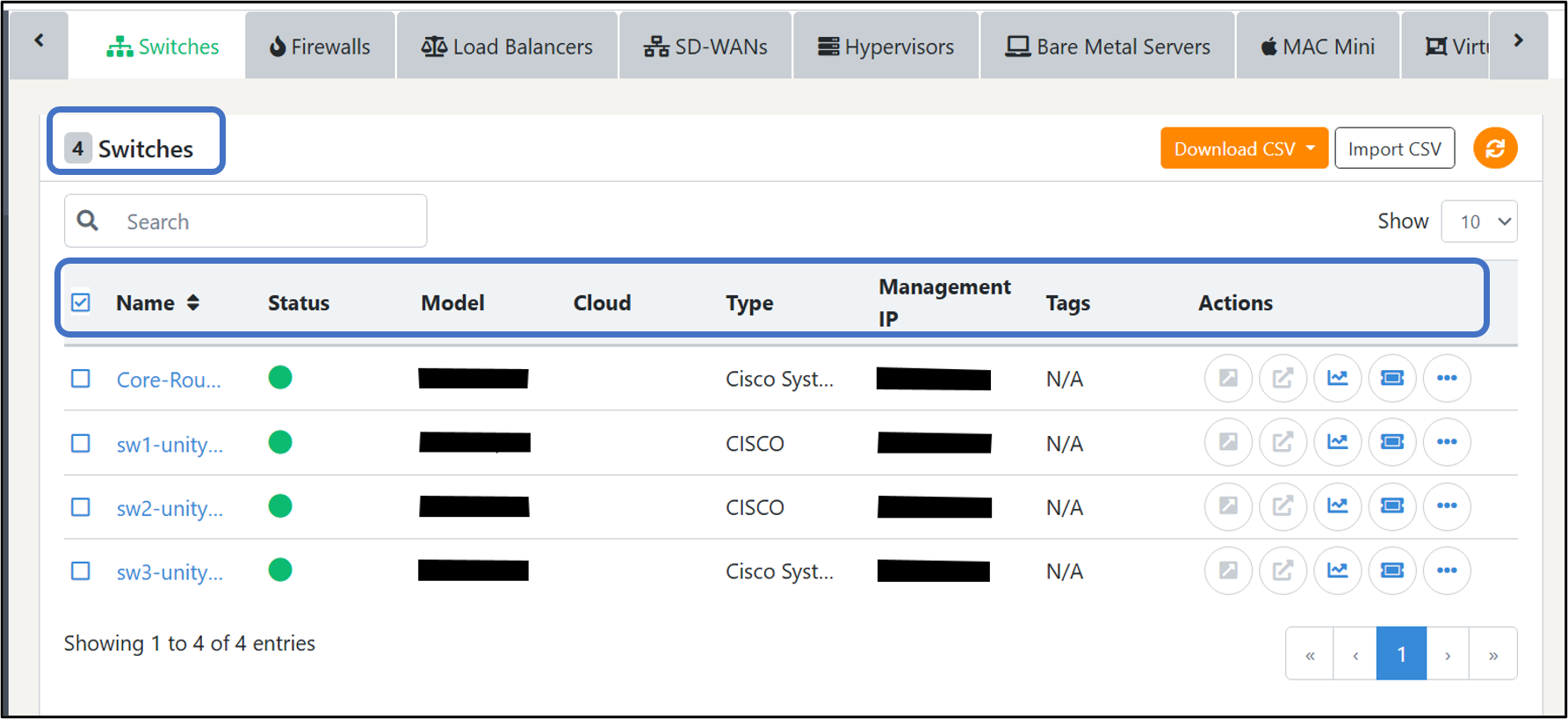
Action Buttons
1. Manage in same tab – This action button will assist you to manage the devices via SSH in the same tab (as a floating terminal)
2. Manage in new tab - This action button will help you manage the devices via SSH in two ways. The first one is via web access which redirects to the web portal for management. The other is via console access which redirects you to the command terminal for device management. (If your web access is not configured, you can request web access from UnityOne support by clicking on the ‘Request web access’ button).
3. Switch statistics – This action button will assist you to get advance monitoring data of switch
4. Manage by creating support ticket – From this action button you can manage your Switches by raising a ticket with the support team.
Click on the three dots icon (...) to view additional actions.
1. Edit – You can use this to edit details of your switch.
2. Delete – Use this action button to delete a switch from UnityOne.
3. Alert Notification- This action button will help you enable alert notifications for a particular user.
4.4.1.2 Firewalls
A firewall is a hardware or software device that monitors and controls the flow of entering and exiting traffic of a network server.
We support firewall manufacturers like Cisco Juniper, Palo alto, Fortinet, Checkpoint, SonicWall, Watchguard, Net gear, etc.
4.4.1.2.1 How to add a Firewall
If you navigate your cursor to the top-right hand side of the page, you will be able to view the button ‘Add Firewall.’ Click on it and enter the details mentioned below
1. Name – In this field you must enter a name for your firewall
2. Private Cloud – In this field you must select a Private Cloud from the drop-down to link your firewall
3. Select Manufacturer - In this field you must select a manufacturer from the drop-down
4. Model - You must select a model from the drop-down here
5. Management IP – In this section you must enter a device IP address for console access
6. Cabinet – In this field you must select a cabinet from the drop-down
7. Position – In this field you must enter the position of device in the cabinet
8. Size – Enter the size of the device here
9. Asset tag – You must enter a tag if it exists
10. Enter a new tag – You must enter a name here to create a new tag
Click on ‘Submit’ to successfully add your firewall to UnityOne.
NoteIf you get an error after clicking submit, please ensure again that all the provided information is correct and if the issue persists, contact the UnityOne support team.
In this tab, you will find details about the name of the firewall, a status indicator (running status of the Firewall: Red indicates down, Green indicates up), the model of the firewall, the type of firewall, and the management IP and tags.
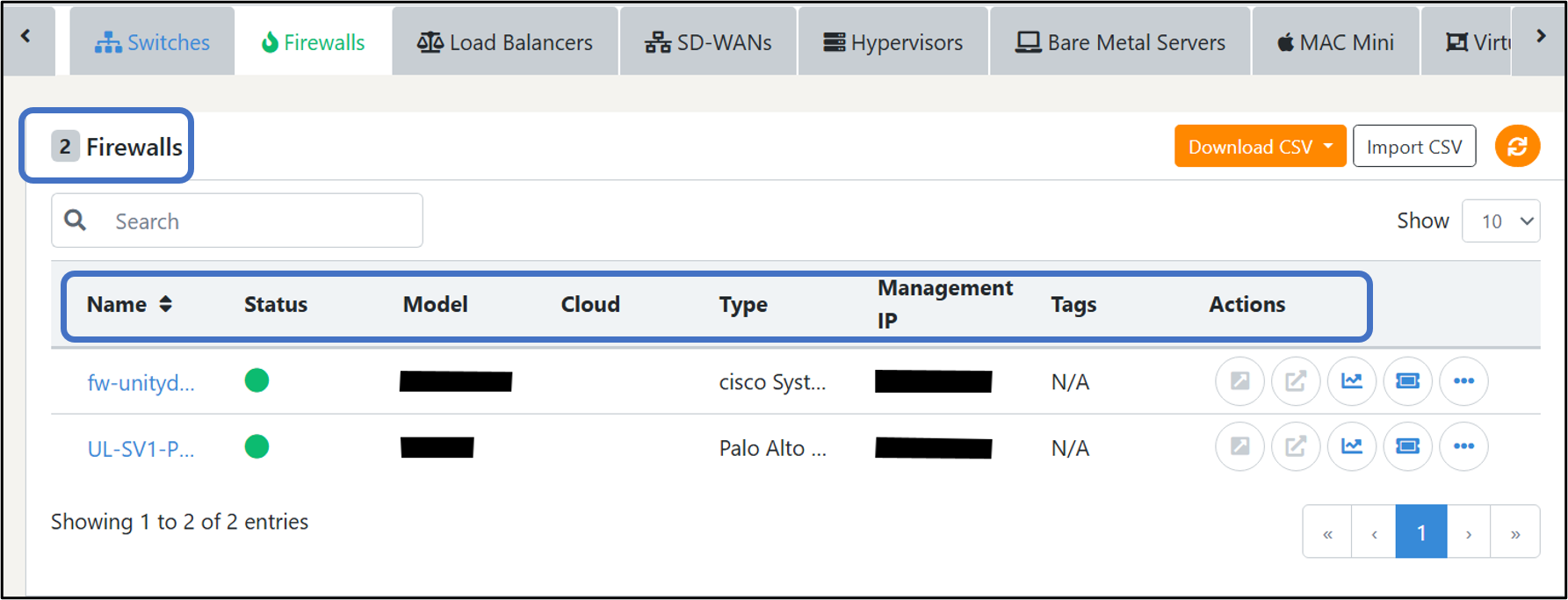
Some of the additional action buttons are mentioned below:
Action Buttons
1. Manage in same tab – This action button will assist you to manage the devices via SSH in the same tab (as a floating terminal)
2. Manage in new tab - This action button will help you manage the devices via SSH in two ways. The first one is via web access which redirects to the web portal for management. The other is via console access which redirects you to the command terminal for device management. (If your web access is not configured, you can request web access from UnityOne support by clicking on the ‘Request web access’ button).
3. Configure monitoring – This action button will assist you to get advance monitoring data of firewalls
4. Manage by creating a support ticket – From this action button you can manage your firewalls by raising a ticket with the support team.
4.4.1.3 Load Balancer
A load balancer is a network device that is used to distribute traffic across multiple servers in a data center. It improves the application's performance and reliability.
We support various load balancers manufactured by F5, Citrix (NetScaler), and others.
4.4.1.3.1 How to add a load balancer
If you navigate your cursor to the top right-hand side of the page, you will be able to view the button ‘Add Load Balancer.’ Click on it and enter the details mentioned below:
1. Name – In this field you must enter a name for your load balancer
2. Private Cloud – In this field you must select a Private Cloud from the drop-down to link your switch
3. Select Manufacturer - In this field you must select a manufacturer from the drop-down
4. Model - You must select a model from the drop-down here
5. Management IP – In this section you must enter a device IP address for console access
6. Cabinet – In this field you must select a cabinet from the drop-down
7. Position – In this field you must enter the position of device in the cabinet
8. Size – Enter the size of the device here
9. Asset tag – You must enter a tag if it exists
10. Enter a new tag – You must enter a name here to create a new tag
1. Name –
NoteIf you get an error after clicking submit, please ensure again that all the provided information is correct and if the issue persists, contact the UnityOne support team.
In this tab, you will find details about the name of the load balancer, a status indicator, the model of the load balancer, the type of load balancer, and the management IP.
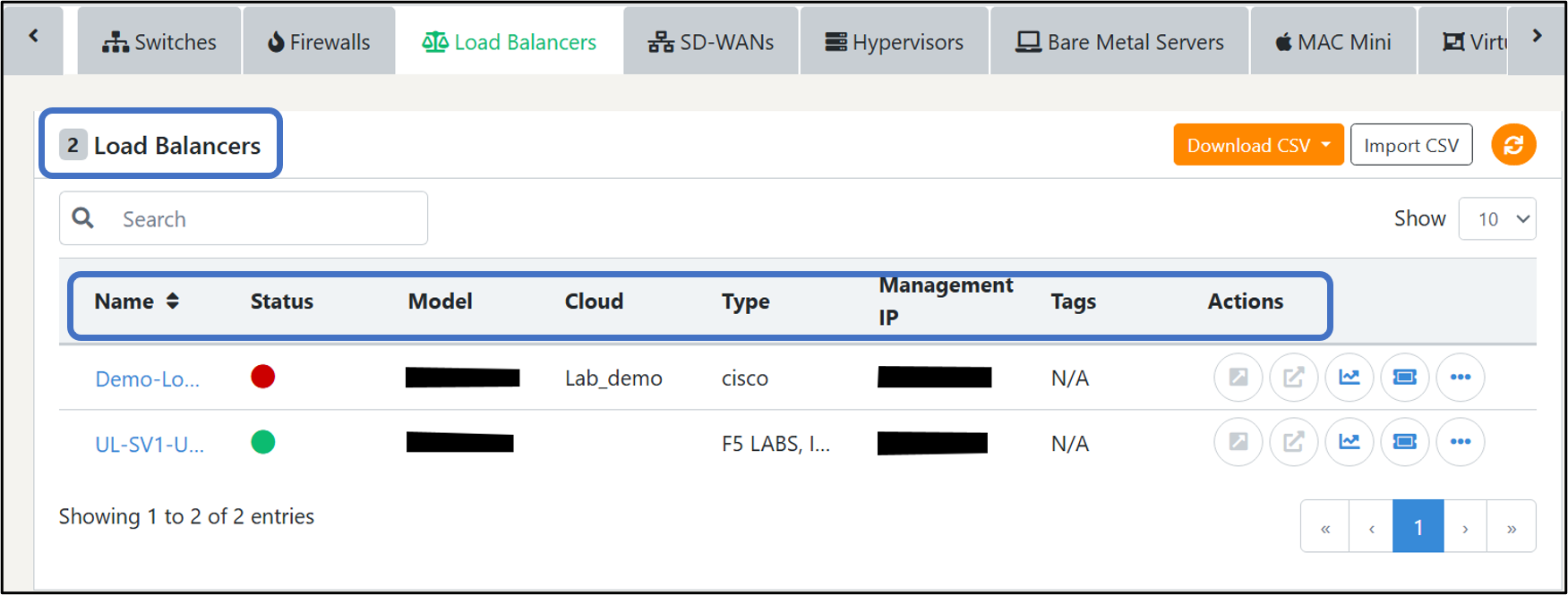
Some of the additional action buttons are mentioned below:
Action Buttons
1. Manage in same tab - This action button will assist you to manage the devices via SSH in the same tab (as a floating terminal)
2. Manage in new tab - This action button will help you manage the devices via SSH in two ways. The first one is via web access which redirects to the web portal for management. The other is via console access which redirects you to the command terminal for device management. (If your web access is not configured, you can request web access from UnityOne support by clicking on the ‘Request web access’ button).
3. Configure monitoring – This action button will assist you to get advance monitoring data of load balancers
4. Manage by creating a support ticket – From this action button you can manage your load balancers by raising a ticket with the support team.
Click on the three dots icon (...) to view more actions buttons:
1. Edit – Here you can edit the details of your load balancer
2. Delete – Use this action button to delete a load balancer from UnityOne
3. Alert Notification - This action button will help you enable alert notifications for a particular user.
4.4.1.4 SD- WANs
A SD-WAN (Software-Defined Wide Area Network) is a virtual WAN architecture that enables organizations to securely connect and manage multiple branch offices, remote users, and devices across vast geographical areas.
We support various SD-WANs manufactured by Sdwan, Cisco Meraki, Meraki.
4.4.1.4.1 How to add a SD-WANs
If you navigate your cursor to the top right-hand side of the page, you will be able to view the button ‘Add SD-WANs.’ Click on it and enter the details mentioned below:
1. Name – In this field you must enter a name for your SD-WANs
2. Private Cloud – In this field you must select a Private Cloud from the drop-down to link your switch
3. Select Manufacturer - In this field you must select a manufacturer from the drop-down
4. Model - You must select a model from the drop-down here
5. Management IP – In this section you must enter a device IP address for console access
6. Cabinet – In this field you must select a cabinet from the drop-down
7. Position – In this field you must enter the position of device in the cabinet
8. Size – Enter the size of the device here
9. Asset tag – You must enter a tag if it exists
10. Enter a new tag – You must enter a name here to create a new tag
Click on ‘Submit’ to successfully add your Load balancer to UnityOne.
NoteIf you get an error after clicking submit, please ensure again that all the provided information is correct and if the issue persists, contact the UnityOne support team.
In this tab, you will find details about the name of the SD-WANs, a status indicator, the account type of SD-WANs and the management IP
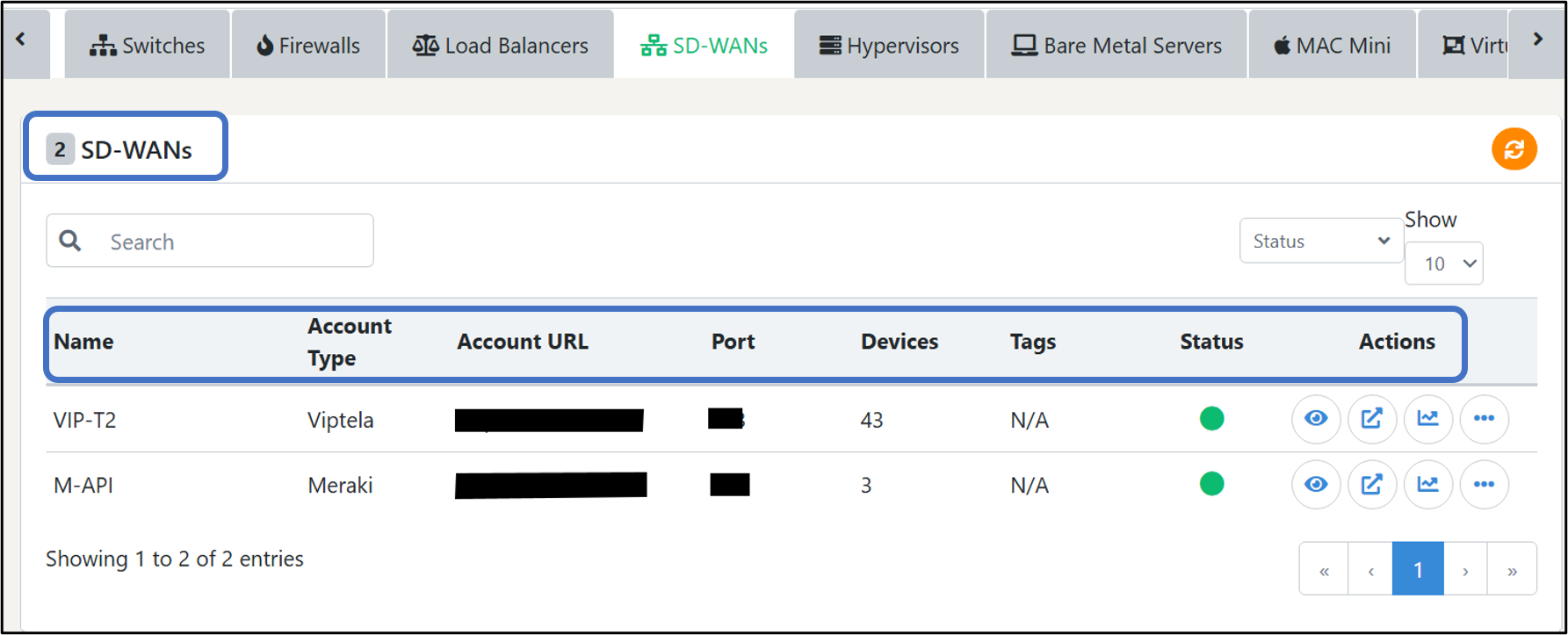
Some of the additional action buttons are mentioned below:
Action Buttons
1. Manage in same tab - This action button will assist you to manage the devices via SSH in the same tab (as a floating terminal)
2. Manage in new tab - This action button will help you manage the devices via SSH in two ways. The first one is via web access which redirects to the web portal for management. The other is via console access which redirects you to the command terminal for device management. (If your web access is not configured, you can request web access from UnityOne support by clicking on the ‘Request web access’ button).
3. Configure monitoring – This action button will assist you to get advance monitoring data of SD-WANs
4. Manage by creating a support ticket – From this action button you can manage your SD-WANs by raising a ticket with the support team.
4.4.1.5 Hypervisors
A hypervisor, also known as a virtual machine monitor (VMM), is a type of software, firmware, or hardware that creates and runs virtual machines (VMs). It allows multiple guest operating systems to run on a single host system simultaneously by providing a virtual operating platform and managing the execution of the guest operating systems.
We support various Hypervisors manufactured by ESXi.
4.4.1.5.1 How to add a Hypervisors
If you navigate your cursor to the top right-hand side of the page, you will be able to view the button ‘Add Hypervisor.’ Click on it and enter the details mentioned below:
1. Name – In this field you must enter a name for your hypervisor
2. Private Cloud – In this field you must select a Private Cloud from the drop-down to link your switch
3. Select Manufacturer - In this field you must select a manufacturer from the drop-down
4. Model - You must select a model from the drop-down here
5. Management IP – In this section you must enter a device IP address for console access
6. Cabinet – In this field you must select a cabinet from the drop-down
7. Position – In this field you must enter the position of device in the cabinet
8. Size – Enter the size of the device here
9. Asset tag – You must enter a tag if it exists
10. Enter a new tag – You must enter a name here to create a new tag
Click on ‘Submit’ to successfully add your Hypervisor to UnityOne
NoteIf you get an error after clicking submit, please ensure again that all the provided information is correct and if the issue persists, contact the UnityOne support team.
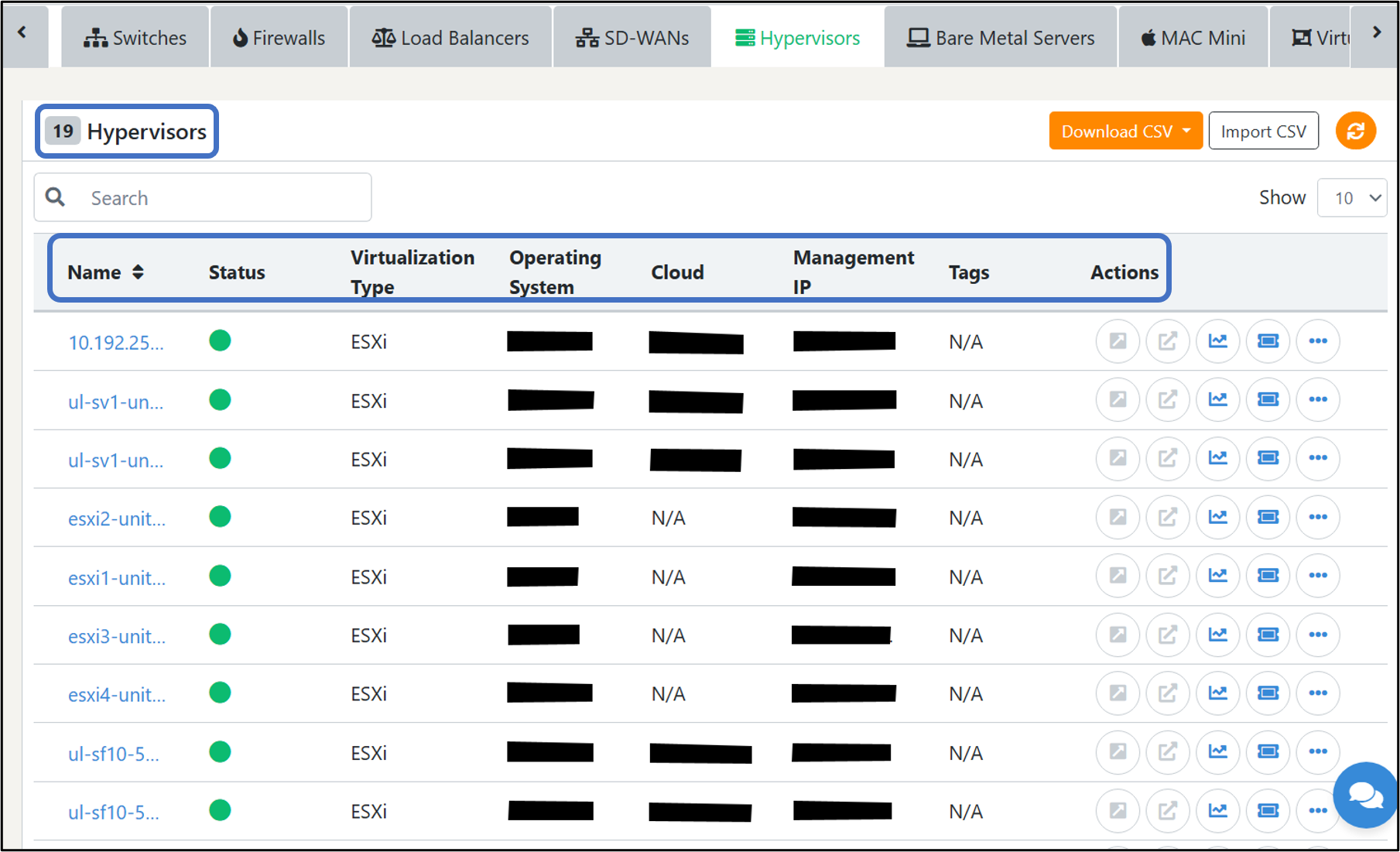
In this tab, you will find details about the name of the Hypervisors, a status indicator, virtualization type, the cloud type, and the management IP
Some of the additional action buttons are mentioned below:
Action Buttons
1. Manage in same tab - This action button will assist you to manage the devices via SSH in the same tab (as a floating terminal)
2. Manage in new tab - This action button will help you manage the devices via SSH in two ways. The first one is via web access which redirects to the web portal for management. The other is via console access which redirects you to the command terminal for device management. (If your web access is not configured, you can request web access from UnityOne support by clicking on the ‘Request web access’ button).
3. Configure monitoring – This action button will assist you to get advance monitoring data of Hypervisor.
4. Manage by creating a support ticket – From this action button you can manage your Hypervisor by raising a ticket with the support team.
4.4.1.6 Bare Metal
A bare metal server is a physical computer server one consumer or tenant uses. The operating system is directly installed on a bare metal server to deliver better performance.
We support various manufacturers of bare metals like HP, IBM, Dell, Super Micro, etc.
4.4.1.6.1 How to add a bare metal
If you navigate your cursor to the top right-hand side of the page, you will be able to view the button ‘Add Bare Metal.’ Click on it and enter the details mentioned below:
1. Name – In this field you must enter a name for your Bare metal
2. Private Cloud – In this field you must select a Private Cloud from the drop-down to link your bare metal
3. Select Manufacturer - In this field you must select a manufacturer from the drop-down
4. Model - You must select a model from the drop-down here
5. Management IP – In this section you must enter a device IP address for console access
6. Cabinet – In this field you must select a cabinet from the drop-down
7. Position – In this field you must enter the position of device in the cabinet
8. Size – Enter the size of the device here
9. Asset tag – You must enter a tag if it exists
10. Enter a new tag – You must enter a name here to create a new tag
Click on ‘Submit’ to successfully add your Bare Metal to UnityOne.
NoteIf you get an error after clicking submit, please ensure again that all the provided information is correct and if the issue persists, contact the UnityOne support team.
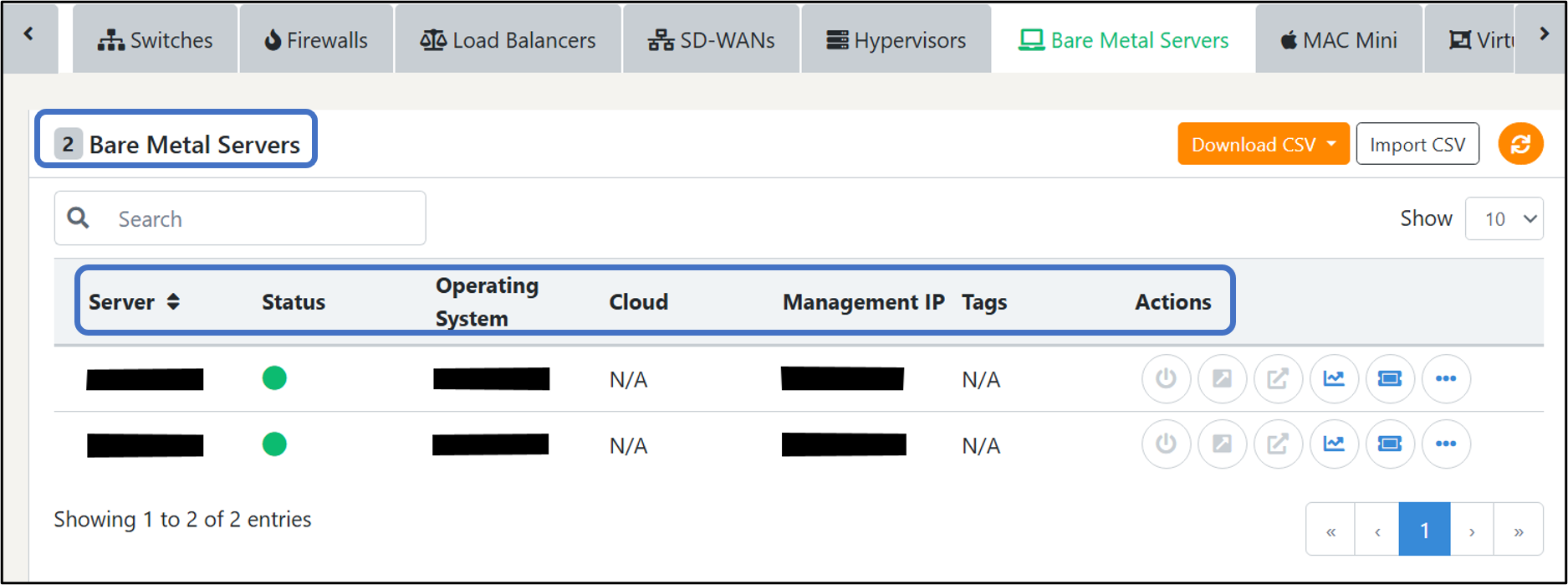
In this tab, you will find details about the name of the bare metal, a status indicator, the model of the bare metal, the type of bare metal, and management IP.
Some of the additional action buttons are mentioned below:
Action Buttons
1. Stop Server – This action button will help you to switch off your server
2. Manage in the same tab – This action button will assist you to manage the devices via SSH in the same tab (as a floating terminal)
3. Manage in new tab - This action button will help you manage the devices via SSH in two ways. The first one is via web access which redirects to the web portal for management. The other is via console access which redirects you to the command terminal for device management. (If your web access is not configured, you can request web access from UnityOne support by clicking on the ‘Request web access’ button).
4. Configure monitoring – This action button will assist you in getting advance monitoring data of bare metals.
5. Manage by creating a support ticket – From this action button you can manage your bare metals by raising a ticket with the support team.
4.4.1.7 Mac Mini
Mac mini servers host infrastructure in a managed data center on Mac OS to build and test your applications on MAC OS and iOS systems.
4.4.1.7.1 How to add Mac Mini-Server
If you navigate your cursor to the top right-hand side of the page, you will be able to view the button ‘Add Mac mini.’ Click on it and enter the details mentioned below:
1. Name – In this field you must enter a name for your Mac mini device
2. Serial Number – In this field you must enter serial number provided for your mac mini
3. OS – In this section you must select an Operating system from the drop-down
4. Select Manufacturer - You must select a manufacturer from the drop-down
5. Model - In this field you must select a model from the drop-down
6. Number of CPU’s - In this field you must enter the number of CPUs attached to your mini
7. Number of Cores – In this field you must enter the number of cores
8. Memory – In this field you must enter the memory of the server (MB)
9. Capacity – In this field you must enter the capacity of the server (GB)
10. Management IP – In this section you must enter a device IP address for console access
11. Private Cloud – In this field you must select the associated Private Cloud from the drop-down
12. Cabinet – In this field you must select a cabinet from the drop-down
13. Asset tag – You must enter a tag if it exists
14. Enter a new tag – You must enter a name here to create a new tag
Click on ‘Submit’ to successfully add your Mac mini to UnityOne.
NoteIf you get an error after clicking submit, please ensure again that all the provided information is correct and if the issue persists, contact the UnityOne support team.
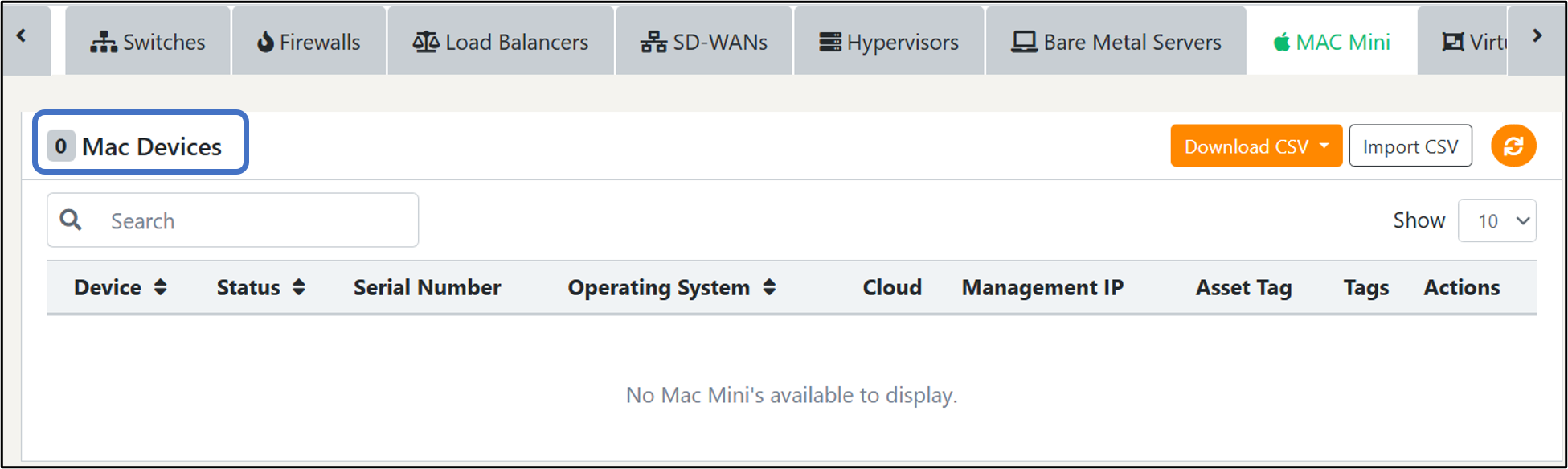
If you want to enable monitoring, then tick the box to activate monitoring.
In this tab, you will find information about your device name, status, serial number, operating system, associated cloud, management IP, tags, and some additional action buttons.
Action Buttons
1. Recycle PDU – Use this action button to recycle PDU
2. Manage in the new tab - This action button will help you manage the devices via SSH in two ways. The first one is via web access which redirects to the web portal for management. The other is via console access which redirects you to the command terminal for device management. (If your web access is not configured, you can request web access from UnityOne support by clicking on the ‘Request web access’ button).
3. Mac mini statistics – This action button will assist you to get advance monitoring data of Mac mini.
4. Manage by creating a support ticket – From this action button you can manage your Mac mini by raising a ticket with the support team.
Click on the three dots icon (...) to view more actions buttons
1. Device info – Here you can view the device info
2. Edit – Use this action button to edit details of your Mac mini
3. Delete – This action button will help you delete a Mac mini from UnityOne
4.4.1.8 Virtual Machine
A virtual machine is a software computing resource that offers a virtual environment instead of a physical one to run, operate, and deploy apps and programs.
This tab will have details about all the VMs added to UnityOne. You can find details such as the name of the VM, status, OS name, cloud type, and attached cloud name.
As a default view, you can view all your VMs inside all VM tab; also, you can also click on individual tabs to view VMs inside the Private Clouds & public clouds attached.
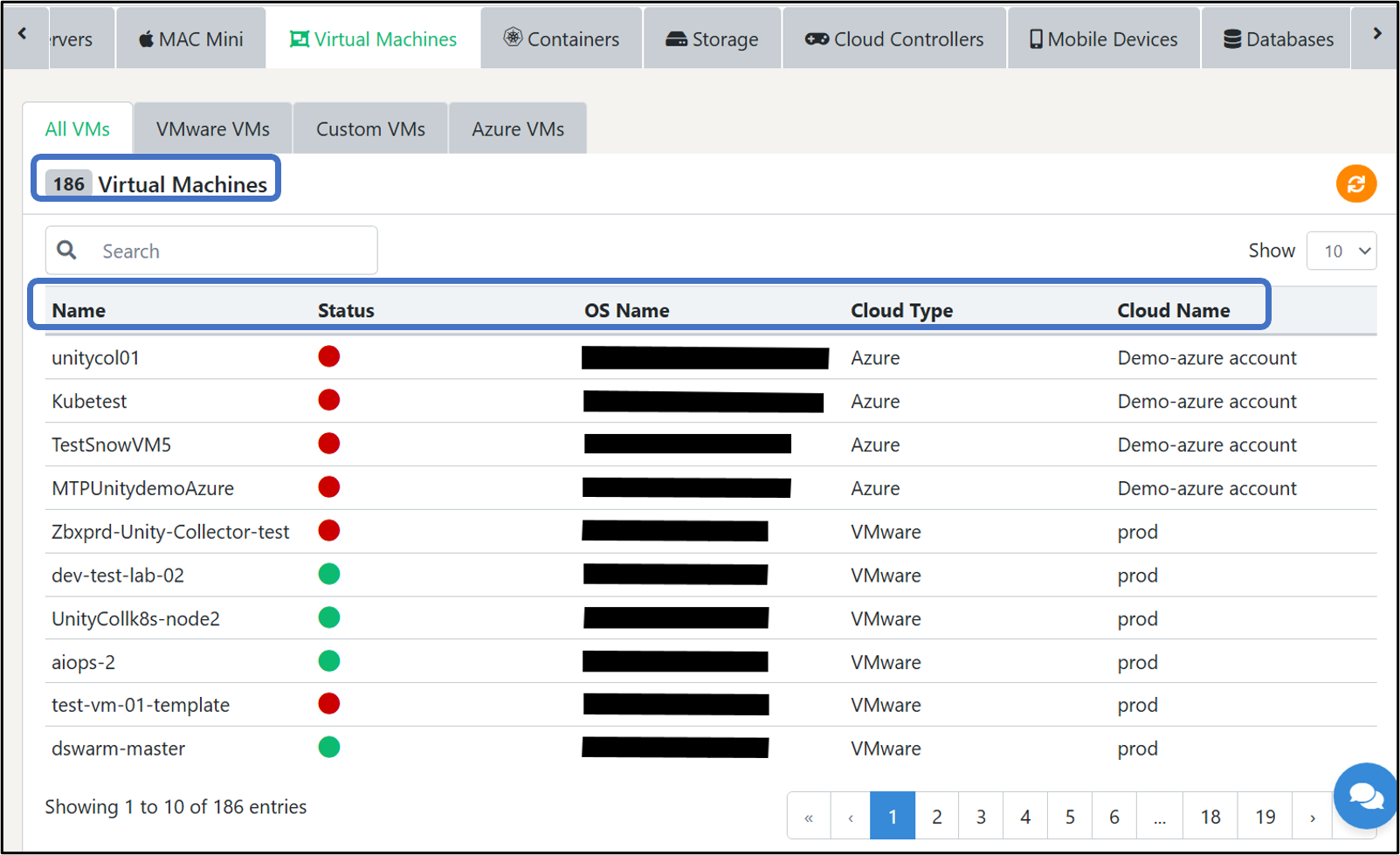
4.4.1.9 Containers
A container is a standard software unit that packages up code, all its dependencies, and libraries to keep applications reliable and run quickly. You can manage your Istio, Kubernetes, and docker swarm containers.
On this page, you can find two different tabs from the top grid: one for nodes and the other for pods.
4.4.1.9.1 Nodes
A node is the smallest element of computing hardware in the Kubernetes system. In general, it represents a single machine in a cluster.
From this tab, you can view information about your containers, such as name, status (running status of the nodes; red indicates down, green indicates up), operating system, internal IP, external IP, CPU requests, CPU Limits, memory requests, and memory limits. To manage these nodes, you can use this action buttons mentioned below:
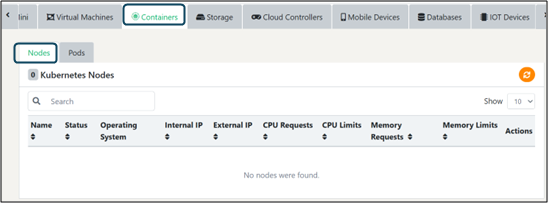
Action Buttons
1. Open in the same tab – Use this action button to open an SSH console for managing nodes in the same tab
2. Open in new tab – Use this action button to open an SSH console for managing nodes in a new tab
4.4.1.9.2 Pods
Pods contain one or more containers, the most basic deployable objects in the Kubernetes system.
From the pod's tab, you can view information related to your pods, such as name, status, namespace, pod IP, host IP, Cloud, cloud name, and start time, and you can perform a couple of management actions via action buttons.
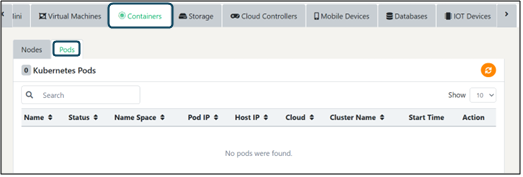
Action Buttons
1. Show containers – Here you must list your containers inside the pod (you will get details of your containers)
2. Delete – Use this action button to delete a pod
4.4.1.10 Storage
A storage device is a physical device that enables data storage and applications hosted in a data center.
You can view storage details from the storage tab, like the name of the storage device, status, associated cloud, OS, management IP, storage, and tags (graphically represent available capacity and used capacity).
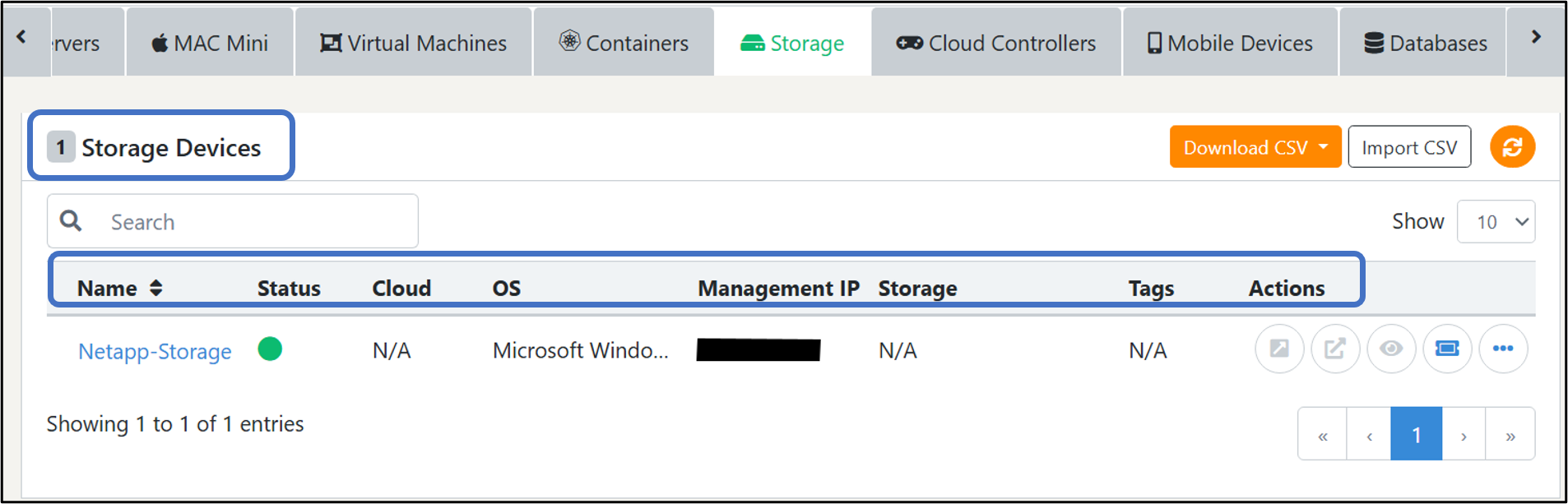
4.4.1.10.1 How to add Storage
Once you click the “Add” button you will be prompted to enter the following details:
1. Name: In this field, you must provide the name of the storage device.
2. Management IP: Here, you need to provide the IP address of the storage device for management.
3. Manufacturer: You must select the manufacturer from the drop-down list available here.
4. Model: In this field, you must select the model from the drop-down list available here.
5. Private Cloud: Select the Private Cloud from the available drop-down.
6. Cabinet: Choose the cabinet from the data center you selected earlier.
7. Position: You can enter the position of the device, inside the cabinet from this field.
8. Size: Here, you can enter the size of your device.
9. Asset Tag: If you have already created an Asset Tag, you enter the same from here.
10. Enter a new Tag: This option can be used to create a new Tag.
Click on the "Submit" button to successfully add your device to the platform.
NoteIf you get an error after clicking submit, please ensure again that all the provided information is correct and if the issue persists, contact the UnityOne support team.
You can manage your storage device remotely with the help of the following action buttons.
Action Button Functionality
1. Manage in same tab – This action button will assist you to manage the devices via SSH in the same tab (as a floating terminal)
2. Manage in new tab - This action button will help you manage the devices via SSH in two ways. The first one is via web access which redirects to the web portal for management. The other is via console access which redirects you to the command terminal for device management. (If your web access is not configured, you can request web access from UnityOne support by clicking on the ‘Request web access’ button).
3. Storage statistics – Use this action button to get advanced monitoring statistics of storage
4. Manage by creating a support ticket – From this action button you can manage your storage by raising a ticket with the support team.
5. Edit – Use this action button to edit details of your storage device
6. Delete – This action button will help you delete your storage device from UnityOne
7. Alert Notification - This action button will help you enable alert notifications for a particular user.
4.4.1.11 Cloud Controller
You can view the list and manage your Private Clouds from this tab. We have included details like cloud names, virtualization platforms, and hypervisors.
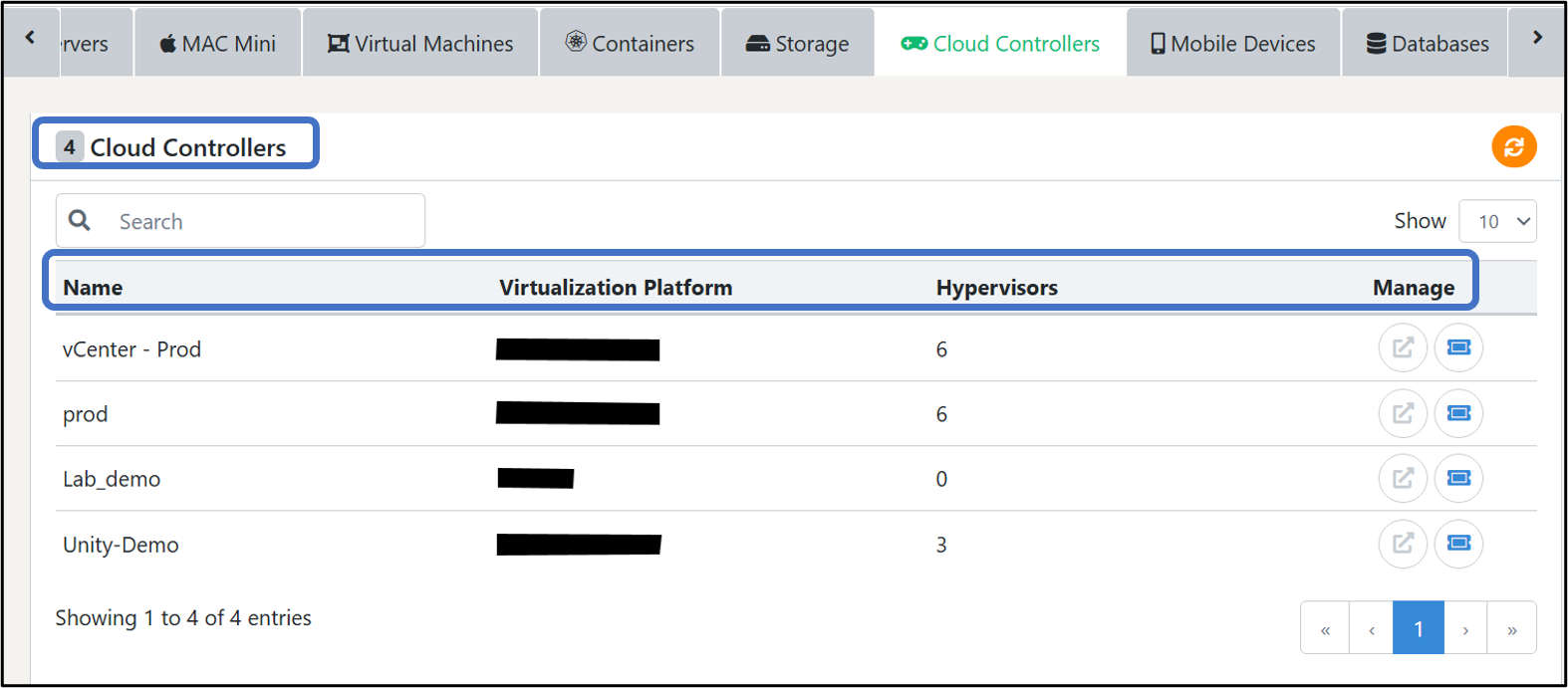
Action Button Functionality
1. Manage in new tab – Use this action button to manage cloud controllers from a new tab (opens a login page)
2. Manage by creating a support ticket – From this action button you can manage your cloud controllers by raising a ticket with the support team.
4.4.1.12 Mobile Devices
You can maintain the inventory of your mobile devices from this page. Additionally, you can download and add mobile devices for tracking purposes.
NoteWe do not track or monitor your mobile devices.
You can find information about your mobile devices, such as name, serial number, device type, platform, model, IP address, and tagged devices.
4.4.1.12.1 How to add a mobile device
From the top of the page, click on the ‘Add mobile’ device button and a new pop-up window will open. Fill in the required details mentioned below:
1. Name - In this field, you must add the name of your mobile device.
2. Model: In this field, you must enter the model of your mobile device.
3. Serial number: In this field, you must enter the serial number of your mobile device.
4. IP address: In this field, you must enter the IP address of your device for console access.
5. Select platform: In this field, you must select your OS (Android or iOS).
6. Device type - In this field, you must select your device type (smartphone or tablet).
7. Data center - In this field, you must select the data center from the drop-down.
8. Tagged device - In this field, you must tag your device by entering the existing tags.
9. Enter a new tag - In this field, you can add a new tag to your device.
Click on ‘Submit’ to add your mobile device successfully.
NoteIf you get an error after clicking submit, please ensure again that
Action Button Functionality
1. Edit – This action button will help you to edit the details of your mobile device
2. Delete – Use this action button to delete your mobile device data from UnityOne
3. Manage by creating a support ticket – From this action button you can manage your mobile devices by raising a ticket with the support team
4.4.1.13 Databases
A database is an organized collection of data in rows and columns typically stored in an electronic computer (server) from which users can access and manage periodically.
UnityOne also provides users with a feature to manage their databases. It supports MySQL, SQL, PostgreSQL, and Oracle. This page includes information about your databases, such as instance name, status, type, port, server name, management IP, operating system, tags, and cloud details, and gives you a few action buttons to manage your databases.
4.4.1.13.1 How to add a Database to UnityOne
From the top of the page, click on ‘Add mobile database’ button, a new pop-up window will open. You must fill in details mentioned below:
- 1. Select server type: In this field you must select the server on which your database is hosted (VM or Bare Metal). Suppose your server type is bare metal; select the server from the drop-down. If your server type is Virtual Machine, select the Private Cloud and VM from the respective dropdowns.
- 2. Database instance name: In this field you must enter the name of database instance.
- 3. Select database type: In this field you must select your database type (MySQL, MS SQL server, Oracle, PostgreSQL) from the drop-down.
- 4. Assign a port number: In this field, you must enter the port number.
- 5. Enter a new tag: In this field you must, you can add a new tag to your database.
Click on ‘Submit’ to successfully add your Database to UnityOne.
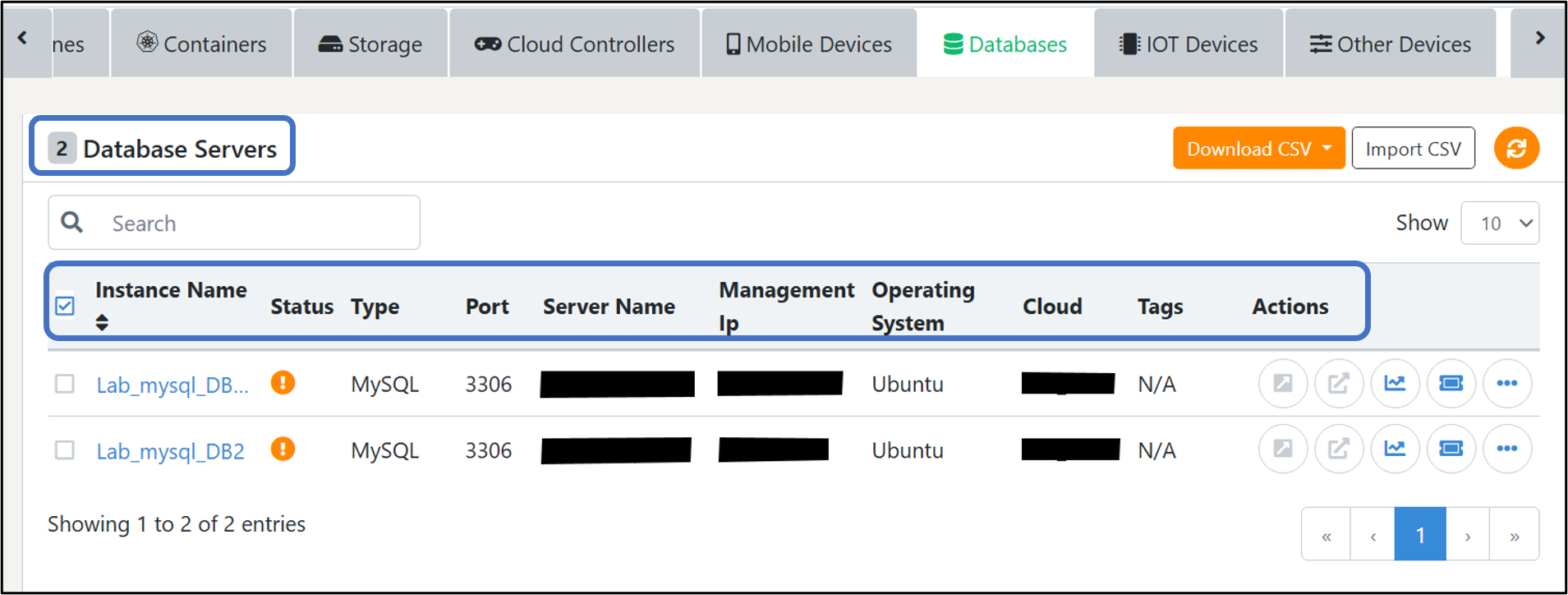
NoteIf you get an error after clicking submit, please ensure again that all the provided information is correct and if the issue persists, contact the UnityOne support team.
Action Button Functionality
1. Manage in same tab – This action button will assist you to manage the devices via SSH in the same tab (as a floating terminal)
2. Manage in new tab – This action button will help you manage the devices via SSH in the new tab
3. Storage statistics – This action button will assist you in getting advance monitoring data of databases.
4. Manage by creating a support ticket – From this action button you can manage your databases by raising a ticket with the support team.
Click on the three dots icon (...) to view more actions
1. Edit – Use this action button to edit the details of your Databases
2. Delete – This action button will help you delete a database from UnityOne
3. Alert Notification - This action button will help you enable alert notifications for a particular user.
4.4.1.14 IOT Devices
The Internet of Things (IoT) refers to a network of interconnected physical devices, vehicles, appliances, and other objects embedded with sensors, software, and network connectivity. This allows them to collect and share data, enabling automation and improved efficiency in various applications.
4.4.1.14.1 How to add an IOT device
From the top of the page, click on the ‘Add IOT’ device button and a new pop-up window will open. Fill in the required details mentioned below:
- 1. Name: In this field, you must add the name of your IOT device.
- 2. Device type: In this field, you must select your device type.
- 3. Manufacturer: In this field, you must enter the manufacturer of your IOT device.
- 4. Model: In this field, you must enter the model of your IOT device.
- 5. IP address: In this field, you must enter the IP address of your IOT device for console access.
- 6. Enter a new tag: In this field, you can add a new tag to your IOT device
Click on ‘Submit’ to successfully add your Database to UnityOne.
NoteIf you get an error after clicking submit, please ensure again that all the provided information is correct and if the issue persists, contact the UnityOne support team.
Action Button Functionality
1. Edit – This action button will help you to edit the details of your IOT device
2. Delete – Use this action button to delete your IOT device data from UnityOne
3. Manage by creating a support ticket – From this action button you can manage your IOT devices by raising a ticket with the support team.
4.4.1.15 Other Devices
In this tab, information about external or non-standard devices monitored within the platform. This includes URLs, endpoints, or custom resources added by the user for availability checks.
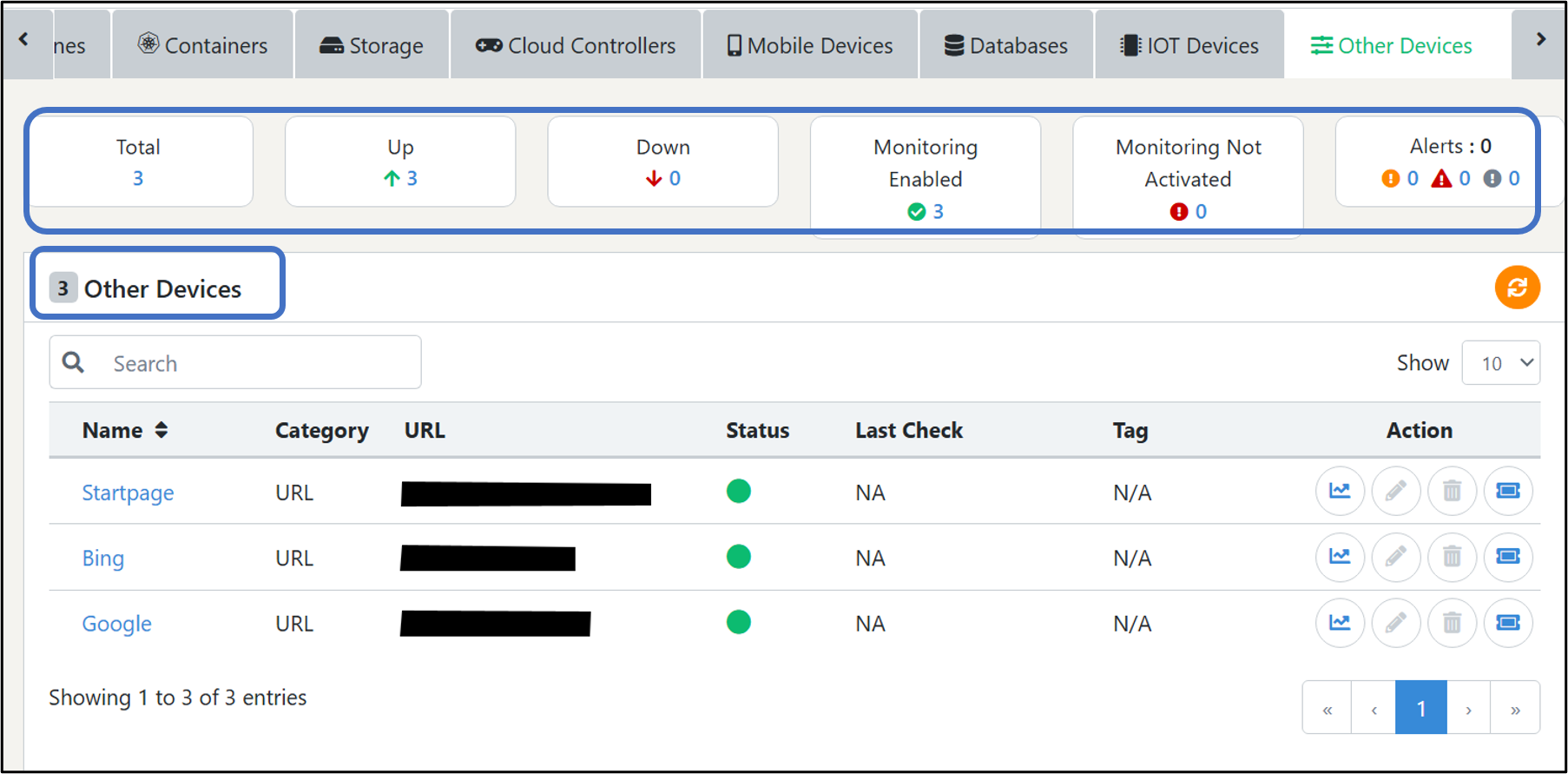
You can view other device details from the other device tab, like the name of the device, category, URL of device, status, when it was last checked, tags and action button.
4.5 Mesh Services
Navigate to Unity Cloud > Mesh Services
With UnityOne AI 's UI console, you can manage all your mesh management activities and their applications.
A mesh manager helps you configure multiple events decoupled among applications, cloud services, and devices into an event mesh.
4.5.1 How to add a mesh service
From the mesh managers page, you can manage three different mesh managers of public clouds: Istio, GCP, Anthos service, and AWS App mesh. You can add a mesh managing account to UnityOne by clicking on the ‘Add’ button from the top. Once you click on ‘Add,’ you will be prompted to fill in the following details:
- 1. Mesh service type: In this field you must select the type of mesh service
- 2. Fill account name: In this field you must enter the name of your service account.
- 3. Email: In this field you must enter the associated email.
- 4. Service info: In this field you must enter the service information of your respective mesh type.
Finally, click on ‘Add’ to add your mesh service account to UnityOne successfully.
4.5.1.1 GCP Mesh Manager
Anthos service mesh is a fully managed mesh service from GCP that helps manage your mesh services across on-premises or the GCP cloud.
Use the available action buttons to manage your GCP mesh manager:
Action Button
1. Anthos Traffic director – Use this action button to view and manage different events under GCP mesh services.
2. Edit – This action button will help you to edit your GCP mesh service account details
3. Change service account info – This action button will assist you to modify or update details of your GCP mesh service account info
4. Delete – Use this action button to delete your GCP Anthos service mesh account
5. Manage by creating a service support ticket – From this action button you can manage your GCP mesh manager by raising a ticket with the support team.
Once you click the ‘Anthos traffic director’ action button, it will display all the events coupled into your GCP mesh. You will find details such as the name of the event, VPC network details, NEG count, regions, and routing rule maps.
Additional Action Buttons within ‘Anthos traffic director’:
1. Network endpoints: This action button will help you in viewing the network endpoints groups.
2. View service tree: This action button will assist you to view the service tree.
3. Manage by creating a service ticket: You can use this action button to manage your GCP mesh service with the help of the UnityOne support team.
4.5.1.2 Istio Mesh Manager
Istio is an open-sourced service for mesh management of applications, and it was initially developed jointly by IBM, Google, and Lyft.
To manage your Istio mesh manager, you will get a few action buttons mentioned below:
Action Button Functionality
1. Istio – You can use this action button to view and manage different events under Istio mesh services
2. Edit – This action button will help you to edit your Istio mesh service account details
3. Change service account info – Use this action button to modify or update the details of your Istio mesh service account info
4. Delete – You can use this action button to delete your Istio service mesh account
5. Manage by creating a service support ticket – From this action button you can manage your Istio Mesh Manager by raising a ticket with the support team.
Once you click on the ‘Istio’ action button, you can view the name, status, namespace, gateways, and destination host.
Additional Action Buttons
1. Network endpoints: This action button will give you access to network endpoint groups from where you can manage and edit your network devices configurations.
2. View service tree: This action button will fetch the details of your network tree.
3. Manage by creating a service request ticket: This action button will help you to manage your AWS mesh service with the help of the UnityOne support team.
4.5.1.3 AWS Service Mesh Manager
AWS app mesh is a service mesh manager for the AWS cloud that is offered under their stack of services, and it makes it easy to communicate various microservices running on the AWS ecosystem.
Action Button Functionality
1. AWS App Mesh – This action button will assist you to view and manage different microservices under AWS mesh services.
2. Edit – You can use action button to edit your AWS mesh service account details
3. Change service account info – This action button will assist you to modify or update details of your AWS mesh service account info
4. Delete – You can use this action button to delete your AWS app mesh service mesh account
5. Manage by creating a service support ticket – From this action button you can manage your AWS service mesh manager by raising a ticket with the support team.
Once you click on ‘AWS App Mesh,’ it will display the name, status, virtual nodes, virtual routers, and virtual services.
Additional Action Buttons
1. App Details: This action button will give you access to the details of backend virtual nodes through which you can manage and edit the routes
2. View service tree: This action button will fetch the details of your network tree.
Manage by creating a request ticket: This action button will help you to manage your AWS mesh service with the help of the UnityOne support team.
4.6 Applications
The Applications section displays the list of monitored applications along with their performance metrics. Users can view latency, throughput, and application health.
4.6.1 Key Fields:
- 1. App: Shows the name of the application. Clicking the app name opens its detailed performance view.
- 2. Latency: Displays the average response time of the application in milliseconds (Ms).
- 3. Throughput: Shows the number of requests processed per minute.
- 4. Status: Indicates the current health of the application (green dot = healthy).
- 5. Actions: Provides a quick view option to open application details.
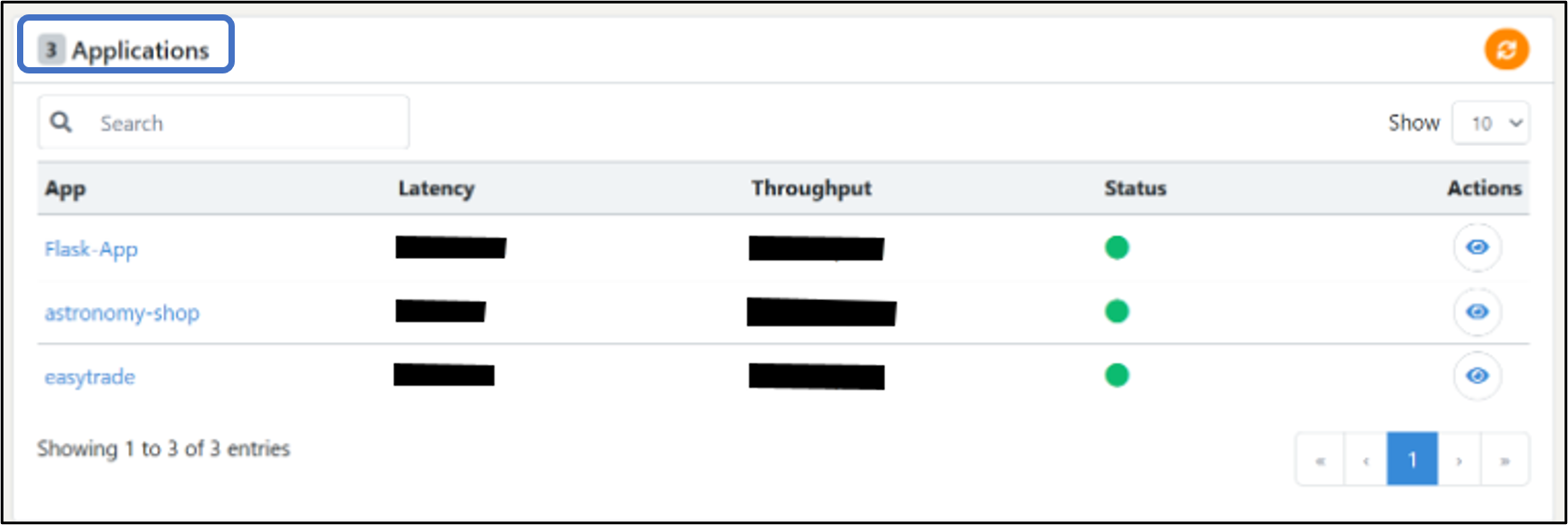
4.7 Business Services
Business Services provide organizations with a full suite of managed IT, cloud, and infrastructure solutions designed to ensure reliable, secure, and scalable operations. These services support enterprises throughout their digital transformation journey by simplifying technology management and enabling seamless adoption of modern cloud and AI capabilities.
In this section, you will find details about the business service name, license cost center, type of application, Business criticality, and status (enable or disable). Also, there are multiple action buttons.
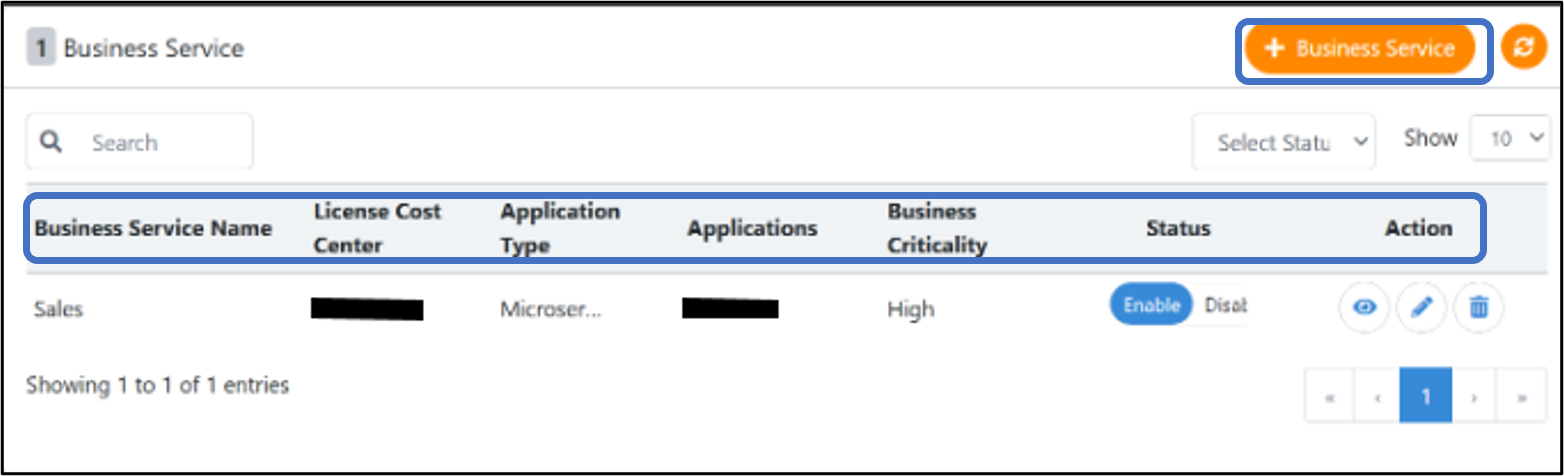
4.7.1 How to add a business service
To add a business service, click on the ‘Add Business service’ button from the top right-hand side then fill the details mentioned below:
- 1. Business unit: In this field you must select the business unit from the available drop-down.
- 2. Description: Here you must enter the description.
- 3. License centre: In this field you must select the license centre from the available drop-down.
- 4. Building block: In this field you must select the building block from the available drop-down.
- 5. Application name: In this field you must select the application name from the available drop-down.
- 6. Business criticality: In this field you must select the business criticality from the available drop-down.
- 7. Type of app: In this field you must select the app type from the available drop-down.
- 8. Environment: In this field you must select the environment from the available drop-down.
- 9. Deployment model: In this field you must select the deployment model from the available drop-down.
- 10. Cloud type: In this field you must select the type of cloud from the available drop-down.
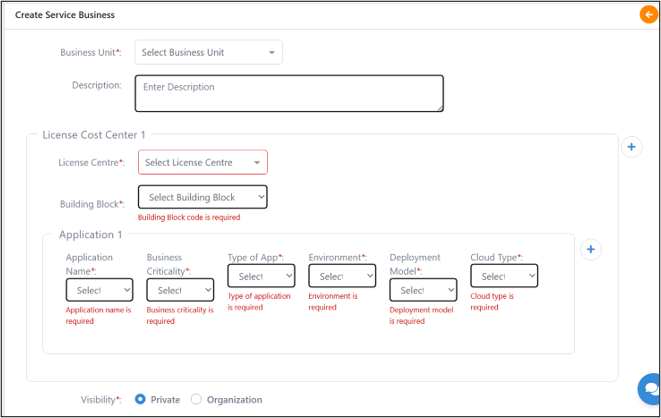
Select visibility and click on ‘create’ to add your details successfully.
NoteIf you get an error after clicking submit, please ensure again that all the provided information is correct and if the issue persists, contact the UnityOne AI support team.
4.8 Unity Connect
We offer an advanced interconnection solution called United Connect. You can integrate United Connect with any on-premises environment with a private or public cloud (AWS, Azure, GCP, OCI). Through this, you can connect to the cloud of your choice. It also helps you reduce network costs, increase bandwidth throughput, and provide reliable, consistent network connectivity.
Unity Connect is a service offered to UnitedLayer customers who are using our solutions to manage their network connection, view their real-time bandwidth billing details, and give them a choice to buy a new connection with the help of our team.
4.8.1 Why Unity Connect
- 1. Combines on-premises, private cloud, and public cloud to create an optimal environment
- 2. Connect your environment securely using an encrypted VPN tunnel or completely bypass the internet
- 3. Cuts down your network costs
- 4. Workload management across multiple platforms for on-demand needs
Navigate to Unity Cloud > Unity Connect
You can click on it to view and manage your Unity Connect services.
4.8.2 Unity Connect page UI
On this page, you can find three different tabs:
- 1. Network Connection
- 2. Bandwidth Billing
- 3. Buy Connection
You can navigate into those tabs by simply clicking on them.
How to add a port
To add a network port, click on ‘Add Port’ from the top right-hand side then fill the details mentioned below:
1. Select the device type: You must select a device from the available drop-down.
2. Device: You must select the device from the drop-down for the above selected device type.
3. Port name: In this field, you must enter a user-friendly name.
4. Port: Here you must select the port from the available drop-down.
Click on ‘Submit’ to add your Port successfully.
NoteIf you get an error after clicking submit, please ensure again that all the provided information is correct and if the issue persists, contact the UnityOne AI support team.
4.8.2.1 Network Connection
From this page, you can view the details of your ports, such as name, port, traffic analysis, speed, and Mac address.
Action Buttons
1. Delete: You can use this action button to delete a port.
4.8.2.2 Bandwidth Billing
On this page, you will find information about your network bandwidth usage and billing information.
4.8.2.2.1 How to add a bill
To add a bill, click on the ‘Add Bill’ button from the top right-hand side then fill the details mentioned below:
- 1. Bill name: In this field you must enter a user-friendly name.
- 2. Ports: Here you must select the port from the available drop-down.
- 3. Bill Type: In this field you must select two types of billings such as 95th percentile and transfer quota
- 4. Allowed Usage: In this field you must enter the numerical value of allowed bandwidth usage (You can also select the units of bandwidth usage such as bps, Kbps, Mbps, Gbps, and Tbps).
- 5. Cost/MB: In this field you must enter the cost associated with a single MB.
- 6. Description: In this field you must add a brief description in the field.
Click on ‘Submit’ to add your bill details successfully.
NoteIf you get an error after clicking submit, please ensure again that all the provided information is correct and if the issue persists, contact the UnityOne AI support team.
4.8.2.2.2 Bandwidth Billing Details
This page will have information about your bill name, type, allowed and used bandwidth, over- usage details with a utilization chart, and estimated cost (actual cost may vary).
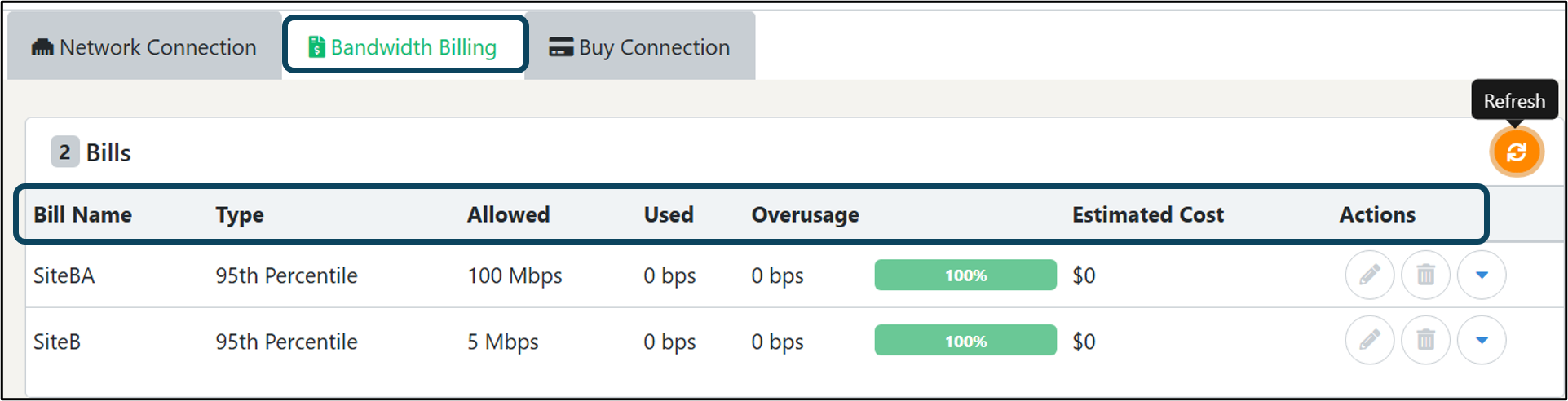
Action Buttons:
1. Edit: This action button will help you to edit the added billing details.
2. Delete: This action button will help you to delete the added billing details.
3. Accordion: When you click on this action button, it will show you the information about your associated bandwidth details, where you can view the allowed and used bandwidth, inbound and outbound speed, and other necessary parameters from the same widget graphically.
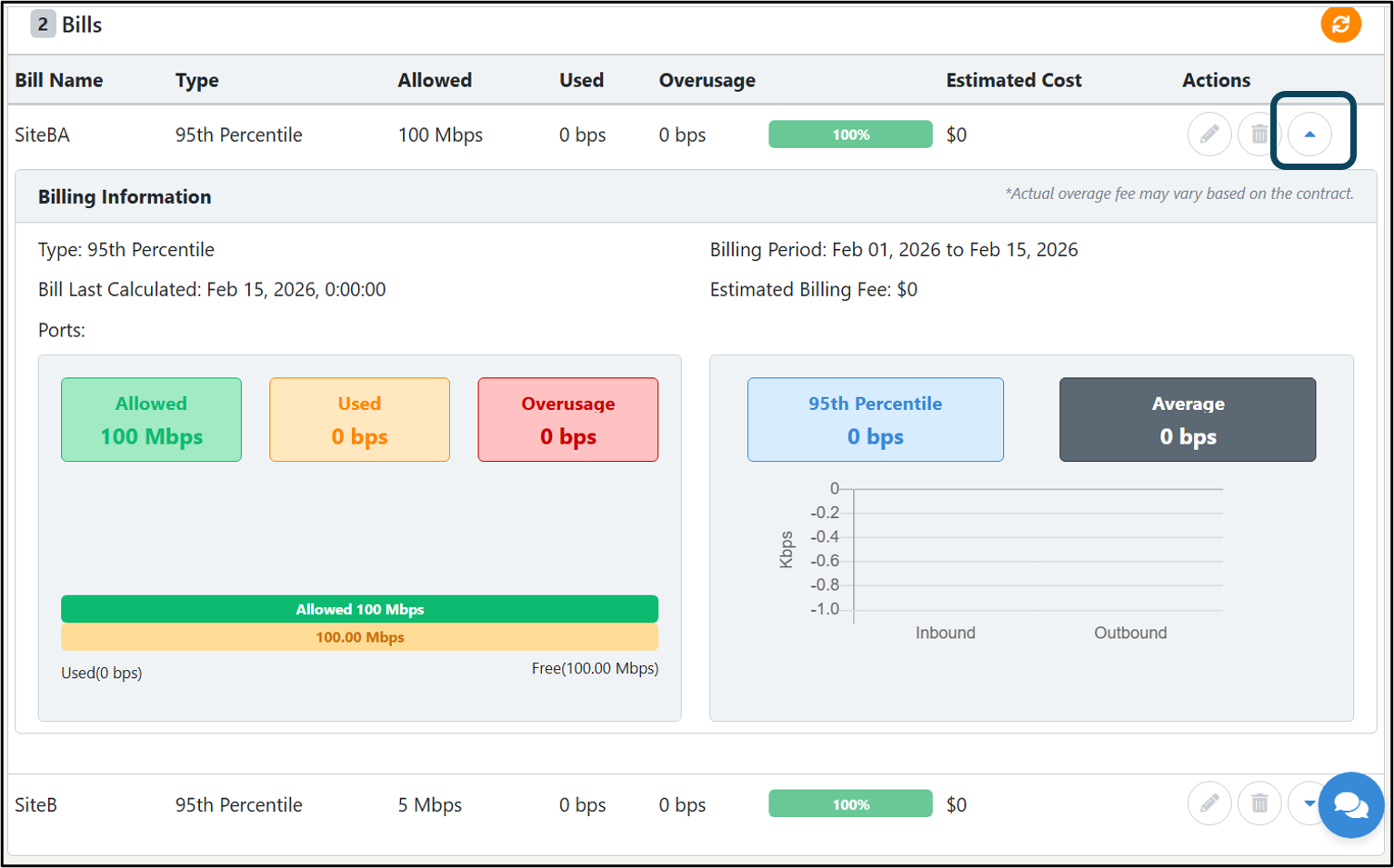
4.8.2.3 Buy Connection
This tab will help you in buying a new connection from UnityOne AI.
4.8.2.3.1 How to buy a connection
Click on the ‘Buy Button’ that is available on the top right-hand side corner and then fill the details mentioned below:
- 1. Select your connection type: You must select your connection type (AWS direct connect, Azure, express route, Google cloud dedicated to connecting, etc.) from the drop-down.
- 2. Description: Here you must provide a description of your requirements.
Once you click on the ‘Buy’ button, and a new ticket will be created with the UnityOne AI support team, and we will help you buy and establish a new connection for you.
From this page, you can also view your information related to connection details, such as requester email ID, connection type, ticket ID, and ticket status.
Action Buttons:
1. Delete: This action button will help you to delete a ticket.
5. Unity Services
In this module, you can find various service options offered by UnityOne AI to manage your day-to-day cloud operations. On this page, you will find three different tabs to manage multiple services such as DevOps-as-service, service catalog, AI/ML event management and sustainability operations.
Navigate to Unity Menu > Unity Services to view and manage your services offered by UnityOne AI.
5.1 AIML Event Management
The below process describes several types of alerts for various devices captured by UnityOne AI and applying custom rules to filter those alerts based on your preferences.
Accessing Unity Services and AIML Event Management
To begin managing your alerts, follow these steps:
- 1. Click on Unity services from the main menu.
- 2. From the dropdown menu, select AIML Event Management.
- 3. You will be directed to the AIML Event Management page.
5.1.1 Summary Page
The Summary page provides an overview of the active alerts/events and allows you to filter them using custom rules. Here are some key points to note about the Summary page:
- 1. By default, the page opens in the Event Reduction tab, displaying the summary of active alerts/events.
- 2. The alerts/events shown on this page are only the open/active ones. Closed and resolved events are not displayed.
5.1.2 Clickable Tabs
- 1. On the Summary page, you will find clickable tabs for events, alerts, conditions, and analytics. Clicking on each tab will take you to the respective section with detailed information.
5.1.3 Category Device Count
Below the tabs, you will see boxes that provide the count of devices in various categories that have active events/alerts. These categories include compute, network, storage, and others. This gives you an overview of the distribution of active events/alerts across different device types.
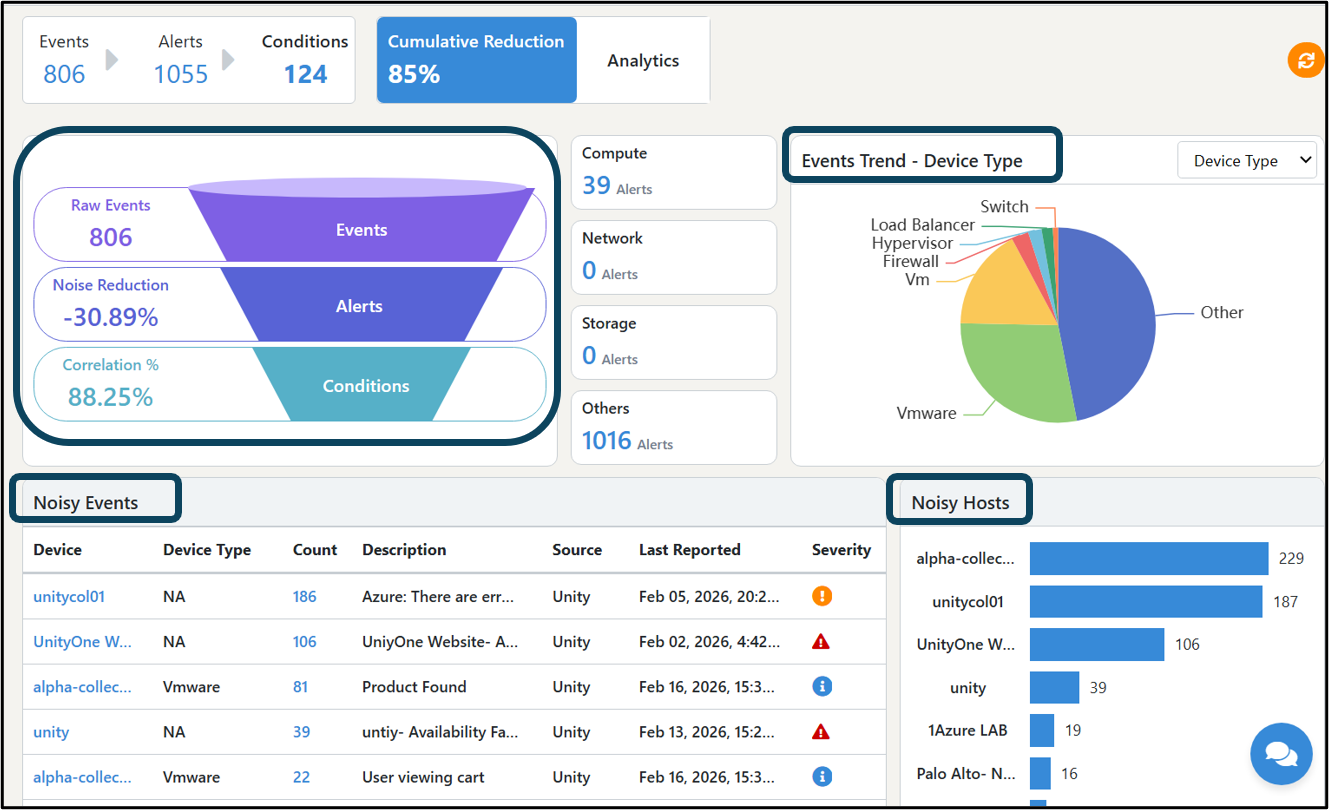
- 1. Overall Summary Graph: In the upper right corner, there is an overall summary graph. This graph provides information such as the total number of active events, alerts noise reduction percentage, and conditions correlation percentage. It offers a visual representation of the overall summary of the active events/alerts and their reduction through rules and correlations.
- 2. Noisy Events Table: The Noisy Events Table contains a list of devices for which the maximum number of alerts/events are generated and remain active/open. The table provides details such as Device Name, Device Type, Count, Description of alerts/events, Source, and the time when these alerts were generated. Additionally, the severity of the alerts is also mentioned.
- 3. Noisy Host: The Noisy Host section represents the devices with the highest number of events in the form of a bar graph. This visual representation helps identify the devices that generate a considerable number of alerts/events.
- 4. Events Trend - Device Type: The Events Trend graph displays trends based on various parameters. In the right corner, you will find a dropdown menu that allows you to select values such as device type, event source, data center, cloud, and severity. Based on your selection, the graph presents a pie chart showing the distribution of events according to the selected parameter.
In the upper right corner, you will find the settings button (rule setting button), which redirects you to the Suppression Rule page by default.
5.1.3.1 Events Page
The Events page displays a list of events that are generated when devices experience issues such as downtime or warnings. The events are presented in a table format, including the following details:
- 1. ID: The unique identifier for each event.
- 2. Device Name: The name of the device associated with the event.
- 3. Device Type: The type of device generating the event (e.g., router, server, switch).
- 4. Management IP: The management IP address of the device.
- 5. Description of Alerts: A brief description of the event or alert.
- 6. Alert Time: The time when the event was triggered.
- 7. Severity: The severity level of the event (e.g., critical, warning, information).
- 8. Status: The status of the event (e.g., open, active).
- 9. Acknowledged: Indicates whether the event has been acknowledged or not.
- 10. Source: The source of the event (e.g., monitoring tool, device).
- 11. Duration: The duration of the event since it was triggered.
- 12. Recovery Time: The time when the event was resolved or recovered.
- 13. Actions: Any recommended actions or steps to be taken for the event.
NoteThe table displays open/active events. Resolved events will remain visible for 10 minutes before automatically disappearing from the table.
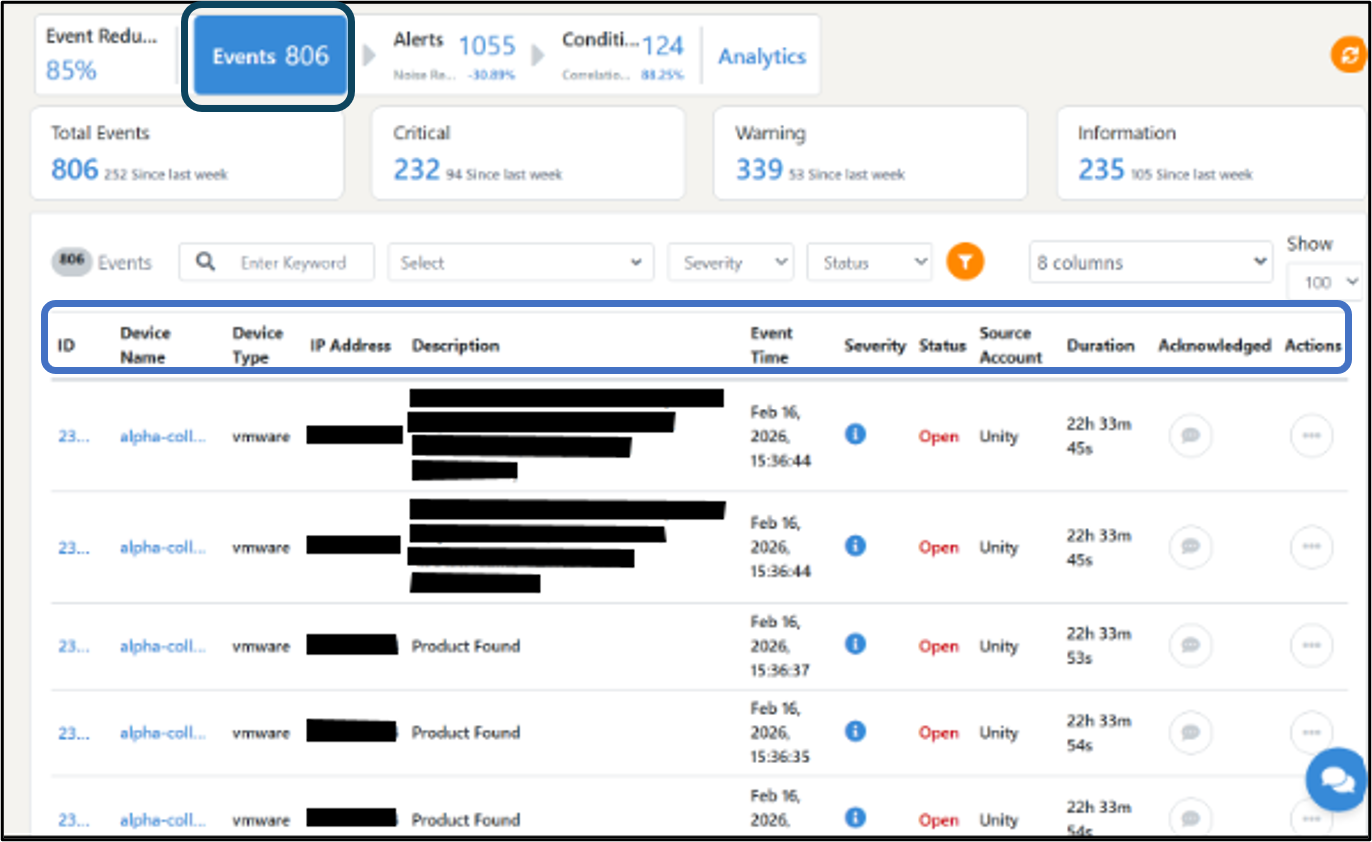
5.1.3.2 Alerts Page
The Alerts page handles events that are similar and occur within a time of 5 minutes. These events are deduplicated, meaning they are combined into a single alert to avoid duplication. This process of combining similar events is known as "deduped events." After deduplication, the events go through suppression rules that are defined to filter out less important or noisy alerts. This reduction of events to alerts is calculated as the "Noise Reduction Percentage."
The alerts are presented in a table format, including the ID, Device name, event metric, alert time, severity level, description of alerts, status, source, acknowledgment, and actions.
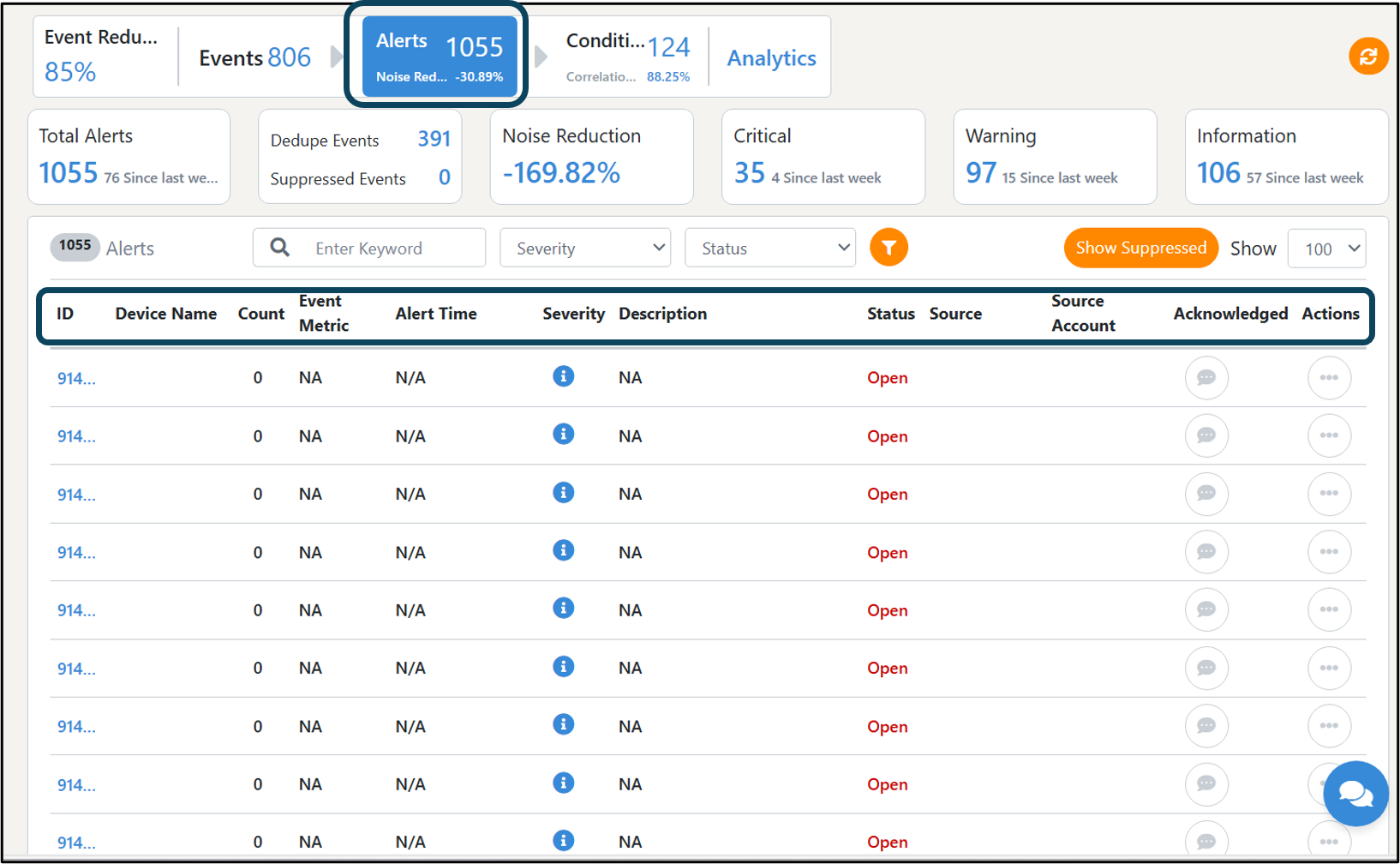
5.1.3.3 Conditions Page
Following the deduplication and suppression process within the 5-minute time, the resulting alerts are subject to correlation rules defined in the system. If an alert satisfies a correlation rule, it will create a condition. These conditions are used to group related alerts and further reduce the number of alerts. The reduction of alerts into conditions is calculated as the "Correlation Percentage."
The use of correlation rules helps streamline and organize the alerts, providing a more structured and manageable view of the events and their impact.
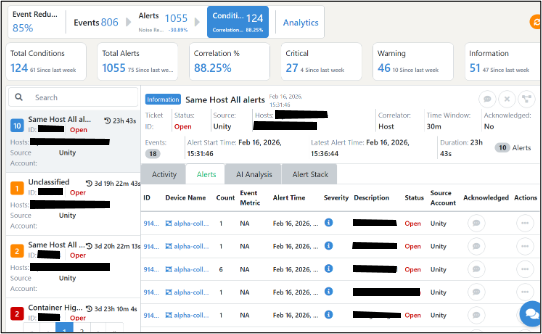
Rule Settings
The Rule Settings section allows you to create suppression rules and Correlation Rules.
5.1.3.3.1 Suppression Rule
The Rule Settings section allows you to create suppression rules with multiple conditions to ignore specific alerts or events that you think unimportant.
Follow these steps to create a suppression rule:
- 1. Select the Suppression Rule tab from the Rule Settings page.
- 2. Click on the "Add Rule" button located in the upper right corner. This will open a modal box with several input fields.
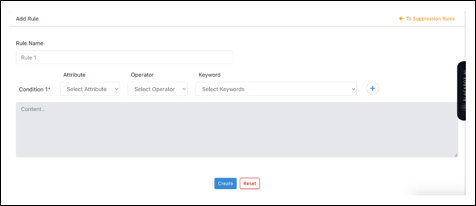
Suppression Rule Inputs
- 1. Rule Name: Provide a name for the rule you are creating in the Rule Name input box.
- 2. Condition 1: This condition consists of multiple dropdowns: Attribute, Operator, and Keyword.
- 3. Attribute: Choose an attribute from the dropdown list, such as name, description, source, severity, or category.
- 4. Operator: When you click on the Operator dropdown, you will see options like "is," "in," and "contains."
- a. "is": This operator signifies that the attribute must exactly match the keyword.
- b. "in": Selecting this operator means any value of the keyword will be considered.
- c. "contains": Choosing this operator allows any string value you enter in the keyword field to match.
- 5. Keyword: The options in this dropdown depend on the selections made in the Attribute and Operator dropdowns. Choose the appropriate keyword based on your requirement.
Adding Multiple Conditions
- 1. Click the "+" button to add additional conditions. You can create multiple conditions based on your needs.
- 2. After clicking the "+" button, you will see an additional dropdown for "AND" or "OR." Choose "AND" if all conditions must be satisfied or choose "OR" if any condition can be satisfied.
- 3. For example, if you want to create a rule that ignores alerts with severity labelled as "information," your first condition would be:
Condition 1:
- a. Attribute: Severity
- b. Operator: is
- c. Keyword: Information
For example, to add another condition, let us say you want to suppress events with the description "No SNMP data collection." In this case, you would create the following condition:
Condition 2:
- a. Attribute: Description
- b. Operator: contains
- c. Keyword: No SNMP data collection
Choose "AND" or "OR" based on your requirements.
5.1.3.3.2 Correlation Rules
Correlation rules are used to create conditions or correlations for suppressed alerts/events. If all the alerts within a time, such as 5 minutes, satisfy any correlation rule, they will be grouped together and create a condition based on the name of the correlation rule you have created.
On the other hand, any alert that does not satisfy any correlation rule will create an unclassified condition.
When a condition is created, it automatically generates a support ticket for further action or investigation.
Follow these steps to create a suppression rule:
- 1. Select the Correlation Rule tab from the Rule Settings page.
- 2. Click on the "Add Rule" button located in the upper right corner. This will open a modal box with several input fields.
Correlation Rule Inputs
- 1. Rule Name: Provide a name for the rule you are creating in the Rule Name input box.
- 2. Condition 1: This condition consists of multiple dropdowns: Attribute, Operator, and Keyword.
- 3. Attribute: Clicking on the Attribute dropdown will display options such as Event Source, Event Type, Event Severity, Event Category, Event Description, Device Type, Device Name, and Device Tag.
- 4. Operator: When you click on the Operator dropdown, you will see options like "is," "in," and "contains."
- a. "is": This operator signifies that the attribute must exactly match the keyword.
- b. "in": Selecting this operator means any value of the keyword will be considered.
- c. "contains": Choosing this operator allows any string value you enter in the keyword field to match.
- 5. Keyword: The options in this dropdown depend on the selections made in the Attribute and Operator dropdowns. Choose the appropriate keyword based on your requirement.
Adding Multiple Conditions
To add additional conditions, click the "+" button. This button allows you to create multiple conditions based on your requirements.
After clicking the "+" button, you will see an additional dropdown for "AND" or "OR." Choose "AND" if all conditions must be satisfied or choose "OR" if any condition can be satisfied.
For example, let us say you want to create a rule that creates a condition for alerts with descriptions containing the phrase "link is down." You would set the following condition:
Condition 1:
- 1. Attribute: Event Description
- 2. Operator: contains
- 3. Keyword: link is down
To add another condition, such as checking if the device is a Firewall, you would create the following condition:
Condition 2:
- 1. Attribute: Device Type
- 2. Operator: is
- 3. Keyword: Firewall
Choose "AND" or "OR" based on your requirements.
5.1.3.4 Analytics Page
The Analytics page provides valuable insights into the alerts and events, whether they are currently active or have been closed, until the present date. This page offers both numerical data and graphical representations to help you analyze trends effectively. Here is what you can find on the Analytics page:
5.1.3.4.1 Alerts Count and Device Summary
The Analytics page displays the count of alerts, along with the associated devices. This information covers all alerts, whether they are currently active or have been closed, up until the present date.
In the upper right corner, you will find a box providing the count of different devices that have experienced alerts until the present date.
5.1.3.4.2 Trend by Timeline
This graph provides a visual representation of the events, alerts, and conditions over different days versus their respective counts. You can sort this data by choosing from the dropdown menu provided for the graph. The available options include events, alerts, conditions, and an "all" category.
The timeline can be adjusted to view data up until the present date, or you can select specific time ranges, such as the last week, last month, or last 24 hours. The graph will display the count of events, alerts, and conditions until the present date.
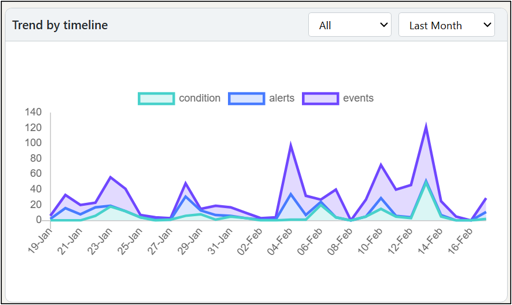
5.1.3.4.3 Event by Device Type
This pie chart presents the count of all devices that have experienced events and alerts. The chart allows you to choose from a dropdown menu to view data up until the present date or select specific time ranges, such as the last week, last month, or last 24 hours.
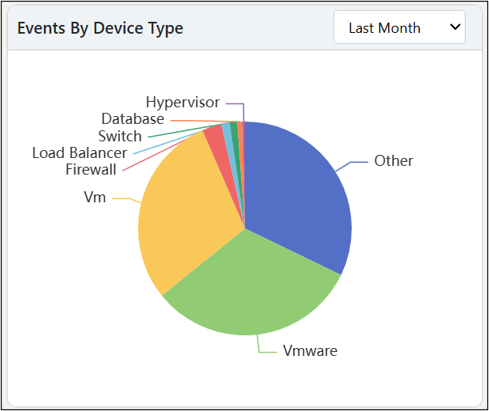
5.1.3.4.4 Top 10 Noisy Hosts
The Top 10 Noisy Hosts section represents the devices with the highest number of events/alerts in both table and bar graph formats. This visual representation helps identify the devices that generate a considerable number of alerts/events up until the present date.
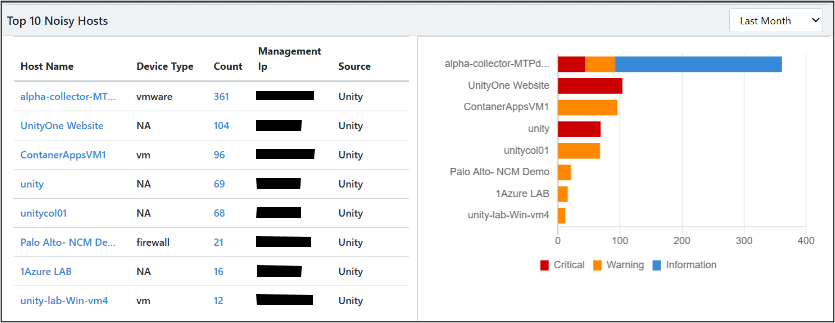
5.1.3.4.5 Suppression and Correlation Table
Below the Noisy Hosts section, you will find the Suppression and Correlation table. This table provides a list of all the rules created up until the present date. You can filter the rules based on the specified time range, choosing from the dropdown options for the last week, last 24 hours, or last month.
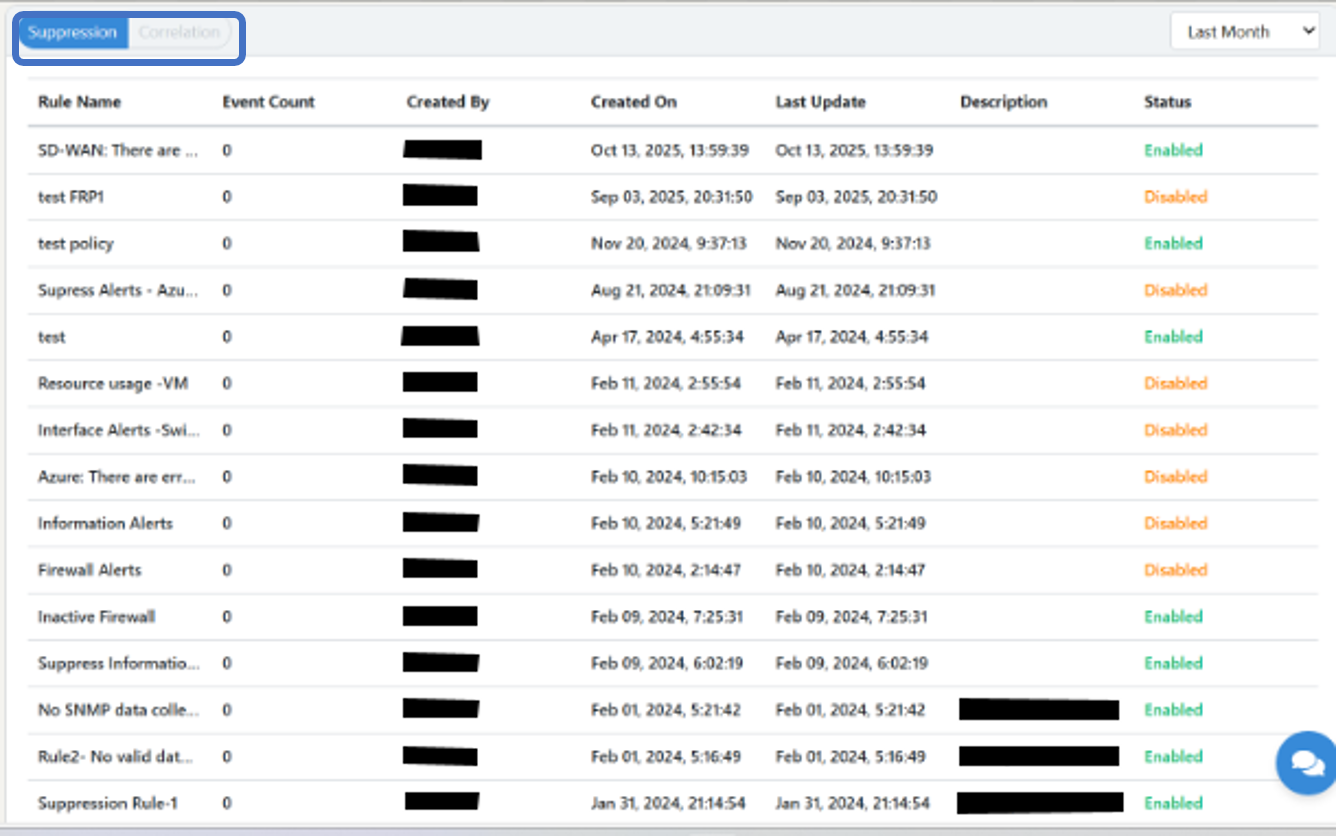
The table also includes information such as the description of each rule and whether the rule is enabled or disabled.
5.2 Devops Automation
The Summary page provides a high‑level view of all tasks and workflows configured in the system. It helps users quickly assess execution status, performance trends, failures, and upcoming activities. There are 4 tabs:
5.2.1 Summary
5.2.1.1 Task Overview
The Tasks section displays aggregated information about all automated tasks.
Key Metrics
- 1. Total Tasks: Shows the total number of tasks created.
- 2. Enabled vs Disabled: A doughnut chart representing how many tasks are active.
- 3. Tasks by Type: Categorizes tasks based on script or API type:
- a. PowerShell Script
- b. Bash Script
- c. Terraform Script
- d. Ansible Playbook
- e. REST API
- 4. Host, Cloud, Local Distribution: Displays where tasks run:
- a. Host – executed on managed servers
- b. Cloud – executed on cloud instances
- c. Local – executed on local agents
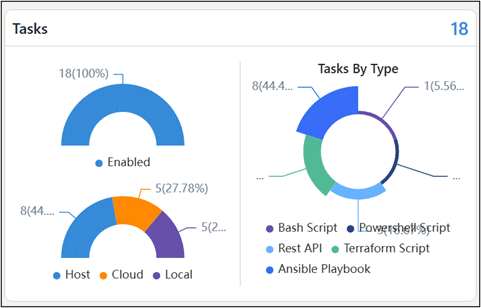
5.2.1.2 Workflows Overview
The Workflows section summarizes orchestration workflows.
Key Metrics
- 1. Total Workflows: Total number of workflows configured.
- 2. Enabled Workflows: Shows how many workflows are currently active.
- 3. Workflows by Category:
- a. Operational
- 4. Host, Local Split: Indicates where the workflow executes.
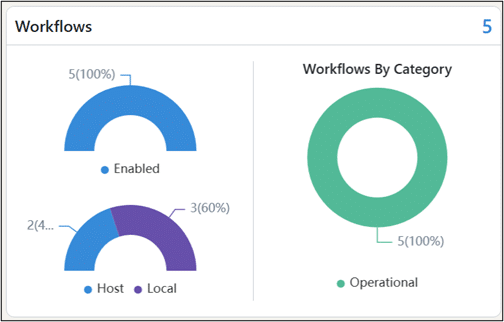
5.2.1.3 Execution Summary
This section provides insights into all task and workflow executions for the selected time range (e.g., Last 7 Days).
5.2.1.4 Executions Overview
This section helps analyze performance and stability using scatter plots.
5.2.1.5 Recent Failures
Lists all failed task or workflow executions.
Columns
- 1. ID: Unique execution identifier.
- 2. Target: The system or resource on which the execution ran.
- 3. Name: Task or workflow name.
- 4. Type: Shows whether it is a Task or Workflow.
- 5. Started On: Timestamp of execution start.
- 6. Executed By: User or system that triggered it.
- 7. Action: View execution details using the play button icon.
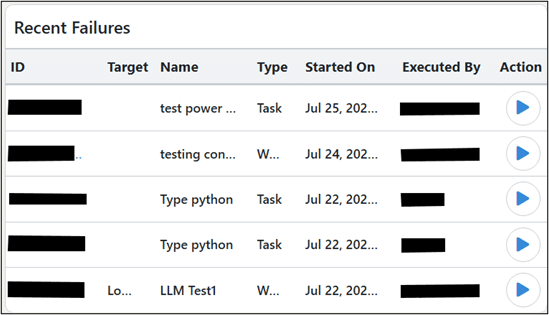
5.2.1.6 Upcoming Executions
Displays all scheduled future task or workflow runs.
5.2.2 Tasks
The Tasks page displays all automated tasks configured in the platform. It helps users view, filter, manage, and execute tasks across different target environments.
At the top of the page, four summary cards provide an at‑a‑glance overview:
- 1. Total Task - Shows the total number of tasks created in the system.
- 2. Type - Displays tasks grouped by execution type. Icons represent: Script types (PowerShell, Bash, Terraform, Python, etc.) API calls
Other task categories
- 3. Target Type - Shows where the tasks run:
Cloud, Host, Local
- 4. Status- Indicates how many tasks are currently: Enabled, Disabled
The main panel displays all tasks in a searchable and filterable table.
Left Sidebar (Categories)
The left-side menu groups tasks into categories such as:
- 1. Agent
- 2. Azure
- 3. Services
- 4. Vcenter_VM
Clicking a category filters the task list accordingly.
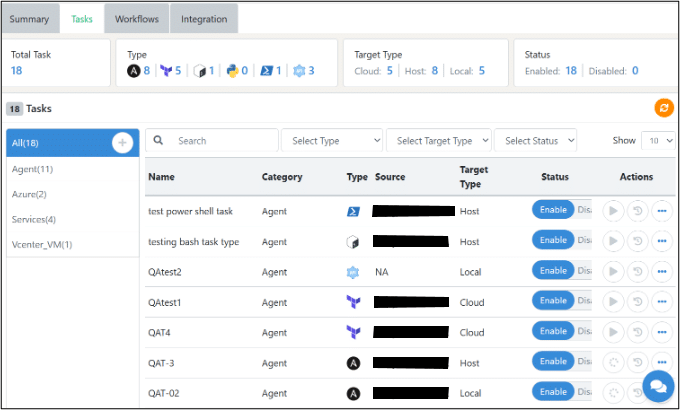
5.2.3 Workflows
The Workflows page provides a complete view of all configured workflows, their execution status, categories, and operational state. Users can search, filter, enable/disable, and manage workflows from this section.
Summary Cards (Top Section)
The top panel provides quick insights into workflow metrics:
- 1. Total Workflow- Shows the total count of workflows created in the system.
- 2. Execution Status- Displays overall workflow execution results: Success, Failed, In Progress
- 3. Status- Indicates how many workflows are currently: Enabled, Disabled
- 4. Category- Categorizes workflows into functional groups: Integration, Operational, Provisioning, Agentic
You can create the workflow by using below options and fill in the details:
Located above the table:
- 1. Agentic Workflow → Create a new Agentic workflow
- 2. Workflow → Create a standard workflow
- 3. Refresh Icon → Reload the latest workflow list
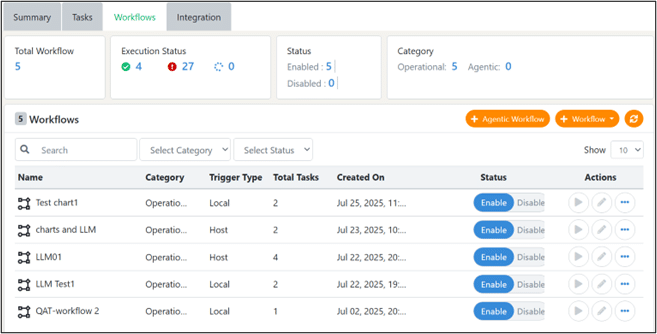
5.2.3.1 How to create an Agentic Workflow
- 1. Click on the Agentic Workflow tab.
- 2. A popup window will appear.
- 3. Enter a suitable workflow name.
- 4. Provide a brief and clear description of the workflow.
- 5. Click to proceed to the workflow builder.
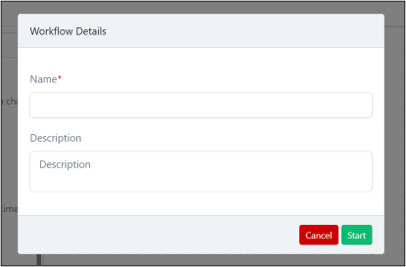
5.2.3.1.1 Access the Workflow Builder
- 1. The workflow builder screen is displayed with a canvas in the center and a component panel on the left.
- 2. The canvas is used to visually design and configure the workflow.
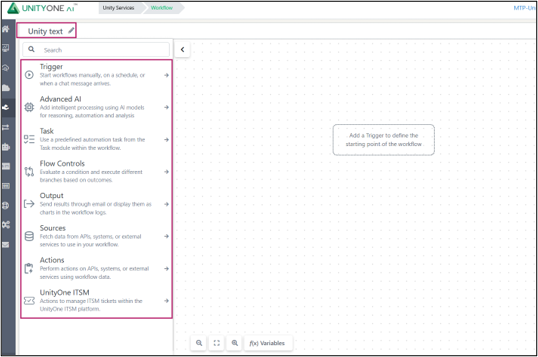
5.2.3.1.2 Add and Configure a Trigger
- 1. From the left panel, select Trigger to view available trigger types, such as:
- a. Manual
- b. Schedule
- c. On Chat Message
- d. Webhook
- e. ITSM Event
- f. AIML Event
- 2. Drag and drop the required Trigger onto the blank canvas.
- 3. Once placed, a configuration popup appears.
- 4. Enter the required details, such as Name, and add inputs using the + Param option if needed.
- 5. Save or close the popup to apply the trigger configuration.
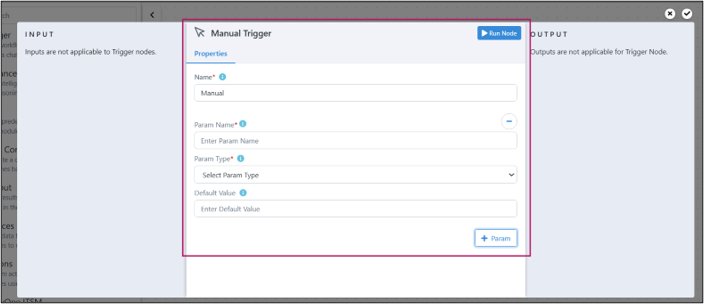
The trigger defines how the workflow is initiated
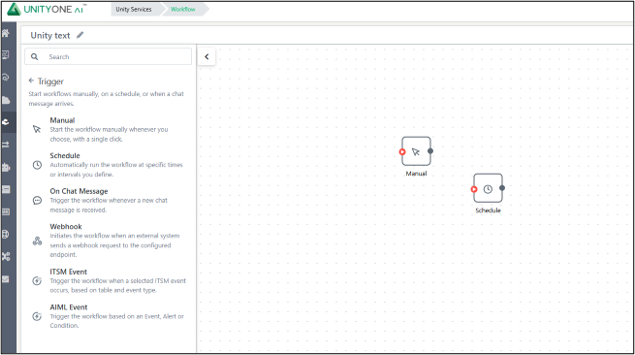
5.2.3.1.3 Build the Workflow Logic
- 1. Use the left panel to add additional components by dragging them onto the canvas:
- a. Advanced AI – for intelligent processing and analysis
- b. Task – for predefined automation steps
- c. Flow Controls – for conditions and branching logic
- d. Sources – to fetch data from external systems
- e. Actions – to perform operations
- f. Output – to display or send results
- g. UnityOne ITSM – for ITSM-related actions
- 2. Configure each component through its respective popup.
- 3. Connect components to define the workflow sequence and logic
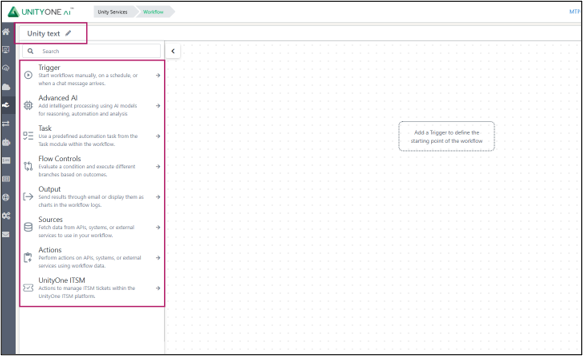
5.2.3.1.4 Run or Save the Workflow
- 1. Click Run to test the workflow.
- 2. Click Save Workflow to save your configuration for future use.
5.2.3.2 How to create a Workflow
- 1. Click on the Workflow tab.
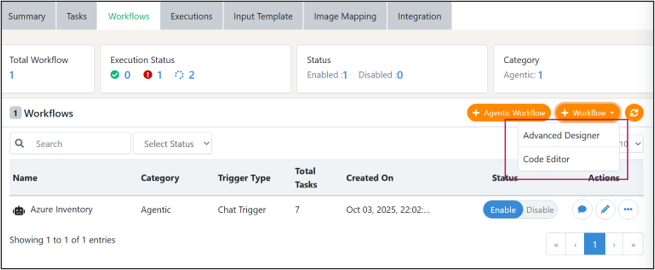
- It provides two options for creating a workflow:
- A) Advanced Designer
- i) Enter the following details: Name, description, category and target type.
- ii) Click Start to create the workflow.
- iii) The workflow designer canvas will open. Use the left panel to add workflow components such as:
- • Tasks – Define workflow actions and activities.
- • Condition – Add decision-making logic and branching conditions.
- • Output – Configure workflow outputs and responses.
- • Sources – Add data sources, integrations, or connectors.
- • Advanced AI – Configure AI-driven capabilities and advanced processing.
- iv) Drag and drop the required components onto the workflow canvas and configure them as needed.
- v) Connect the workflow nodes to define the execution flow from Start to End.
- vi) After completing the configuration, click Save Changes in the upper-right corner to save the workflow.
- vii) The newly created workflow will be listed under the Workflows page, where it can be edited, enabled, disabled, or monitored through the Executions tab.
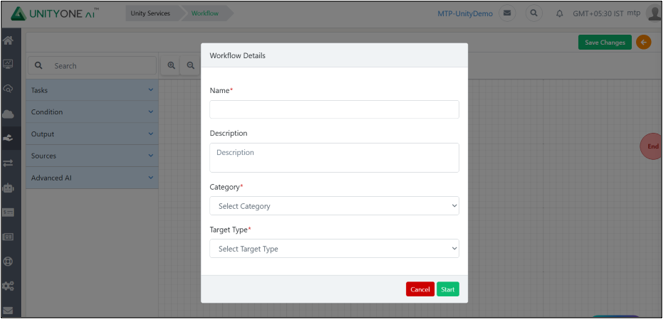
- B) Code Editor
- i) The Configuration window will open displaying the workflow configuration in JSON format.
- ii) Update the workflow details in the JSON configuration:
- • workflow name – Enter a unique name for the workflow.
- • description – Provide a brief description of the workflow.
- • category – Specify the workflow category.
- • target type – Define the target environment or service.
- • cloud – Enter the applicable cloud platform, if required.
- iii) Review the tasks section and configure the workflow tasks:
- • Define task names and IDs.
- • Specify task types.
- • Configure task parameters, inputs, and outputs.
- • Add additional tasks as needed.
- iv) Verify the workflow logic to ensure all tasks, conditions, and dependencies are properly configured.
- v) Scroll through the JSON configuration and make any required modifications.
- vi) Click Submit to save and create the workflow.
- vii) If you do not want to save the configuration, click Close to exit the window without submitting changes.
- viii) After submission, the workflow will be added to the Workflows list and can be:
- • Enabled or disabled.
- • Edited if further changes are required.
- • Monitored from the Executions tab to track workflow execution status.
Note:The Code Editor is intended for advanced users who want direct control over workflow configuration through JSON-based definitions. Ensure the JSON syntax is valid before clicking Submit.
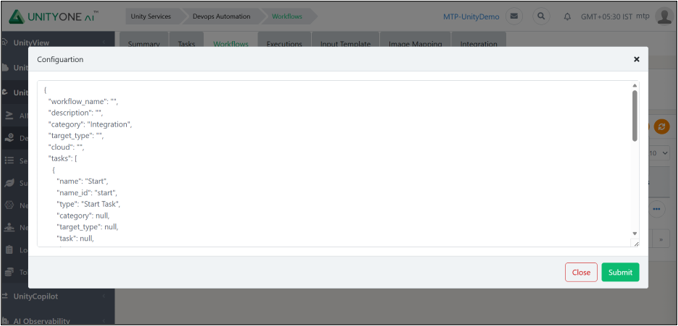
5.2.4 Integration
The Instances section displays all configured integration repositories or external service connections used by the platform. Each instance shows its name, type, status, description, and connectivity health, allowing users to quickly verify whether the integration is active and functioning. Users can view details, enable or disable an instance, update its configuration, or delete it using the action controls provided.
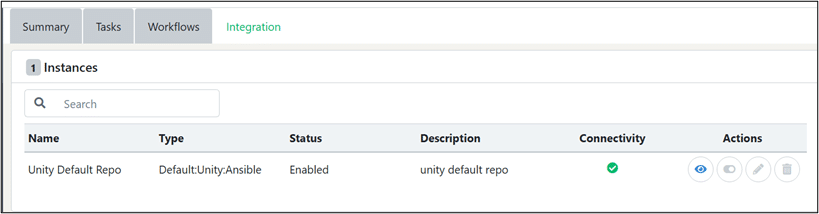
5.3 Service Catalog
In a unified view of service deliverables, the service catalog page will provide a detailed view of the services requested from UnitedLayer or other service providers.
In this tab, you can find information about the service category, provider info, service name, charge.
Action Button
- 1. Manage by creating a new ticket – You can use this action button to get help from our support team to manage your service.
Note 1You can click on the drop-down beside the service category section to filter the service category's view.
Note 2Similarly, you can click on the accordion beside the provider section to filter the provider view.
Note 3After selecting your filter choice as recommended from notes 1 & 2, you must click on the ‘Refresh’ icon on the top right-hand corner of the page to view your results.
5.3.1 Creation of Service Catalog
This section explains how to create a new service catalog entry.
- 1. Navigate to Create Catalog
- a. Open the Create Catalog page from the application menu.
- 2. Enter Catalog Details
- 1) Name
- a. Enter a unique name for the catalog in the Name field.
- b. Example: Employee Onboarding Request
- 2) Description
- a. Provide a detailed description of the catalog service.
- b. Include what the service does and when it should be used.
- 3) Category
- a. Select an appropriate category from the dropdown list.
- b. Categories help organize and classify catalog items.
- 4) Catalog Type
- a. Choose one of the following options:
- • Task – For individual service tasks
- • Workflow – For multi-step processes
- 5) Task
- a. Select a task from the dropdown list.
- Price
- a. Enter the cost of the service in the Price field.
- a. Enter the cost of the service in the Price field.
- 7) Auto Approval
- a. Enable the checkbox to allow automatic approval of requests.
- b. If not selected, the request will follow the approval workflow.
- Submit the Catalog
- a. Click Submit to create the catalog.
- b. Click Cancel to discard changes and return to the previous screen.
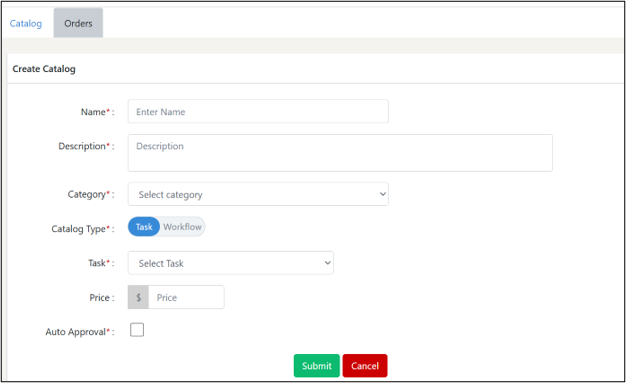
5.3.2 Catalog
5.3.2.1 Top Summary Indicators
The top panel provides an overview of catalog availability and usage:
- 1. Total Catalogs : Total number of catalogs created in the system.
- 2. Orders In‑Progress: Number of catalog orders currently being processed.
- 3. By Catalog Type:
- a. Workflow: Catalogs built using workflow automation.
- b. Task: Catalogs that execute single tasks.
- 4. By Cloud:
- a. Azure
- b. VMware vCenter
- c. Other
These filters help users quickly locate catalogs based on type or cloud provider.
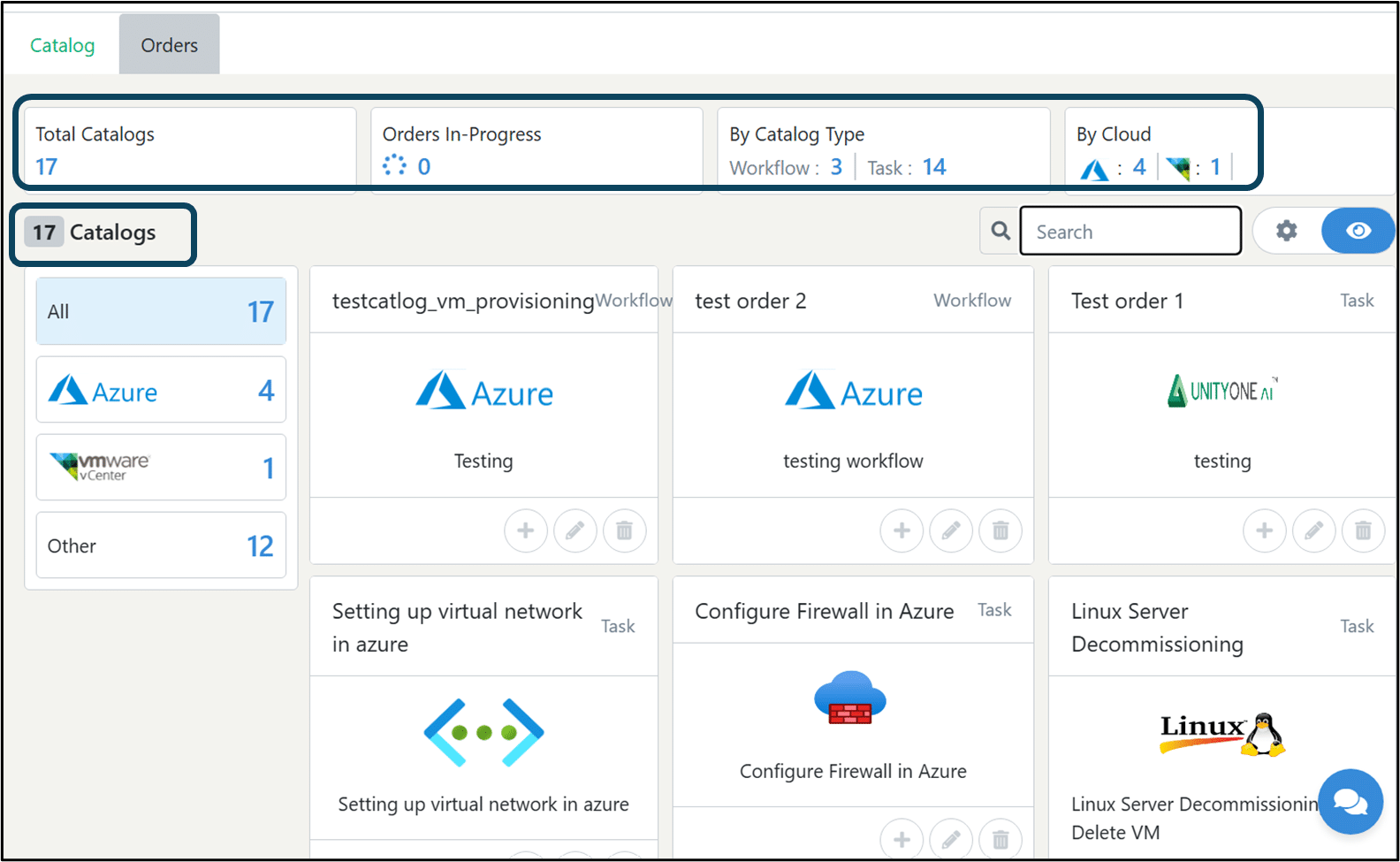
5.3.2.2 Catalog Filters (Left Panel)
Users can filter catalogs using provider-based categories:
- 1. All: Shows all available catalogs.
- 2. Azure: Catalogs designed for Azure deployments.
- 3. VMware vCenter: Catalogs for VMware-based provisioning.
- 4. Other: Generic or custom catalogs not tied to a specific cloud.
Selecting a category updates the catalog grid accordingly.
- 1. Users can filter catalogs by provider (Azure, vCenter, Other) or view all catalogs at once.
- 2. Each catalog appears as a card showing its name, type, cloud provider, and basic details.
- 3. Quick actions allow users to launch, edit, or delete a catalog.
- 4. A search bar and view options help users easily locate and manage catalogs.
5.3.3 Order
The Orders section provides a consolidated view of all catalog orders placed within the platform. It helps users track provisioning activities, order statuses, costs, and the cloud environment used for each request.
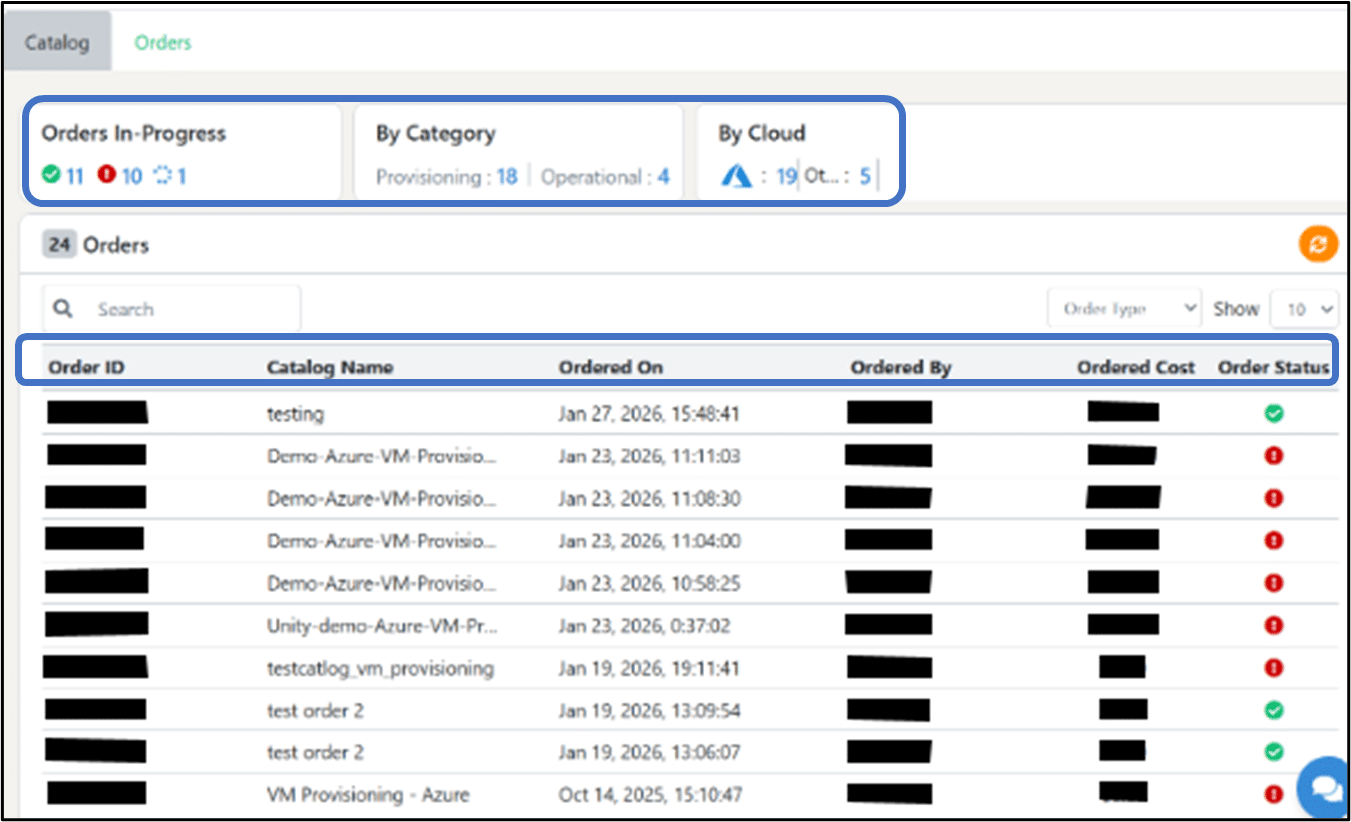
5.3.3.1 Top Summary Indicators
The top panel gives a quick overview of the current order distribution:
- 1. Orders In‑Progress:
Shows the count of active orders with their status breakdown:
- a. Green: Successful
- b. Yellow: In progress
- c. Red: Failed
- 2. By Category:
Displays the number of orders categorized by:
- a. Provisioning: Resource creation orders
- b. Operational: Maintenance or operational actions
- 3. By Cloud:
Shows the cloud platforms used for these orders:
- a. Azure
- b. Other
These indicators help users quickly understand activity trends across categories and clouds.
The table lists all orders with detailed information for tracking and auditing.
- 1. Order ID: Displays the unique identifier assigned to each order.
- 2. Catalog Name: Shows the catalog used to place the order.
- 3. Ordered On: Indicates the date and time when the order was submitted.
- 4. Ordered By: Displays the name of the user who initiated the order.
- 5. Ordered Cost: Shows the estimated or actual cost of the order.
- 6. Order Status: Indicates whether the order is successful (green), failed (red), or in progress (yellow).
- 7. Actions: Provides options to view detailed order logs or status information.
5.4 Sustainability
The sustainability module will help you monitor, measure, and analyze the carbon emission levels of your global carbon footprints deployed across distributed systems such as Private Clouds, public clouds, data centers, and enterprise IT.
On this page, you can find three different tabs, such as dashboard, emission details, and usage, to view and monitor the carbon emissions of your IT ecosystem.
5.4.1 Adding GCP Accounts
- 1. Access Google Cloud Tab: Click on "Unity Cloud" and navigate to the "Public Cloud" section. Select the "Google Cloud" tab.
- 2. List GCP Accounts: Under the Google Cloud tab, you will find a list of GCP accounts associated with your Unity Cloud organization.
- 3. Adding an Account: To add a new GCP account, click on the "Add Account" button. A modal will appear.
- 4. Fill Account Details: In the modal, provide the account name, service information, and email associated with the GCP account.
- 5. Click Add: Once you have filled in the details, click the "Add" button. The GCP account will be added to your Google Cloud integration and displayed in the table below.
- 6. Table Columns: The table displays various columns, including account name, email, project ID, regions, and actions.
5.4.2 Enabling Sustainability
- 1. Select Region: To enable sustainability, first, choose a region from the list provided in the table.
- 2. Initiate Sustainability: Click on the leaf symbol in the "Actions" column corresponding to the chosen region. This will open a modal.
- 3. Fill Model Details: In the model, fill in the account name, select the billing account from the dropdown, and choose a dataset from the dropdown options.
- 4. Submit: After completing the required fields, click "Submit." This action will enable sustainability for the chosen account in the specified region.
- 5. View Sustainability Info: You can now view the sustainability information in the "Sustainability" tab under Unity Services.
5.4.3 Dashboard
In the dashboard view, you may graphically observe multiple grids, which include charts and graphs that give insights into various carbon emission metrics and levels. In the first grid, you can find information about your total carbon emission per annum, total power usage, data center with the highest carbon emission, and device type with the highest carbon emission.
In the second grid, you will find different charts that give CO2 emission insights on ‘emissions by top 10 tag groups’, ‘emissions by data center,’ ‘emissions by device type,’ ‘emissions by Private Cloud’, ‘emissions by a quarter,’ and ‘emissions by year.’
5.4.3.1 Graphs and Insights:
- 1. Emission by Datacenter: This graph illustrates the carbon emissions of all data centers in your organization in a bar plot.
- 2. Emission by Device Type: This graph displays carbon emissions categorized by different device types in your organization in a bar plot.
- 3. Emission by Private Cloud: Understand carbon emissions related to private cloud usage within your organization.
- 4. Emission by Quarter: Analyze carbon emissions quarterly, helping you track changes and improvements over time.
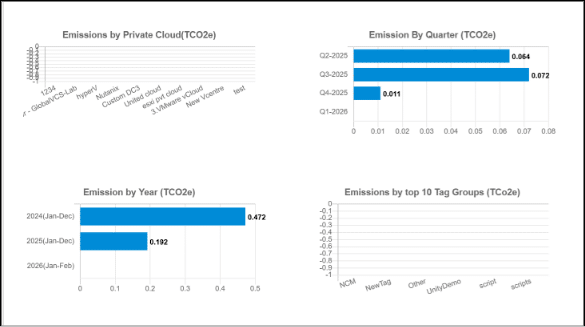
- 5. Yearly Emission: This graph provides an annual perspective on carbon emissions.
- 6. Emission by Top 10 Tag Groups: Devices in Unity are tagged, and this graph displays carbon emissions by the top 10 tag groups with the highest emissions in your organization.
5.4.4 Emission Details
In this tab, you are provided with options to select data centers, select cabinets, and select device types to find out carbon emission details based on your preferences.
- 1. Filter Options: On this page, you will find filter options under "Emission by":
- a. Datacenter
- b. Public Cloud
- 2. Datacenter Filter: If you select "Datacenter," you can choose to filter by:
- a. All Datacenters or specific ones
- b. Cabinets
- c. Device Types
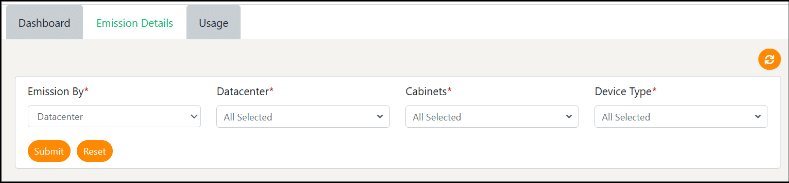
- 3. Public Cloud Filter: If you select "Public Cloud," you can filter by:
- a. Cloud Name
- b. Subscription
- 4. Graph Insights: Based on your filter selections, you will receive insights in the form of graphs.
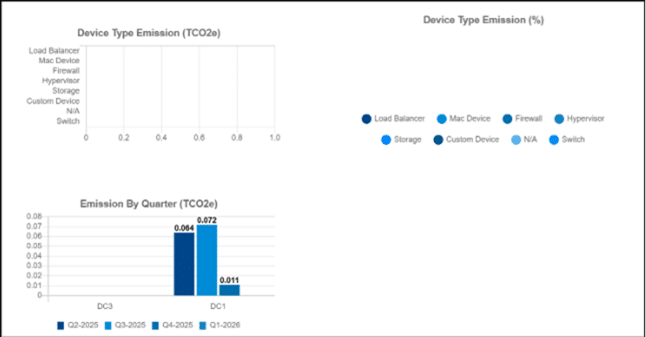
5.4.5 Usage
Here you can apply various kinds of filters to break down the usage insights, where you can view the results based on factors of data centers, cabinets, and device types. You can check or uncheck your choices by clicking on the respective dropdowns. Also, you can further narrow down your results using the duration filter for time stamps.
Usage tab displays various information of devices within organization.
- 1. Filter Options: In this tab, you can filter data using the following parameters
- a. Datacenter
- b. Cabinets
- c. Device Types
- d. Duration
- 2. Customize Table Columns: Below the filters, you will find a table with columns:
- a. Device Name
- b. DC name
- c. Region
- d. Cabinet
- e. Type
- f. Power Usage (kilowatt-hour)
- g. CO2 Emission (TCO2e)
- h. Uptime
- i. IP address
- j. Model
- k. Tags
- 1. Column Dropdown: You can customize the displayed columns by using the dropdown in the right corner of the table. Choose the columns you want to view.
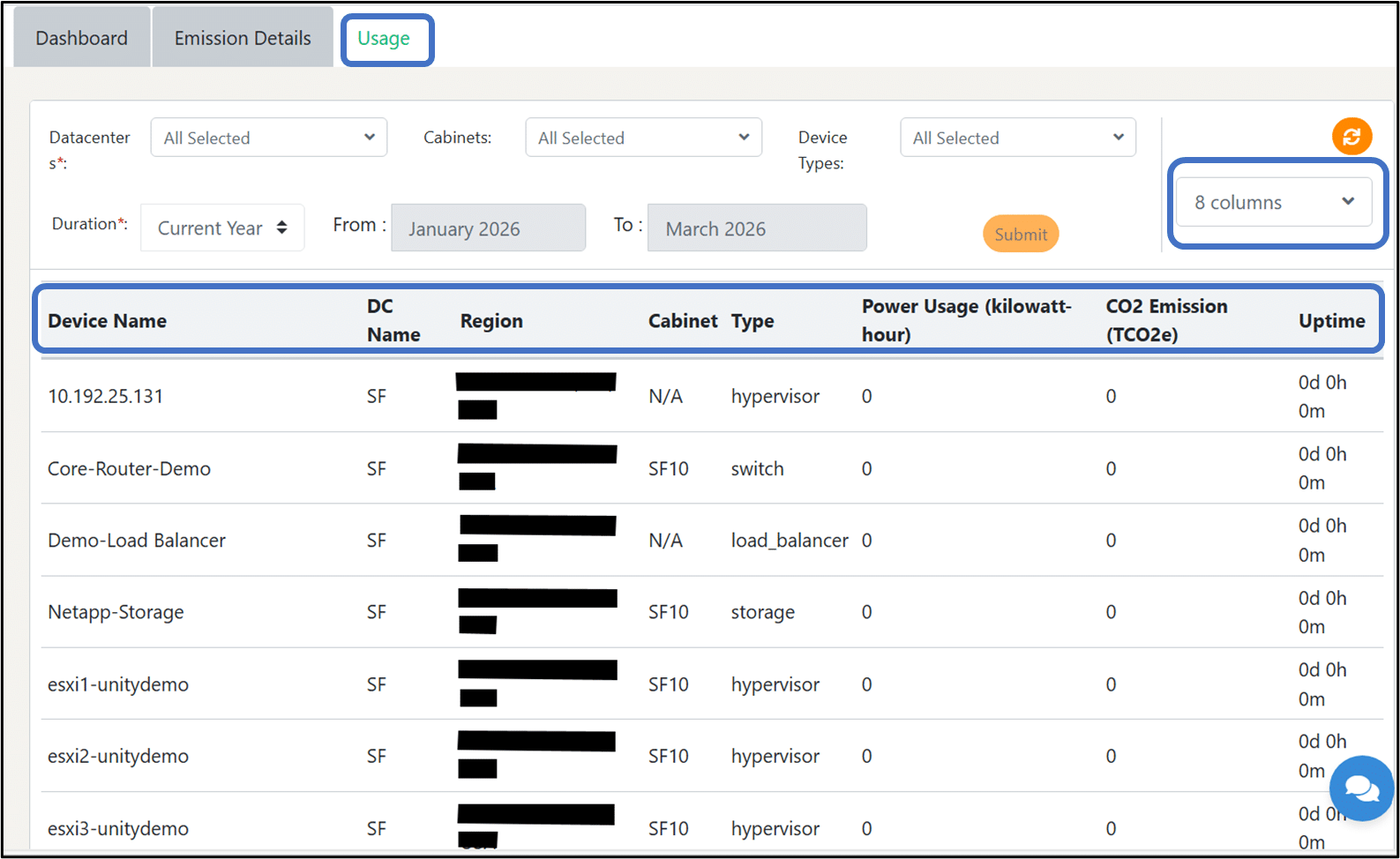
5.5 Network Configuration
The Network Configuration Manager (NCM) automates the secure backup, storage, and versioning of network device configuration files. It captures both running and startup configurations and centralizes them in UnityOne AI for compliance, governance, operational continuity, and disaster recovery.
NCM reduces manual effort, strengthens security, and ensures consistent, policy‑aligned network operations
On this page, you can find three different tabs, such as NCM status, Configure and devices group.
5.5.1 Key Features
5.5.1.1 Backup & Restore
- 1. Scheduled or on-demand backups (startup & running configs).
- 2. On-click restore script generation (CLI commands).
- 3. API-driven export for Firewalls.
5.5.1.2 Version Control
- 1. Each backup stored as immutable version.
- 2. Line-by-line diffs to detect unauthorized or unexpected changes.
- 3. Drift detection alerts.
5.5.1.3 How to add a device in NCM
At the top right-hand side of the page, you will see a button ‘Add device;’ click on it and fill in the required details below:
- 1. Name – In this field you must enter a name for your device
- 2. Device type – In this field, you must enter the type of device
- 3. Manufacturer- In this field, you must enter the manufacturer name of the device
- 4. Model - In this field, you must select model from the drop-down
- 5. Management IP – In this field you must enter a device IP address for console access
Click on ‘Submit’ to add a device to UnityOne AI
NoteIf you get an error after clicking submit, please ensure again that all the provided information is correct and if the issue persists, contact the UnityOne AI support team.
5.5.2 NCM Status
At the top right-hand side of the page, you will see a button ‘Add device;’ click on it and fill in the required details below:
The top filter bar allows users to refine the device list using the following criteria:
- 1. Status: Filter devices by backup status (All, backed up, Not Backed up, etc.).
- 2. Datacenter: View devices belonging to a specific datacenter.
- 3. Device Type: Select device types such as routers, switches, firewalls, etc.
- 4. Manufacturer: Filter devices by vendor (CISCO, FortiGate, Palo Alto, etc.).
- 5. Model: View devices based on specific hardware models.
- 6. Collector: Filter by the collector responsible for retrieving backup data.
- 7. Apply: Applies all selected filters to update the device list.
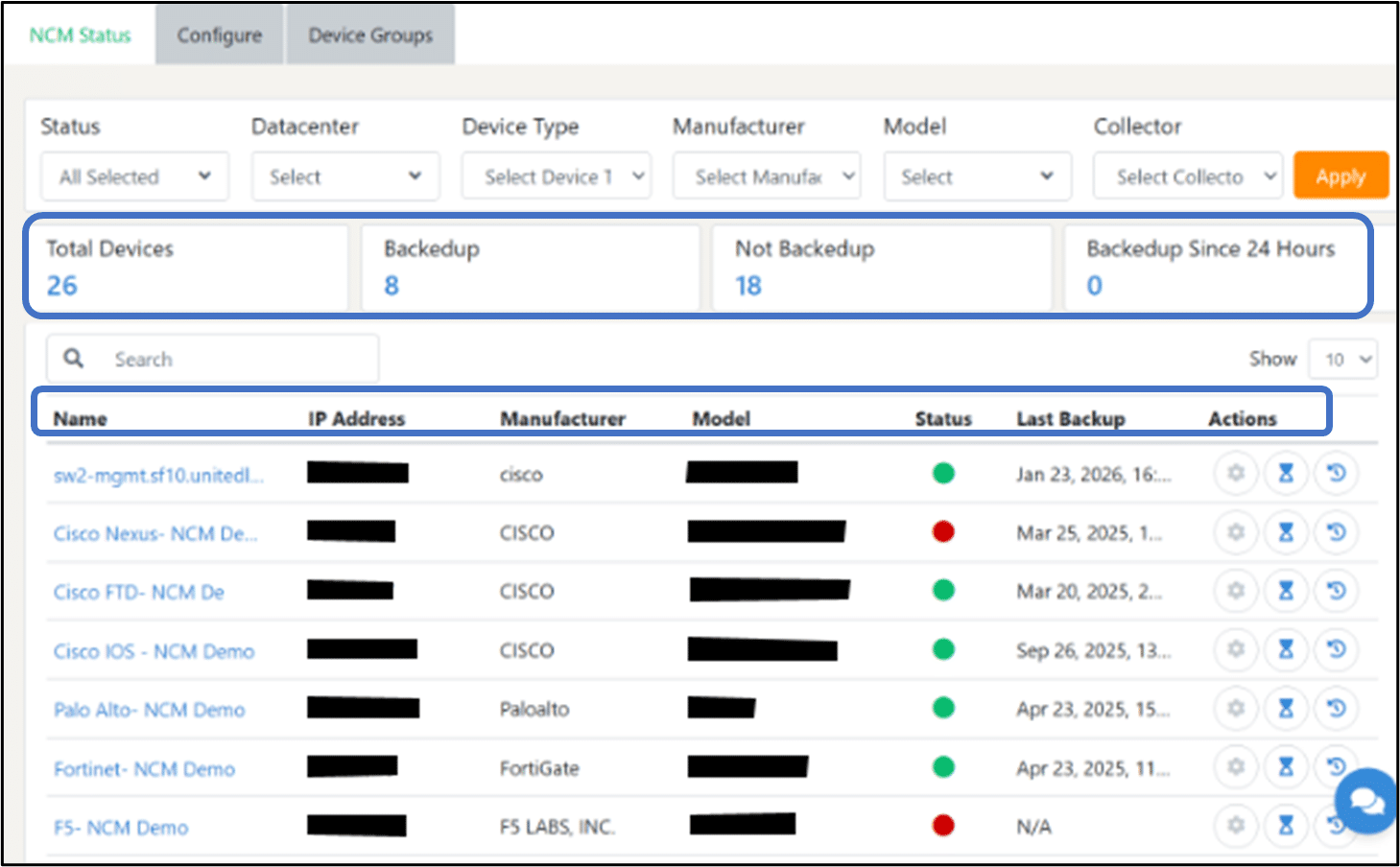
Below the filter, the summary cards provide a quick snapshot of NCM health by showing the total number of devices, how many have successful backups, how many lack backups, and whether any devices have been backed up within the last 24 hours.
In this section, you will find details about
- 1. Name: Device name as registered in the system.
- 2. IP Address: The device’s configured IP address.
- 3. Manufacturer: Vendor of the network device (e.g., CISCO, FortiGate, Palo Alto).
- 4. Model: Specific hardware model of the device.
- 5. Status: Indicates if the device is reachable (Green is online, Red is offline)
- 6. Last Backup: Shows the date and time of the most recent configuration backup.
- 7. Actions: Options to view details, edit device configuration, or delete the device.
5.5.3 Configure
The NCM Configuration page allows users to manage device credentials and configuration settings required for automated backups. It displays each device along with its type, IP address, assigned credentials, enable password, and configuration template. Users can instantly search or filter devices and perform actions such as triggering backups, viewing history, comparing configurations, or editing device settings.
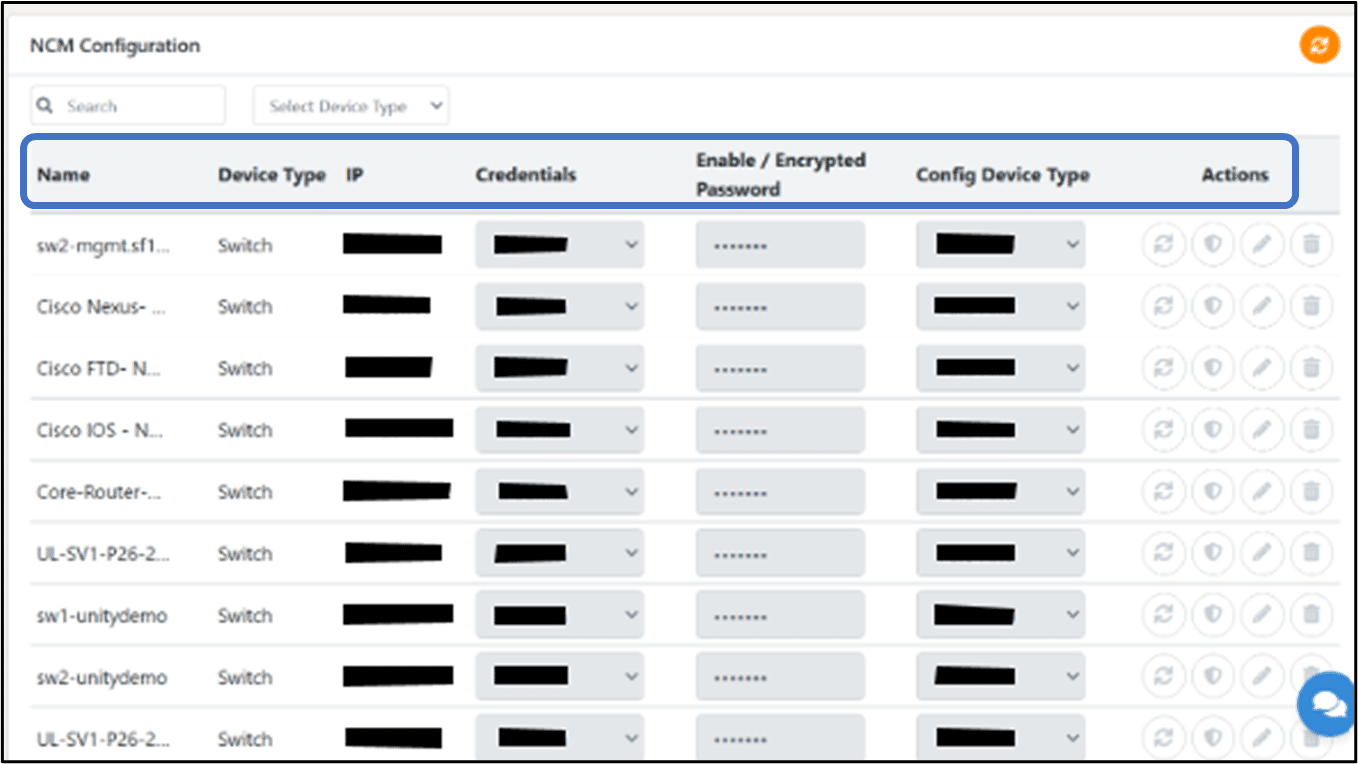
5.5.4 Device Groups
This section allows users to organize network devices into logical groups for easier management, scheduling, and bulk operations. Groups help in applying backup tasks, compliance checks, or configuration actions to multiple devices at once.
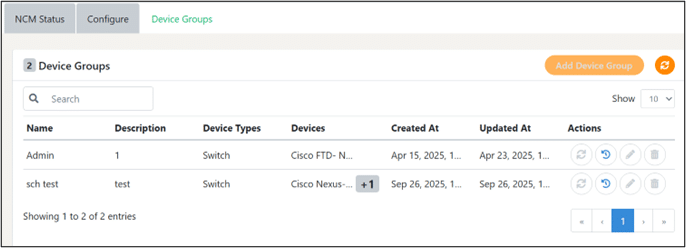
5.5.4.1 How to add a device group
At the top right-hand side of the page, you will see a button ‘Add device group;’ click on it and fill in the required details below:
- 1. Name – In this field you must enter a name for your device
- 2. Description: In this field you must enter a brief explanation of what the group represents.
- 3. Device Types: In this field you must enter type of devices included in the group (e.g., Switch, Router).
- 4. Devices: In this field you must enter Lists of the devices assigned to the group, with indicators for additional devices.
- 5. Created At: In this field you must enter the date when the group was created.
- 6. Updated At: In this field you must enter the date when the group was last modified.
- 7. Actions- provides option to edit, delete and refresh
Click on ‘Submit’ to add a device to UnityOne AI
NoteIf you get an error after clicking submit, please ensure again that all the provided information is correct and if the issue persists, contact the UnityOne AI support team.
5.6 Network Traffic Analyzer
Coming soon
5.7 Log Management
Coming soon
5.8 Knowledge Management
Knowledge Management is the structured process of capturing, organizing, storing, and sharing information within an organization to ensure that users can easily access accurate and up‑to‑date knowledge whenever needed.
It helps maintain consistent documentation, supports efficient decision‑making, and ensures that critical information, best practices, and operational procedures are preserved and remain accessible to all relevant users.
5.8.1 What Knowledge Management Includes
It includes user guides, manuals, and SOPs, along with technical documentation that supports system understanding and usage. It also covers troubleshooting steps, best‑practice guidelines, FAQs, and other reference materials that help users resolve issues follow standardized processes, and access essential information quickly.
5.8.2 Importance
A user guide is a key Knowledge Management asset that ensures information is structured, easy to navigate, and consistently accurate—helping users access, understand, and maintain knowledge over time.
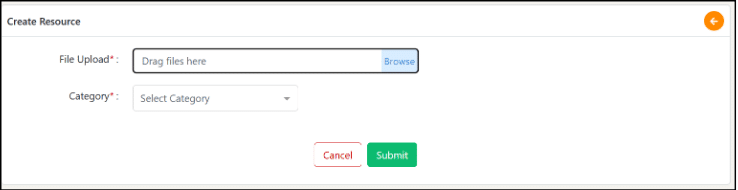
5.8.3 How to create a resource in Knowledge Management:
At the top right-hand side of the page, you will see a button ‘Upload;’ click on it and fill in the required details below:
- 1. File – In this field you must upload the resource file.
- 2. Category – In this field, you must enter the category of the resource
Click on ‘Submit’ to upload the file to UnityOne
In this section, you will find details about the name of the resource, category, and type of resource.
6. AI Agents
Introduction
UnityOne AI is an advanced Cloud Management Platform (CMP) designed to unify and simplify the management of modern hybrid and multi-cloud environments. Through a single intelligent dashboard, organizations gain centralized visibility and operational control across data centers, public clouds (AWS, Azure, GCP, OCI), and private cloud platforms (VMware, Hyper-V, OpenStack and more). UnityOne AI empowers enterprises to seamlessly manage both physical infrastructure and virtual assets, enabling consistent governance, improved operational efficiency, and optimized performance across the entire cloud ecosystem.
As a comprehensive standalone platform, UnityOne AI brings together critical capabilities required to operate and scale modern IT environments. The platform integrates cloud cost optimization, container and Kubernetes management, infrastructure and device management, sustainability monitoring, service mesh management, user, and access governance, ITSM workflows, DevOps automation, and intelligent alerting into a single cohesive solution. By consolidating these capabilities into one platform, UnityOne AI enables organizations to accelerate innovation, reduce operational complexity, and drive greater business value from their infrastructure investments.
6.1 Network agent
This dashboard provides a centralized view of all alerts detected by the Network Agent Hub. It shows recommended AI tasks, execution status, approvals, and detailed device-level alerts. This dashboard helps users quickly identify issues and take corrective actions.
At the top, summary tiles display the overall status:
- 1. Task Recommended (668): Total AI recommendations generated.
- 2. Task Executed (28): AI tasks that have been automatically executed.
- 3. Task Approved (27): Tasks approved by users.
- 4. Waiting for Approval (29): Tasks awaiting user approval.
- 5. Approval Rejected (1): Tasks that were rejected.
These cards provide an immediate snapshot of AI task activity and workflow health.
6.1.1 How to configure alert rule
- 1. Navigate to alert agent
- 2. Click the create icon to define a new alert rule
- 3. Enter the Rule Name
- 4. Enter Device Type (Switch, Firewall, Server, etc.)
- 5. Enter Alert Type (Interface Down, CPU High, Disk Failure, etc.)
- 6. Select Trigger Condition (thresholds, patterns, or event conditions)
- 7. Severity (Critical, Major, Minor)
- 8. Configure AI Recommendations
- 9. Click Save.
The rule becomes active and begins monitoring devices.
Alerts Automatically Appear in Alerts Control Panel
These cards provide an immediate snapshot of AI task activity and workflow health.
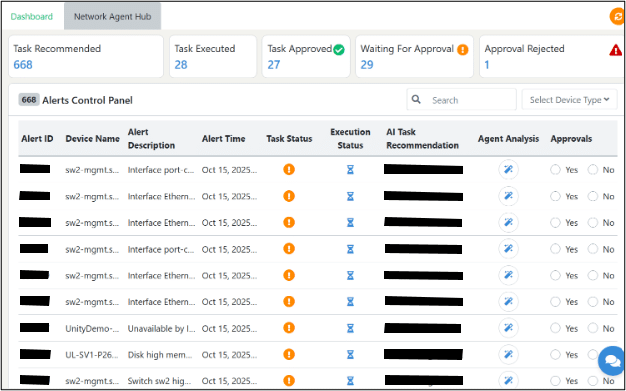
7. AI Observability
Coming soon
8. Cost Analysis
If your business ecosystem depends on multicloud or hybrid cloud models and need to manage multiple cloud accounts from various service providers. It becomes tedious to manually manage your billing and cost-related operations by logging into each account for cost management.
To ease out these monotonous tasks, UnityOne comes with pre-built cost management dashboards and helps you analyze, view, and optimize your cloud spending across all your multiple cloud accounts from a single pane. Most interestingly, you do not need to keep logging into your respective cloud accounts repeatedly; you only need to enroll your cloud account into UnityOne, and our portal assures the rest.
We support four public cloud deployments: AWS, Azure, Google Cloud, and Oracle. If you have a requirement to add other cloud service providers, we can add those integrations within UnityOne on demand with applicable charges.
Navigate to Unity Menu > FINOPS
Once you click on ‘FINOPS’ from the drop-down, you can navigate to features of public cloud, data center, and cost calculator.
8.1 Public Cloud
You can view a detailed dashboard of your public cloud spending of resources from AWS, Azure, Google Cloud, and Oracle Cloud through the public cloud window.
On this page, you will find 4 different tabs: Summary, AWS, Azure, GCP, and Oracle, from where you can check the individual cost analysis of each public cloud provider with detailed graphical representation.
8.1.1 Summary
This tab will give you a consolidated view of all your public cloud spending from a central dashboard. It includes 4 different grids mentioned below:
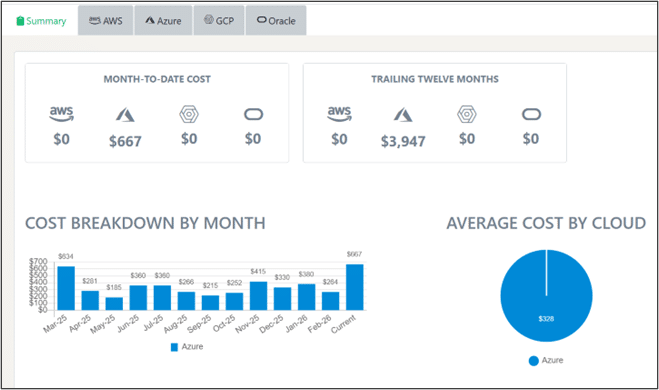
- 1. First Grid: In this section, you will find month-to-date cost cloud spending of your Cloud Service Provider (CSP).
- 2. Second Grid: In this section, you will find a widget from where you can find overall cloud spending of 12 months for all the Cloud Service Providers (CSPs).
- 3. Third Grid: In this section, you will observe a real-time graph that displays cost breakdown by month for all Cloud Service Providers (CSPs).
- 4. Fourth Grid: In this section, you can view a pie chart that displays average cost by each cloud.
8.1.1.1 AWS
In this tab, you will be able to view a detailed overview of the cloud spending of your AWS accounts. This dashboard will help you view and analyze your spending based on various cloud services of AWS in the form of a detailed graphical representation.
To view the cost analysis of your multiple AWS accounts, you will find a drop-down where you can select the preferred account to analyze the cost breakdowns.
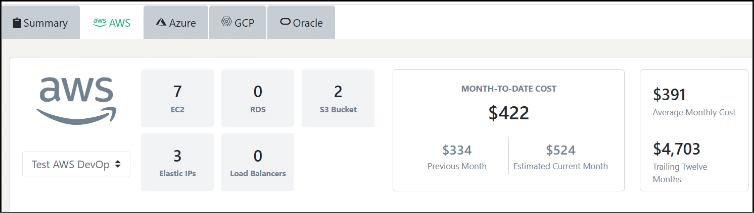
- 1. First Grid: In this section, you can find information about all the services opted from the AWS cloud.
- 2. Second Grid: In this section, you can find additional cost spending based on timestamps like month-to-date cost, previous month's cost, and estimated current cost.
- 3. Third Grid: In this section, you can find the average monthly cost and the approx. cost of trailing twelve-month.
Once you scroll below the grids, you will find the cost breakdowns of your AWS account in two levels:
- 1. Service breakdown
- 2. Region breakdown
8.1.1.1.1 Service Breakdown
Users can view this service breakdown in two ways; one is graphical, the other in a tabular way (you can switch into these modes by clicking on icons just above the graph on the right-hand side).
Further, you can filter your service level breakdown by month or quarter from the available drop-down.
In the graphical view, you find months on the X-axis and on the Y-axis, the price range. You can hover over it to see the corresponding values. Also, you can view the color legends that indicate different cloud services availed from AWS.
In the tabular view, you can find services and their respective prices billed for different months in rows and columns.
8.1.1.1.2 Region Breakdown
This widget can break down your cloud costs based on the regions. To view these details, you can opt for a graphical view, or you can view in a simple tabular form as per your convenience (you can switch into these modes by clicking on icons just above the graph on the right-hand side).
Further, you can filter your regional level breakdown by month or quarter from the available drop-down.
In the graphical view, you find months on the X-axis and on the Y-axis, the price range. You can hover over it to see the corresponding values. Also, you can view the color legends that indicate different cloud services availed from AWS.
In the tabular view, you can find a region and respective prices billed for different months in the form of rows and columns.
8.1.1.2 Azure
In this module you will be able to view a detailed overview of the cloud spending of your Azure accounts. This dashboard will help you view and analyze your spending based on various cloud services of Azure in the form of a graphical representation.
To view the cost analysis of your multiple Azure accounts, you will find a drop-down where you can select the preferred account to analyze the cost breakdowns.
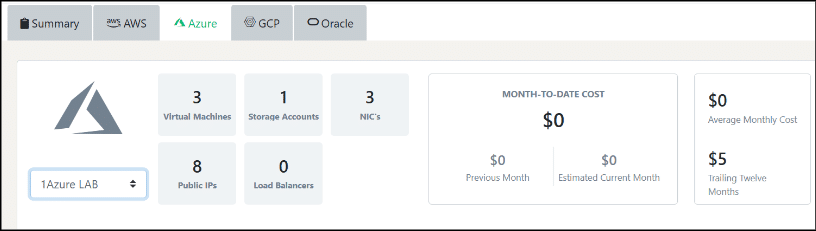
- 1. First Grid: In this section, you can find information about all the services opted from the Azure cloud.
- 2. Second Grid: In this section, you can find additional cost spending based on timestamps like month-to-date cost, previous month's cost, and estimated current cost.
- 3. Third Grid: In this section, you can find the average monthly cost and the approx. cost of trailing twelve-month.
Once you scroll below the grids, you will find the cost breakdowns of your Azure account in two levels:
- 1. Service breakdown
- 2. Region breakdown
8.1.1.2.1 Service Breakdown
Users can view this service breakdown in two ways; one is graphical, the other in a tabular way (you can switch into these modes by clicking on icons just above the graph on the right-hand side).
Further, you can filter your service level breakdown by month or quarter from the available drop-down.
In the graphical view, you find months on the X-axis and on the Y-axis, the price range. You can hover over it to see the corresponding values. Also, you can view the color legends that indicate different cloud services availed from Azure
In the tabular view, you can find services and their respective prices billed for different months in rows and columns.
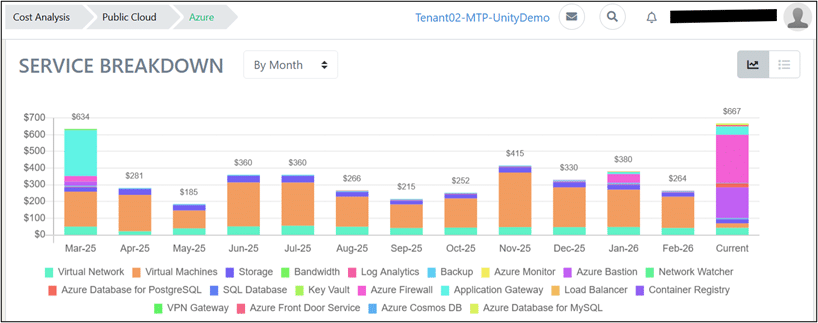
8.1.1.2.2 Region Breakdown
This widget can break down your cloud costs based on the regions. To view these details, you can opt for a graphical view, or you can view in a simple tabular form as per your convenience (you can switch into these modes by clicking on icons just above the graph on the right-hand side).
Further, you can filter your regional level breakdown by month or quarter from the available drop-down.
In the graphical view, you find months on the X-axis and price range on Y-axis. You can hover over it to see the corresponding values. Also, you can view the color legends that indicate different cloud services availed from Azure.
In the tabular view, you can find a region and respective prices billed for different months in the form of rows and columns.
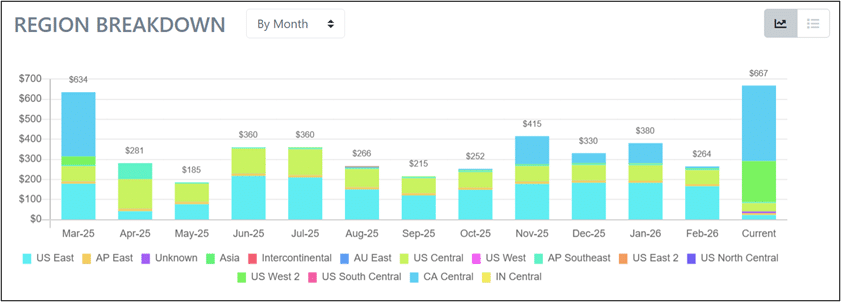
8.1.1.3 Google Cloud Platform
In this module, you will be able to view a detailed overview of the cloud spending of your GCP accounts. This dashboard will help you view and analyze your spending based on various cloud services of Google cloud in the form of graphs and tables.
To view the cost analysis of your multiple GCP accounts, you will find a drop-down where you can select the preferred account to analyze the cost breakdowns.
- 1. First Grid: In this section, you can find information about all the services opted from GCP
- 2. Second Grid: In this section, you can find additional cost spending based on timestamps like month-to-date cost, previous month's cost, and estimated current cost.
- 3. Third Grid: In this section, you can find the average monthly cost and the approx. cost of trailing twelve-month.
Once you scroll below the grids, you will find the cost breakdowns of your GCP account in two levels:
- 1. Service breakdown
- 2. Region breakdown
8.1.1.3.1 Service breakdown
Users can view this service breakdown in two ways; one is graphical, the other in a tabular way (you can switch into these modes by clicking on icons just above the graph on the right-hand side).
Further, you can filter your service level breakdown by month or quarter from the available drop-down.
In the graphical view, you find months on the X-axis and price range on Y-axis. You can hover over it to see the corresponding values. Also, you can view the color labels that indicate different cloud services availed from GCP.
In the tabular view, you can find services and their respective prices billed for different months.
8.1.1.3.2 Region Breakdown
This widget can break down your cloud costs based on the regions. To view these details, you can opt for a graphical view, or you can view in a simple tabular form as per your convenience (you can switch into these modes by clicking on icons just above the graph on the right-hand side).
Further, you can filter your regional level breakdown by month or quarter from the available drop-down
In the graphical view, you find months on the X-axis and on the Y-axis, the price range. You can hover over it to see the corresponding values. Also, you can view the color legends that indicate different cloud services availed from GCP.
In the tabular view, you can find a region and respective prices billed for different months in the form of rows and columns.
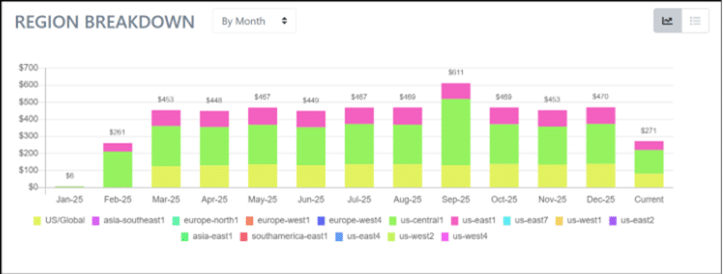
8.1.1.4 Oracle Cloud Infrastructure
In this module you can view a detailed overview of the cloud spending of your Oracle Cloud Infrastructure (OCI) accounts. This dashboard will help you view and analyze your spending based on various cloud services of OCI in the form of graphs and tables.
To view the cost analysis of your multiple Oracle Cloud accounts, you will find a drop-down where you can select the preferred account to analyze the cost breakdowns.
- 1. First Grid: In this section, you can find information about all the services opted from OCI.
- 2. Second Grid: In this section, you can find additional cost spending based on timestamps like month-to-date cost, previous month's cost, and estimated current cost.
- 3. Third Grid: In this section, you can find the average monthly cost, and the cost of trailing twelve-month.
Once you scroll below the grids, you will find the cost breakdowns of your OCI account in two levels:
- 1. Service breakdown
- 2. Region breakdown
8.1.1.4.1 Service Breakdown
Users can view this service breakdown in two ways; one is graphical, the other in a tabular way (you can switch into these modes by clicking on icons just above the graph on the right-hand side).
Further, you can filter your service level breakdown by month or quarter from the available drop-down.
In the graphical view, you find months on the X-axis and on the Y-axis, the price range. You can hover over it to see the corresponding values. Also, you can view the color legends that indicate different cloud services availed from OCI.
In the tabular view, you can find services and their respective prices billed for different months in rows and columns.
8.1.1.4.2 Region Breakdown
This widget can break down your cloud costs based on the regions. To view these details, you can opt for a graphical view, or you can view in a simple tabular form as per your convenience (you can switch into these modes by clicking on icons just above the graph on the right-hand side).
Further, you can filter your regional level breakdown by month or quarter from the available drop-down.
In the graphical view, you find months on the X-axis and on the Y-axis, the price range. You can hover over it to see the corresponding values. Also, you can view the color legends that indicate different cloud services availed from OCI.
In the tabular view, you can find a region and respective prices billed for different months in the form of rows and columns.
8.2 Data Center
The data center section of UnityOne gives you an overview of the cost and billing details of your data centers that are present across various regions.
To navigate this section, click on Menu > FINOPS > Data center.
Here you will find two different tabs on the top: a summary tab and a billing tab. Both tabs are clickable.
Summary
In the summary tab, you can view two different grids:
- 1. First Grid: In this grid, you can view the details of the number of data centers, cabinets, and PDUs billed for your infrastructure.
- 2. Second Grid: In this grid, you can view the total billable amount of the current month, and you can find the amount of the current month’s cabinet and PDU costs.
Additionally, you can find the name of your data center, location, billed cost, and a couple of action buttons for each data center.
Action Buttons
1. Show bill details: You can use this action button to view detailed billing information for a particular data center.
2. Manage by creating support tickets: From this action button you can manage your billing details by raising a ticket with the support team.
Bill details
In this tab, you can select your data center location from the drop-down from where you can select your data center preferences based on your choice, you will get detailed billing information of that particular data center that includes data about the number of cabinets billed and the cabinet cost. Similarly, you can find the data for PDUs.
Also, you will find detailed billing information of cabinets and PDUs.
In the cabinet-level billing information, you can view the details like cabinet name, contract start date, contract end date, renewal, annual escalation rate, and current monthly cost
Action Button
1. Edit cabinet: You can use this button to edit your cabinet details.
2. Manage by creating a support ticket: From this action button you can manage your cabinet billing details by raising a ticket with the support team.
In the PDU level billing information, you can view the PDU name, model, power circuit, cabinet, annual escalation rate, and current month’s cost.
Action Button
1. Edit PDU – You can use this action button to edit your PDU details
2. Manage by creating a support ticket: From this action button you can manage your PDU billing details by raising a ticket with the support team.
8.3 Cost Calculator
The cost calculator section allows you to compare the cost of cloud services offered by multiple service vendors including G3 Private Cloud. The unique feature of UnityOne will give you a unified view of the cost involved without logging into your public cloud accounts. With the help of this cost calculator tool, you can plan your budget, and at the same time, you get a comparative view of costs quoted across various cloud providers.
8.3.1 Steps to use Cost Calculator
- 1. Select the clouds you want to compare costs by clicking on respective cloud tiles.
- 2. Select your vCPU and RAM ranges using the slider provided.
- 3. Enter your storage requirement in the text box provided.
- 4. Enter the number of instances.
- 5. Choose the commitment/term from the drop down provided.
- 6. Click on search.
- 7. You can see the results matching your search criteria for each cloud in separate boxes.
- 8. Choose one from each cloud and click on add.
- 9. You can see the aggregated results in the table below.
- 10. Repeat the process until your whole infra structure demand is completed.
- 11. There is a reset button provided to reset your whole search activity.
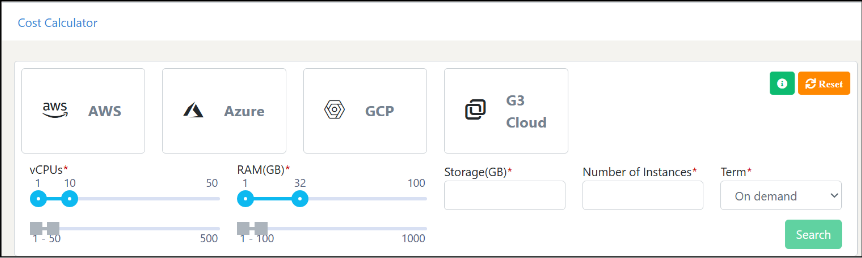
Additionally, by clicking on ‘Export excel,’ you can download these comparative details, or you can send the same to your email by clicking on send email button.
8.4 Cloud Overview
The Cloud Overview is a centralized dashboard that provides a consolidated summary of cloud spending, usage, and resource distribution across all connected cloud platforms. It displays high‑level financial metrics, cost breakdowns, usage insights, and detailed account information to help users understand their multi‑cloud environment briefly.
The top panel displays key financial indicators:
- 1. Month to Date: Current month’s cloud spends so far.
- 2. Estimated Current Month: Predicted total cost for the month based on ongoing usage trends.
- 3. Average Monthly: Average spending across previous months.
- 4. Previous Month: Total cloud spends for the last month.
- 5. Trailing Twelve Months (TTM): Total spend over the past 12 months.
Percentage indicators show whether costs have increased or decreased compared to previous periods.
Users can refine the cost data using the available dropdown filters.
1. Cloud Filter - Allows selecting a specific cloud provider.
2. Region Filter - Lets users view cost details for a chosen region.
3. Month Filter - Displays spending for a selected month.
These filters help users analyze cloud costs at a more granular and meaningful level.
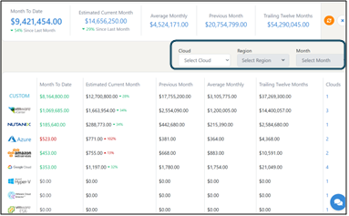
The below section provides a detailed breakdown of cloud spending across cloud types, subscriptions, and services. These visualizations help users understand where costs are originating and identify major cost drivers.
8.4.1 Cost by Cloud Type
This chart shows how total cloud spending is distributed across different cloud platforms such as AWS, Azure, GCP, VMware, Nutanix, and Custom clouds. Each segment displays both the percentage contribution and the actual cost amount, making it easy to compare spending across clouds briefly.
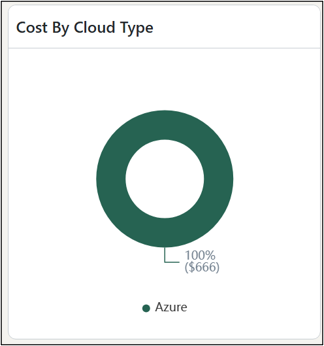
8.4.2 Cost by Subscription
This chart breaks down spending by individual subscriptions or accounts within each cloud provider.
- 1. Which subscriptions contribute most to total cost
- 2. Percentage share of each subscription
- 3. Actual cost for each account
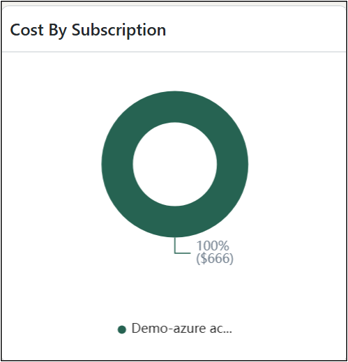
This helps users quickly identify high‑cost accounts and optimize them.
8.4.3 Cost by Services
This panel lists all cloud services contributing to overall cost (e.g., Virtual Machines, Networking, Cloud Logging, Compute Engine, Kubernetes Engine). For each service, it shows:
- 1. Service name
- 2. Number of resources
- 3. Associated cost
This view helps users understand which services consume the most budget, enabling better cost control and optimization.
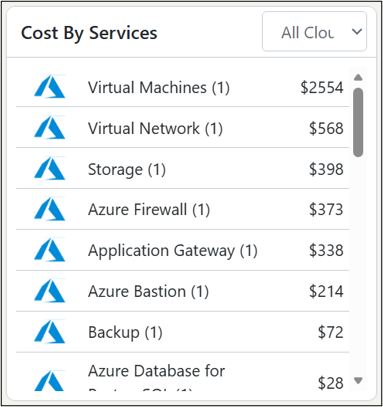
8.4.4 Trailing Twelve Months (TTM) Usage
This section provides a detailed view of cloud usage trends over the last 12 months. It highlights the highest‑consuming cloud types, individual clouds, and services, helping users identify long‑term spending patterns.
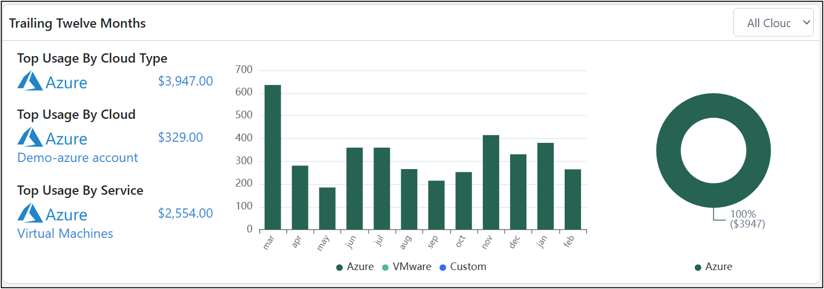
8.4.4.1 Top Usage by Cloud Type
This widget shows which cloud type contributed the most usage over the past year. Each cloud type displays:
- 1. The total cost for the trailing 12 months
- 2. A visual bar chart representation of usage volume
8.4.4.2 Top Usage by Cloud
This section breaks down usage by individual cloud accounts or subscriptions. It displays:
- 1. The cloud name
- 2. Total yearly usage
- 3. A bar chart comparison for each month
This allows users to identify high‑usage accounts and understand monthly usage fluctuations.
8.4.4.3 Top Usage by Service
This widget highlights the services that generated the highest costs over the last 12 months. It includes:
- 1. The service name (e.g., Virtual Machines)
- 2. The total cost associated with that service
This helps users identify which workloads or products contribute most to long‑term cloud expenditure.
8.4.5 Cost by Cloud
This section provides a detailed view of spending across each connected cloud provider and subscription. It helps users compare cost trends, monitor monthly usage, and understand resource distribution at a cloud‑specific level.
The Search Bar allows users to quickly find a specific cloud or subscription by name.
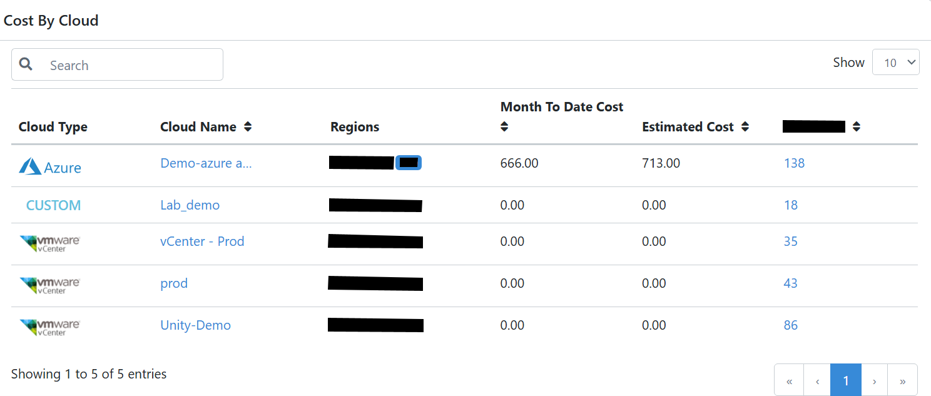
The table lists each cloud provider along with key cost and usage metrics.
- 1. Cloud Type: The platform category (e.g., Custom, VMware vCenter, Nutanix, Azure, AWS, Google Cloud).
- 2. Cloud Name: The specific cloud account or subscription being monitored.
- 3. Regions: Regions associated with the cloud account, with indicators showing additional region entries.
- 4. Month To Date Cost: Total cloud cost accumulated so far in the current month.
- 5. Estimated Cost: Predicted totals spend for the month based on current usage patterns.
- 6. Resources: Total number of resources (VMs, disks, services, etc.) provisioned under the cloud account.
8.5 Cloud Intelligence
The Cloud Intelligence dashboard provides a comprehensive analysis of cloud cost, usage, efficiency, and budget alignment across all devices and services. It consolidates cost insights, saving opportunities, operational performance, and anomalies to help users make informed optimization decisions.
- 1. Total Cost: Displays the overall cloud cost for the current month, including the percentage increase or decrease compared to last month.
- 2. Devices: Shows the total number of active devices being monitored.
- 3. Idle Virtual Machines: Highlights the number of VMs with no usage, indicating potential savings opportunities.
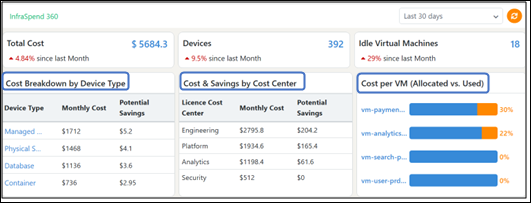
8.5.1 Cost Breakdown by Device Type
This section shows monthly cost and potential savings for different device categories such as:
- 1. Managed Devices
- 2. Physical Servers
- 3. Databases
- 4. Containers
It helps users identify which device types contribute the most to monthly spending.
8.5.2 Cost & Savings by Cost Center
Displays spending across internal cost centers (e.g., Engineering, Platform, Analytics, Security). For each cost center, users can view:
- 1. Monthly Cost
- 2. Potential Savings
This enables departments to track expenses and find optimization opportunities.
8.5.3 Cost per VM (Allocated vs Used)
This widget compares allocated resources versus actual usage for each virtual machine. It highlights:
- 1. Underutilized VMs
- 2. Potential areas for rightsizing to reduce cost
8.5.4 Business Unit & Cost Insights
This section provides a detailed breakdown of cloud spending across business units, applications, operating systems, and service categories. It helps users understand where costs originate and identify optimization opportunities.
8.5.4.1 Business Unit Cost
This widget displays cloud spending by business units such as Product, Engineering, Data, and Operations. A pie chart shows each unit’s contribution to total cost, making it easy to compare usage across departments.
8.5.4.2 Top 5 Applications by Cost
This bar chart highlights the applications with the highest monthly cloud spend. It helps teams identify cost‑intensive applications and prioritize optimization efforts.
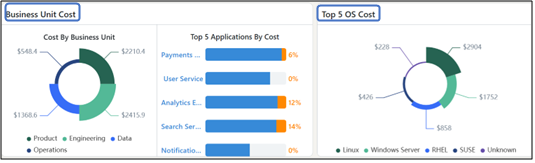
8.5.5 Top 5 OS Cost
This chart breaks down cloud costs by operating system, including Linux, Windows Server, RHEL, SUSE, and Unknown OS types. It helps identify which OS environments generate the most spending.
8.5.6 Operational & Fixed Cost
8.5.6.1 Operational Cost by Application Service
This visualization shows the operational (ongoing usage‑based) cost for key application services such as:
- 1. Payments API
- 2. User Service
- 3. Analytics Engine
- 4. Search Service
- 5. Notification Service
It helps users understand day‑to‑day consumption patterns.
8.5.6.2 Fixed Cost by Application Service
This chart shows fixed or reserved costs tied to each application service. It highlights long‑term or contract‑based costs such as reserved instances, committed use, or predefined allocations.
8.5.6.3 Budget Anomalies
This widget identifies applications or services whose spending deviates significantly from expected budget thresholds. Each entry shows the percentage deviation, helping users detect unusual or unexpected cost spikes.
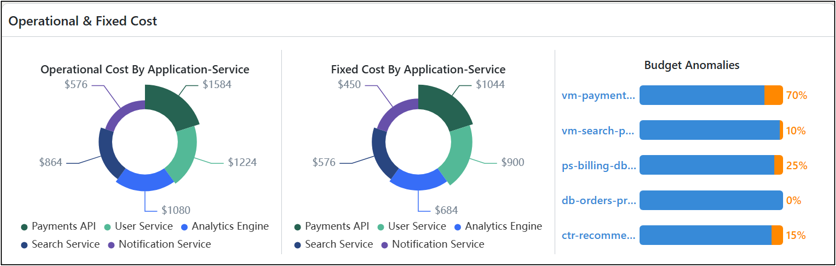
8.5.7 Cost Utilization Trend
This section displays how resource usage (CPU, Memory, and Storage) has changed over a selected time range. It helps users understand utilization patterns and identify potential over‑ or under‑provisioning.
8.5.7.1 Resource Utilization Summary
At the top, the dashboard shows the current cost associated with each resource type along with its peak utilization value:
- 1. CPU: Shows current cost ($1980) and peak utilization (6.7).
- 2. Memory: Shows current cost ($1420) and peak utilization (6.1).
- 3. Storage: Shows current cost ($980) and peak utilization (3.1).
These values help users quickly assess which resource contributes most to cost.
8.5.7.2 Trend Graph
The line chart visualizes utilization trends over the selected period (e.g., Last 30 Days).
- 1. CPU (Blue)
- 2. Memory (Green)
- 3. Storage (Yellow)
The graph shows how resource usage fluctuates over time, helping users to Identify spikes in consumption, detect periods of low utilization and Analyze cost impact based on usage behavior.
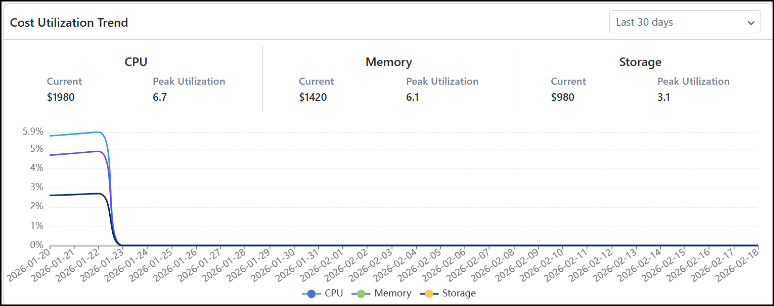
8.5.8 Device Details
This section provides a breakdown of each device’s budget allocation and utilization. It helps users understand which devices are within budget and which ones are at risk of overspending.
- 1. Device Name: The name of the virtual machine or device.
- 2. Management IP: The management IP address used for monitoring.
- 3. Application(s)/Service(s): The application or service running on the device (e.g., Payments, Billing, Orders).
- 4. Allocation Type: Indicates whether the device cost is Dedicated or Shared.
- 5. Budget Amount: The assigned monthly budget for the device.
- 6. Budget Period: Specifies the billing cycle (monthly).
- 7. Budget Utilization: Visual indicator showing how much of the assigned budget has been consumed (e.g., Used 100%, Free 0%).
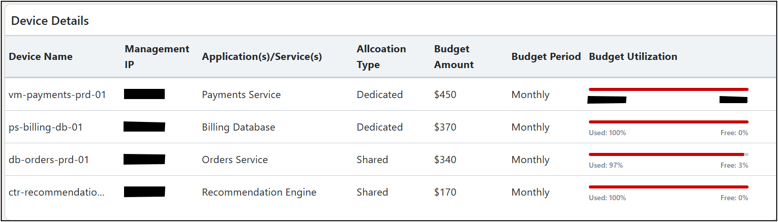
8.5.9 Cost Anomaly
This section highlights devices whose actual spending exceeds their assigned budget. It provides key insights into unusual cost behavior.
- 1. Device Name: The affected device.
- 2. Management IP: IP address of the device.
- 3. Building Block: The associated function (e.g., Payments, Billing, Recommendation).
- 4. Total Cost: Actual cost incurred for the device.
- 5. Budget Amount: Monthly budget assigned to the device.
- 6. Over Budget: The cost amount exceeding the allocated budget.
- 7. Over Budget (%): Percentage by which the device exceeded its budget.
- 8. Status: Indicates severity (e.g., Critical Over Budget, Slightly Over Budget).

9. Reports
This is a self-service module from where you can generate reports of cloud inventory, data center inventory, utilization, analysis reports, etc. You can flexibly generate various reports of your choice on your infrastructure and can schedule emails on a daily, weekly, and monthly basis of your inventory reports, or you can download them instantly as well.
To navigate into the section, click on Menu > UPC report
9.1 Cloud Inventory
In this tab, you will be asked to fill following details to generate your inventory report:
- 1. You need to select your cloud type from the drop-down (private, public, or all)
- 2. Select your cloud from the other drop-down (Private Cloud – VMware, Hyper-V, open stack, etc. and public cloud – AWS, GCP, Azure, OCI)
- 3. Select your account/cloud name from the bottom drop-down
- 4. Double check your selections, click on ‘Generate report.’
Once the inventory report is generated, you will find the in-depth details of your cloud resources for the account selected. These may include details such as hypervisors, bare-metal servers, virtual machines, containers, storage devices, switches, firewalls, etc. Along with the utilization charts for your RAM usage, vCPU, and storage.
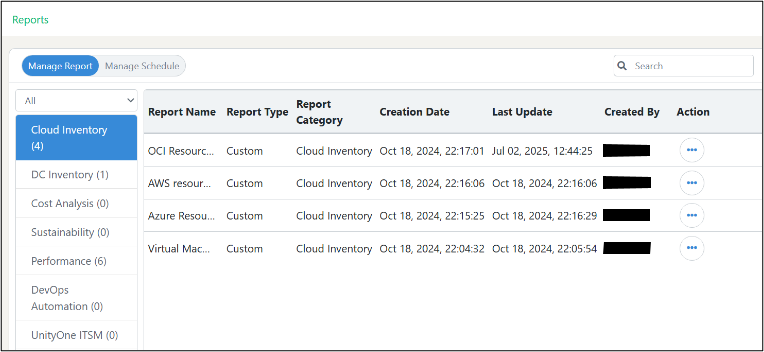
9.1.1 How to save & schedule a report for cloud inventory
- 1. At the top right-hand side of the page, you will find a button named ‘Save and schedule’ (the button will be disabled until the report is generated).
- 2. To download or email the report instantly, click on the drop-down
- 3. By selecting download or email you can instantly perform the preferred option.
- 4. Click on the ‘Save and schedule’ button to schedule your reports
- 5. Now you will be prompted to fill in details where you need to fill report name, select your schedule (daily, weekly, monthly ), and select a recipient (all users who were added to your UnityOne AI account will only appear under this), and under additional emails you can enter other emails to whom you want to share the reports.
- 6. Also, you can opt for a detailed report by ticking the box ‘include report as an attachment.’
- 7. Now click on ‘Submit,’ and as per your preferences, an email will be scheduled accordingly.
NoteYour note texIf you get an error after clicking on submit, please ensure again that all the provided information is correct and if the issue persists, contact the UnityOne AI support team.t here...
9.2 Data center Inventory
In this tab, you will be asked to fill following details to generate your inventory report:
- 1. At first, you need to select your data center from the drop-down.
- 2. Then you must select your cabinet from the second drop-down
- 3. Next, you must select your report type from the bottom drop-down (device/cabinet)
- 4. Finally, double check your preferences, click on ‘Generate report.’
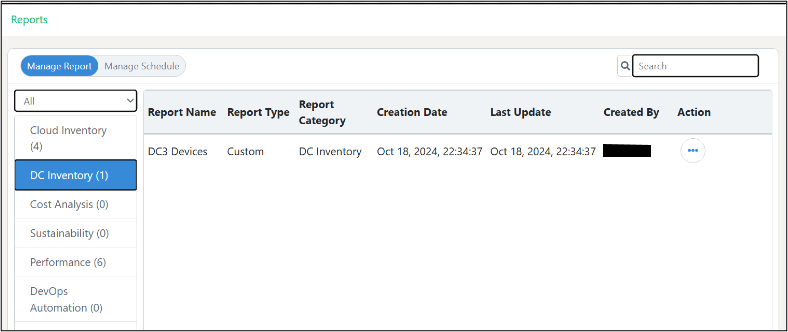
If you have selected report type as cabinet, you will find the following information:
In this section, you will find latitude and longitude details of your data center location, number of cabinets, the status of the data center, and physical devices.
Next, you will find information about your cabinet in a tabular column, such as cabinet name, model, capacity available, occupied, alerts, temperature, power utilization, power capacity, and CO2 emission value.
If you have selected report type as a device, you will find the following information:
Once you generate the report, you will see tiles that will give you insights about the number of hypervisors, bare metal servers, switches, firewalls, load balancers, Mac devices, storage, and other devices.
You will find insights into your various devices inside the selected data center location in a tabular column. You can also find details of the name of your device, its type, manufacturer, model, management IP, size, position, cabinet, and data center name.
9.2.2 How to save & schedule a report for data center inventory
- 1. At the top right-hand side of the page, you will find a button named ‘Save and schedule’ (the button will be disabled until the report is generated).
- 2. To download or email the report instantly, click on the accordion.
- 3. By selecting download or email you can instantly perform the preferred option.
- 4. Click on the ‘Save and schedule’ button to schedule your reports
- 5. Now you will be prompted to fill in details where you need to fill report name, select your schedule (daily, weekly, monthly), and select a recipient (all users who were added to your UnityOne AI account will only appear under this), and under additional emails, you can enter other emails to whom you want to share the reports.
- 6. Also, you can opt for a detailed report by ticking the box ‘include report as an attachment.’
- 7. Now click on ‘Submit,’ and as per your preferences, an email will be scheduled accordingly.
NoteIf you get an error after clicking submit, please ensure again that all the provided information is correct and if the issue persists, contact the UnityOne AI support team.
10. Support
With the UnityOne AI ITSM, you can use ServiceNow, dynamics CRM ticket management, or any service management system of your choice (you can raise a request for integration of a service management tool into UnityOne AI) to create, maintain and manage your support tickets.
Additionally, you can draw valuable insights into your daily operation with inbuilt support analytics.
Currently, Unity is equipped with ServiceNow ITSM and Microsoft Dynamics CRM.
How to add your ServiceNow ITSM platform into UnityOne AI
- 1. To add your ITSM to UnityOne AI, navigate to Menu > Unity Setup > Integration
- 2. From the integration page, click on the ‘Connect Now’ button that is available beside the ServiceNow logo.
- 3. From the top of the page, click on ‘Add account’
- 4. Next, add the name of your ITSM, instance URL, username, and password
- 5. Finally, click on ‘Submit’ and your ServiceNow account will be added to UnityOne AI.
NoteIf you get an error after clicking submit, please ensure again that all the provided information is correct and if the issue persists, contact the UnityOne AI support team.
How to add your Microsoft Dynamics CRM into UnityOne AI
- 1. To add your Microsoft Dynamics CRM to UnityOne AI, navigate to Menu > Unity Setup > Integration
- 2. From the integration page, click on the ‘Connect Now’ button that is available beside the ServiceNow logo.
- 3. From the top of the page, click on ‘Add account’
- 4. Next, add the name of your Microsoft Dynamics CRM, CRM URL, Client ID, Tenant ID, Account ID, Access type from the drop-down, Username, and Password
- 5. Finally, click on ‘Submit’ and your account will be added to UnityOne AI.
NoteIf you get an error after clicking submit, please ensure again that all the provided information is correct and if the issue persists, contact the UnityOne AI support team.
To navigate the support section of UnityOne AI, click on Menu > ITSM > Ticket Management
10.1 Ticket Management
This page will give details on your organizational ticket management in graphs and tables, from which you can derive insights on status, priority, response time, etc.
The top grid will display tabs with the names of your service integration platform. Click on the desired tabs to view and manage the tickets.
Once you click on the preferred service account tab, you can see different graphs and tabular columns with ticket details. Here, you will find other tabs for various ticket types: All tickets, change tickets, incident tickets, problem tickets, and request tickets.
10.1.1 All Tickets
This tab contains all your ITSM tickets from where you can monitor and manage organizational tickets via a common dashboard. The top grid will give you insights on tickets by priority, tickets by status, and solve by response type.
If you have integrated both Dynamics CRM and Service,
The second grid allows you to apply filters to search ticket history. The filters include:
- 1. Search –Using this filter, you can search for tickets via a keyword.
- 2. Status – This filter will be helpful to search tickets based on status (Active/Resolved/Cancelled/All).
- 3. Date Created – You can use this filter to search tickets based on the start and end date of your choice.
- 4. Priority – This filter will help you search tickets based on priority (Critical/High/Normal/Low/All).
- 5. Type – This filter will help you search tickets based on type (Change/Incident/Problem/Question/Request).
Finally, click on ‘Filter’ to view your results.
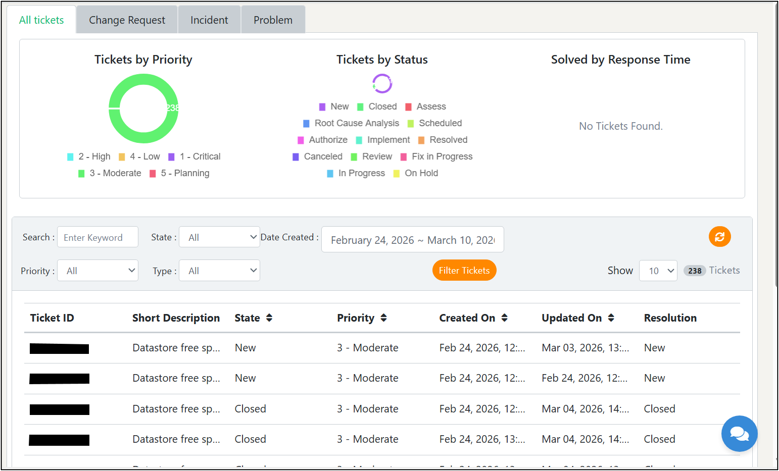
By default, in the form of tabular column you will be able to find details of your latest tickets that includes information on ticket number, type, title, status, status reason, priority, created on, and updated on.
If you have applied filters, you will find the details of your tickets in the form of the same tabular column with the similar information.
Note 1You can increase or decrease the show of tickets in the tabular column from the accordion besides the field ‘show’ (available options: 10 or 25).
Note 2You can download the details of tickets in the form of .csv file by clicking on the ‘Download’ button.
Note 3You can also raise a new ticket by clicking on the ‘Create ticket’ button.
Note 4You can also refresh the dashboard by clicking on the ‘Refresh’ button placed on the top right corner of the second grid.
10.1.2 Change Request
This tab will contain the details of all your tickets raised for change request. The top grid will give you insights on tickets by priority, tickets by status, and solve by response type.
The second grid allows you to apply filters to search ticket history. The filters include:
- 1. Search – Using this filter, you can search for tickets via a keyword.
- 2. Status – This filter will be helpful to search tickets based on status (Active/Resolved/Cancelled/All).
- 3. Date Created – You can use this filter to search tickets based on the start and end date of your choice.
- 4. Priority – This filter will help you search tickets based on priority (Critical/High/Normal/Low/All).
- 5. Type – This filter will help you search tickets based on type (Change/Incident/Problem/Question/Request).
Finally, click on ‘Filter’ to view your results.
By default, in the form of tabular column you will be able to find details of your latest tickets that includes information on ticket number, type, title, status, status reason, priority, created on, and updated on.
If you have applied filters, you will find the details of your tickets in the form of the same tabular column with the similar information.
Note 1You can increase or decrease the show of tickets in the tabular column from the accordion besides the field ‘show’ (available options: 10 or 25).
Note 2You can download the details of tickets in the form of .csv file by clicking on the ‘Download’ button.
Note 3You can also raise a new ticket by clicking on the ‘Create ticket’ button.
Note 4You can also refresh the dashboard by clicking on the ‘Refresh’ button placed on the top right corner of the second grid.
10.1.3 Incident
This tab will contain the details of all your tickets raised for support on incidents. The top grid will give you insights on tickets by priority, tickets by status, and solve by response type.
The second grid allows you to apply filters to search ticket history. The filters include:
- 1. Search – Using this filter, you can search for tickets via a keyword.
- 2. Status – This filter will be helpful to search tickets based on status (Active/Resolved/Cancelled/All).
- 3. Date Created – You can use this filter to search tickets based on the start and end date of your choice.
- 4. Priority – This filter will help you search tickets based on priority (Critical/High/Normal/Low/All).
- 5. Type – This filter will help you search tickets based on type (Change/Incident/Problem/Question/Request).
Finally, click on ‘Filter’ to view your results.
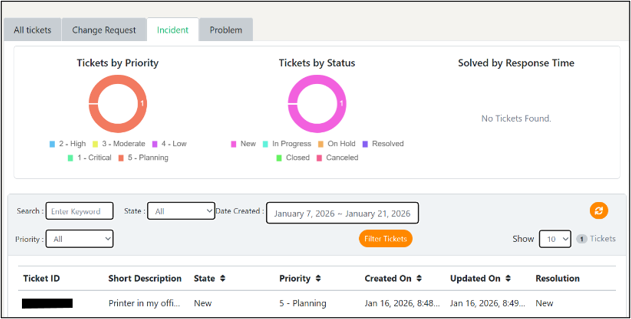
By default, in the form of tabular column you will be able to find details of your latest tickets that includes information on ticket number, type, title, status, status reason, priority, created on, and updated on.
If you have applied filters, you will find the details of your tickets in the form of the same tabular column with the similar information.
Note 1You can increase or decrease the show of tickets in the tabular column from the accordion besides the field ‘show’ (available options: 10 or 25).
Note 2You can download the details of tickets in the form of .csv file by clicking on the ‘Download’ button.
Note 3You can also raise a new ticket by clicking on the ‘Create ticket’ button.
Note 4You can also refresh the dashboard by clicking on the ‘Refresh’ button placed on the top right corner of the second grid.
10.1.4 Problem
This tab will contain the details of all your tickets raised for platform support. The top grid will give you insights on tickets by priority, tickets by status, and solve by response type.
The second grid allows you to apply filters to search ticket history. The filters include:
- 1. Search – Using this filter, you can search for tickets via a keyword.
- 2. Status – This filter will be helpful to search tickets based on status (Active/Resolved/Cancelled/All).
- 3. Date Created – You can use this filter to search tickets based on the start and end date of your choice.
- 4. Priority – This filter will help you search tickets based on priority (Critical/High/Normal/Low/All).
- 5. Type – This filter will help you search tickets based on type (Change/Incident/Problem/Question/Request).
Finally, click on ‘Filter’ to view your results.
By default, in the form of tabular column you will be able to find details of your latest tickets that includes information on ticket number, type, title, status, status reason, priority, created on, and updated on.
If you have applied filters, you will find the details of your tickets in the form of the same tabular column with the similar information.
Note 1: You can increase or decrease the show of tickets in the tabular column from the accordion besides the field ‘show’ (available options: 10 or 25).
Note 2You can download the details of tickets in the form of .csv file by clicking on the ‘Download’ button,
Note 3You can also raise a new ticket by clicking on the ‘Create ticket’ button.
Note 4You can also refresh the dashboard by clicking on the ‘Refresh’ button placed on the top right corner of the second grid.
10.2 Unity Feedback
This section will give the history of tickets raised by you to share the feedback on UnityOne AI.
You can graphically view insights on Unity feedback tickets based on tickets by priority, tickets by status, and by solved response time. You can also use the below filters to view tickets as per your preference.
- 1. Search: – In this field you must enter a keyword to search your ticket.
- 2. Status: – In this field you must select the status from the drop-down (Active/Resolved/Cancelled).
- 3. Date Created: – In this field, you can select your preferred duration.
- 4. Priority: – In this field you must select your priority type from the drop-down.
After selecting the required filters, click on the button ‘Filter’ to get your results. You can also download the results in the form of excel sheet by clicking on the ‘Download’ button.
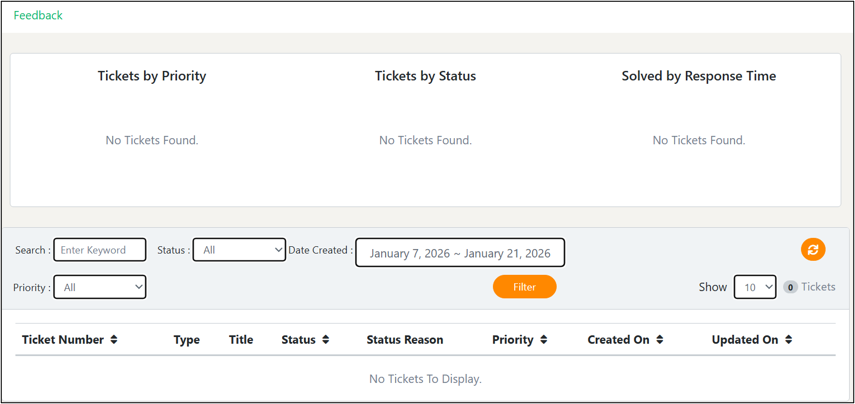
10.3 Maintenance
This section is helpful for you to add your maintenance calendar to UnityOne AI or view your maintenance history so that team members can be aware of upcoming, ongoing, or past maintenance activities.
10.3.1 How to add maintenance schedules into UnityOne AI
- 1. From the top, click on ‘Add,’ and a new window will pop-up.
- 2. From the window, select your data center from the drop-down
- 3. Then, select the status of your maintenance (Ongoing/Future/Completed)
- 4. Now, you must give a brief description of your maintenance schedule.
- 5. You must enter a start date and an end date (please note that dates are selected in–8:00 PST).
- 6. Now, you must select the already added users from the notification drop-down to send them an email.
- 7. If you need to add any other additional email that is not registered to the UnityOne AI account, you can mention them in the additional email box.
- 8. Finally, click on ‘Submit’ to successfully add your maintenance schedule to UnityOne AI
NoteIf you get an error after clicking submit, please ensure again that all the provided information is correct and if the issue persists, contact the UnityOne AI support team.
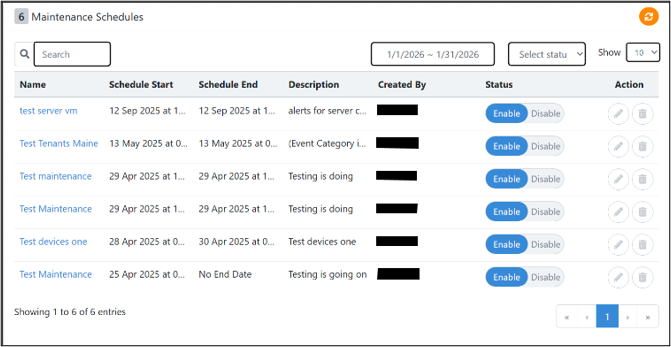
Additionally, you can view the history of the previously scheduled maintenance which includes details such as description, status, data center name, start date, and end date of maintenance schedules.
Action Buttons:
1. Edit: This action button will help you to edit your scheduled maintenance details.
2. Delete: This action button will help you to delete your scheduled maintenance entries.
10.4 Documentation
The documentation section will give you details on the user guide, release notes, current releases and previous UnityOne releases.
11. Unity Setup
This module will assist you to onboard your assets into UnityOne AI. We offer various onboarding methods to simplify your onboarding steps.
11.1 User Management
User management is defined as the process of creating, maintaining, and removing digital accounts to control access to devices, applications, and data.
11.1.1 Users
The Users section allows administrators to view, add, update, and manage all individuals who have access to the platform. Each user is assigned specific details, roles, and permissions that determine what actions they can perform within the system.
11.1.2 Setup User Groups
Navigate to the main menu > Unity Setup > User Management > User Groups
How to add a new user:
- 1. The following ports are to be enabled at your end:
- 2. Click on the ‘Add User’ button
- 3. Fill the required details such as email, first name, last name
- 4. Authorized user should have admin access (Yes/No)
- 5. Click on “Submit” to successfully add a user
- 6. Confirm your details by clicking on “Submit” (this will push the required configuration to the Collector).
Once the user is added, you will receive a welcome email from UnityOne AI with the password reset link. The Login name will be the Email ID of the added user.
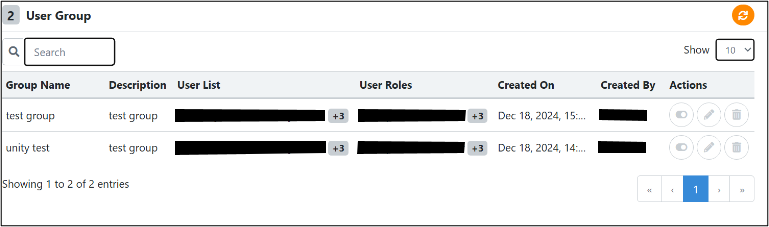
NotePlease check the Spam folder if you have not received the welcome email with the password reset link.
The new user is now listed on the user group detail page, UnityOne AI will provide summary information such as Email ID, First name, Last name, Active Status, and other action buttons.
Action button functionalities
1. Edit – This option can be used to edit a user detail
2. Deactivate – This button can activate or deactivate the access of a user
3. Reset password – You can reset your password from here through a reset password email link.
4. Delete – This action will assist you to delete a user account permanently from UnityOne AI platform.
NoteAn administrator email ID will have a tick mark. This feature can distinguish an admin account from a regular user account.
Please note that every admin can create a new user.
11.1.3 Roles
Roles define the level of access a user has within the platform. There are two diverse types of user roles in UnityOne AI:
1. Admin - Who can view, edit, add, or delete the assets and resources.
2. User - Who can only view the assets and resources (cannot perform add or deletion of resources).
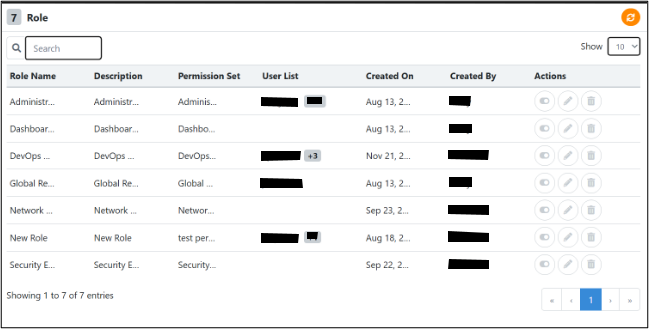
11.1.4 Permission Sets
Permission Sets are collections of specific permissions assigned to a user or role. They provide more granular control beyond general role definitions. A permission set defines exact capabilities, such as:
- 1. Create, edit, or delete resources
- 2. Access cost dashboards
- 3. Manage devices or applications
- 4. View or modify configurations
- 5. Access reporting modules
Permission sets allow fine‑tuned access control while keeping roles simple and scalable.
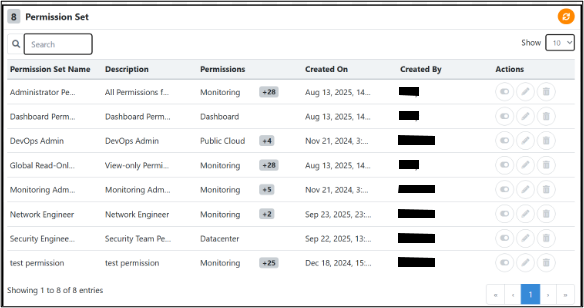
11.1.5 Entity Groups
Entity Groups organize resources (such as clouds, devices, applications, cost centers, or business units) into manageable units. Users are granted access to these groups based on their responsibilities.
Key functions of entity groups:
- 1. Limit user visibility to only relevant entities
- 2. Support access segmentation for large organizations
- 3. Enable department‑ or project‑based access
- 4. Ensure secure and structured resource management
Entity Groups ensure users view and manage only the entities they are authorized to work with.
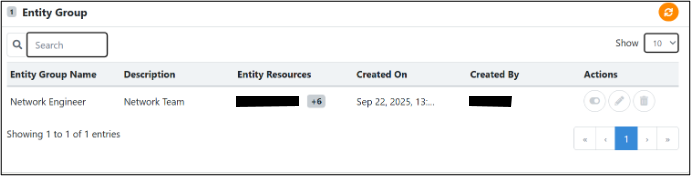
11.2 Onboarding
After completing the above steps, proceed to the next step: Onboard your resources into UnityOne AI. The onboarding process is divided into four stages:
- 1. Connect to Unity
- 2. Onboard Assets
- 3. Activate Monitoring
- 4. Activate Management
If you have followed this guide to this point, you would have successfully added a collector. This will allow us to provide multiple options for onboarding. There are three ways of onboarding your infrastructure:
- 1. Discover and Onboard
- 2. Import Inventory
- 3. Onboard via Device CRUD
The onboarding methods are described briefly in the subsequent sections.
11.2.1 How to connect the collector to UnityOne AI
NoteThe UnityOne AI network team will assist you in completing this step.
The following ports are to be enabled at your end:
- 1. Inbound/Outbound traffic to be enabled for 80, 443 & 22
Once you establish the connectivity, follow the directions given below to setup a collector with UnityOne AI.
11.2.2 Steps to add a collector to UnityOne AI:
- 1. Login into the portal with your credentials
- 2. Navigate to the left pane menu: Unity Setup > Onboarding
- 3. In here, choose the “Add Collector” option from the user dashboard.
- 4. Enter details such as name, IP, SSH port, SSH username, SSH password, and SNMP community. (Optional)
- 5. Confirm your details by clicking on “Submit” (this will push the required configuration to the Collector).
NotePlease make sure to give root access for SSH
Navigation
Once the collector is registered, navigate to the Main menu > UPC Administration > Onboarding
The added collector will scan the subnet as a part of discovery and automatically discover all the devices within the network. This module simplifies the tedious task of manually adding assets to the platform.
You can view a feature tracker with clickable icons on the top of the page providing different details like connectivity, credentials, network scan, data center, cabinet, PDU, firewall, switch, load balancer, server, hypervisor, Mac Device, storage, and summary.
NoteYou will be able to see these details after you add a collector.
11.2.3 Connectivity
This tab displays information about an existing collector, such as its name, IP address, SSH user, SSH port, deployment status, created date, and test result.
Action Buttons:
1. Test Connection – This action button tests the connection by performing ping tests or assessor tests.
2. Edit – This action button will assist you to edit collector details
3. Manage by creating a support ticket – This button will assist you in opening a ticket in the integrated ITSM system for review by the support team.
4. Delete – This action button can be used to delete a collector.
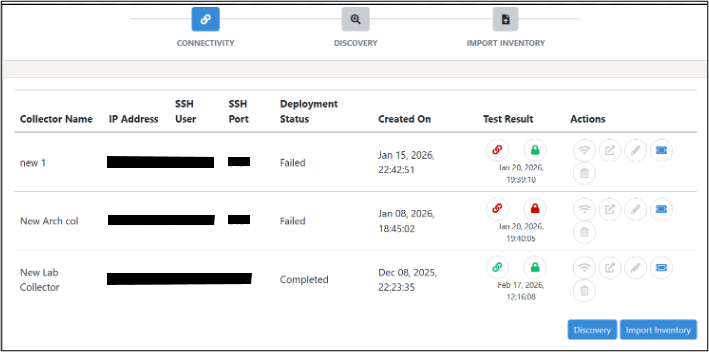
The following procedures are part of the discovery phase; if you prefer to discover your infrastructure automatically before onboarding, please continue to the next step.
11.2.4 Credentials
The discovery will be based on SNMP, SSH, and WMI. For this, UnityOne AI needs some credentials from your infrastructure. In this section, you can enter the required credentials, which will be encrypted and saved in our database.
To add your credentials to the platform, here, you can click on the button “add credential,” fill in the details name, description and select the type of credential you want to add ( SNMPv1, SNMPv2, SNMPv3, SSH, SSH key, windows, active directory). You can also view the already added credential information such as name, description, type, created by, edited by, and edited date, and action buttons for editing and deleting credentials.
11.2.4.1 Network Scan
When the collector connectivity test is green, the discovery of the infrastructure can be done from “Network Scan. Click “Add discovery” and enter information mentioned below:
1. Name – In this option, you can enter any name of your choice.
2. Type – You can select the type of discovery, that is, via subnet or active directory.
3. Subnet – Enter your subnet address here if you have selected the type as “Subnet.”
4. Credentials – From this section, you can select the previously stored relevant credentials.
5. Collector – You can select the registered collector from here.
NoteYou will have two options to run your network scan. The first is “Run Now,” and the other is “Schedule a scan.” If you have selected “Scheduled Scan,” you can opt for Once, Daily, Weekly, or Monthly scans as per your preference.
After you have selected your preferred choices, click on “Submit” to run a network scan.
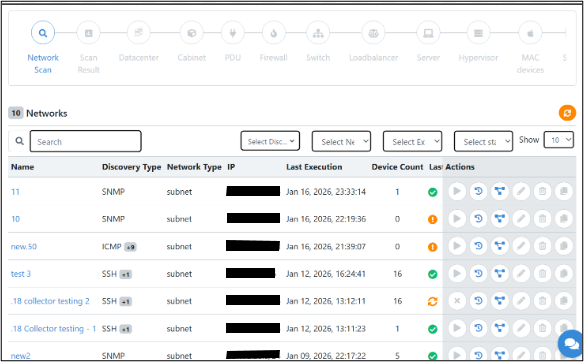
You may also see the specifics of your previously discovery jobs, such as their name, target type, target, collector, last run, duration, schedule, created by, and any other updates.
Action Buttons
1. Execute – This action button can be used to execute the auto-discovery.
2. Schedule history – This action button will assist you in viewing the scheduled history of discovery.
3. Network Topology – You can view the neighboring devices with this option.
4. Edit – You can edit discovery details with this button.
5. Delete – Deletion of the added subnet can be done by this option.
11.2.4.2 Scan Results
In this section, you can view the scan results discovered after the discovery jobs. You can select “Discovery Task” and then click on next.
You can use the action button to delete them.
The device type will be automatically identified by the scan and mapped. You can change the device type if you see any inconsistencies by choosing the appropriate option from the drop-down.
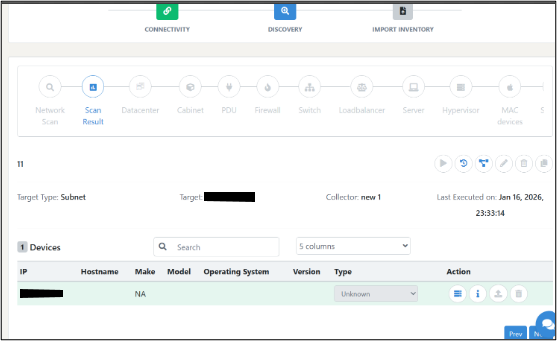
NOTE Any missing data from your devices can be added to the UnityOne AI platform from the respective sections using the CRUD options. If any mandatory details are missing for any device, there will be an error for the respective entry, which will be excluded from onboarding, and for the same, you can resubmit your devices to complete onboarding. This same principle applies to all device types.
11.2.4.3 Data Center
You can view the list of existing data centers from this widget. You can also use the CRUD (Create, Read, Update, Delete) option to modify or delete the existing data center information from the available action buttons.
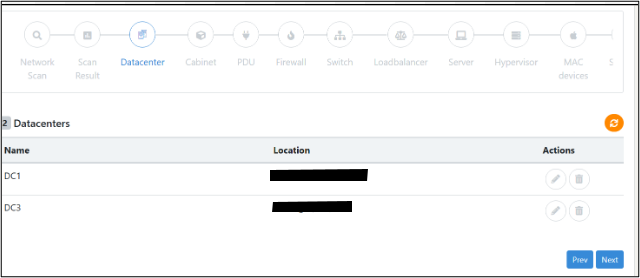
11.2.4.4 Cabinet
Click 'Next' to view the scanned results of your cabinet, inside the existing data centers.
You can view information like its name, data center, model, vacant units, and capacity. You may add a new cabinet by clicking the 'Add Button' and then edit or delete it using the relevant action buttons.
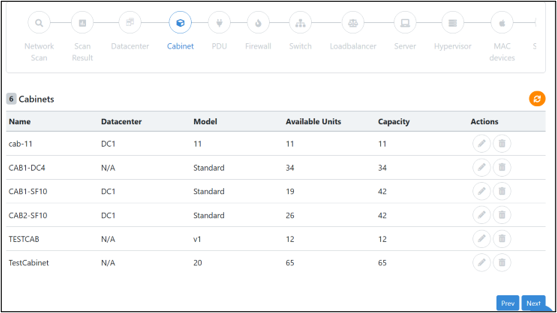
11.2.4.5 PDU
The scanned results of your PDUs, such as hostname, management IP, model, cabinet, position, and size, can be viewed by clicking on the 'PDU' icon.
11.2.4.6 Firewall
Click the 'Firewall' button to see your firewall's scanned results, including hostname, management IP, model, manufacturer, operating system, cabinet, position, and size.
11.2.4.7 Switch
Click the 'Switch' button to see the scanned results for your Switch, which includes hostname, management IP, manufacturer, model, OS cabinet, position, and size.
11.2.4.7 Switch
Click the 'Switch' button to see the scanned results for your Switch, which includes hostname, management IP, manufacturer, model, OS cabinet, position, and size.
11.2.4.8 Load balancer
By clicking the 'Load Balancer' button, you can check the scanned results for your load balancer, including hostname, management IP, manufacturer, model, operating system, cabinet, position, and size.
11.2.4.9 Server
Click the ‘Server’ icon to view the results of your server's scan, including hostname, management IP, manufacturer, OS, model, cabinet, position, and size.
11.2.4.10 Hypervisor
Navigate to the ‘Hypervisor’ button to find your hypervisor's scanned results, such as hostname, management IP, manufacturer, OS, model, cabinet, position, and size.
11.2.4.11 Mac mini
Clicking the ‘Mac mini’ button will display the scanned results of your Mac mini devices, like hostname, management IP, manufacturer, OS, model, and cabinet.
11.2.4.12 Storage
The results of your storage device's scan will be displayed when you click the 'Storage' button. Details such as hostname, management IP, manufacturer, operating system, model, cabinet, position, and size will be visible here.
11.2.4.13 Summary
Here, in a comprehensive grid view, you may see a list of your onboarded assets, including load balancers, firewalls, switches, etc. Alternatively, you can fill your asset details in an excel sheet and upload it into UnityOne AI
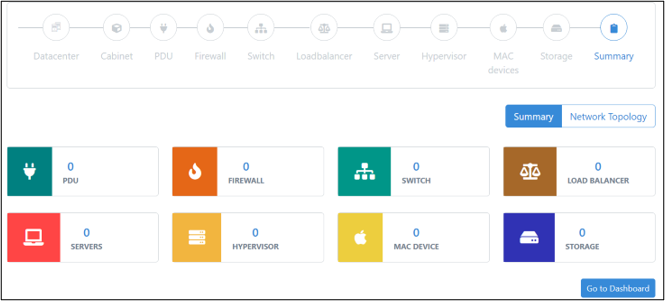
11.2.5 How to onboard assets via import inventory
If you have the inventory details, this is the best way to onboard; you may use the available data to import and onboard into UNITY.
You need to use UnityOne AI 's template for this process, and the data will be updated in the same template. An onboarding status map at the top can help you understand how your onboarding phases are progressing.
- 1. Click on the ‘Download Template’ button to download the template excel file.
- 2. Fill in the sheet with asset details accordingly
- 3. Upload the file by browsing or dragging the file.
- 4. Once the data is uploaded, you can select the respective import task and click on next.
- 5. Based on the inputs uploaded in the excel sheet, the tool will take the details around cabinets, data centers, PDU, firewalls, switches, load balancers, servers, hypervisors, mac devices, and storage.
- 6. Verify the details under each device mentioned and click next. You will get directed to the next grids.
- 7. Once you have finished the entire status quo, which is visible at the top, you may check the complete list of devices uploaded on the final page.
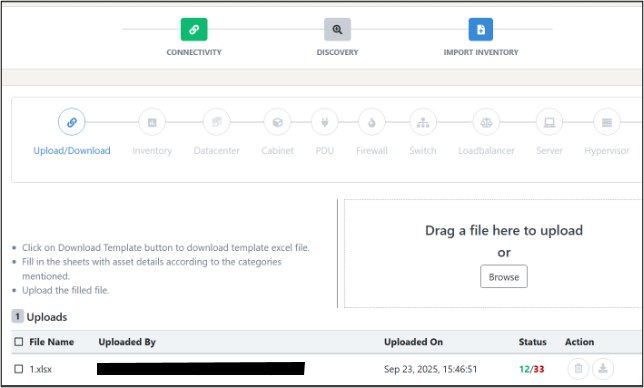
11.3 Credentials
The purpose of adding credentials is to authenticate, authorise automated operation, integration, secure communications.
You need to use UnityOne AI 's template for this process, and the data will be updated in the same template. An onboarding status map at the top can help you understand how your onboarding phases are progressing.
Navigation
- 1. Open Unity Setup.
- 2. From the menu options, select UPC Administration > Credentials.
- 3. Click on Add Credentials.
- 4. Enter the required basic information such as: Name and Description
- 5. Select the type of credential you want to add.
- 6. Based on the type selected, fill in the additional details:
- SNP V3: Provide Security Name and Level.
- SSH Key: Enter Username, Key, and Password.
- Active Directory: Enter Host IP Address, Username, and Password.
- 7. After providing all required information, click Submit.
- 8. Once submission is successful, a success message will appear.
- 9. From the credentials list, you may edit or delete any existing credential if needed.
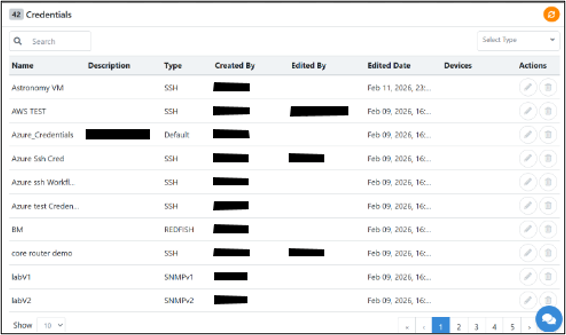
11.4 Import LDAP User
This feature will enable your organization to integrate your active directory service to import its users within the organization.
To navigate this section, click on Menu > Unity Setup> Import LDAP
How to add an Active Directory
From the top right-hand side of this page, click on ‘Add’ button and a new pop-up will open. Fill in the required details such as:
1. LDAP URL: Enter the URL address of your LDAP account.
2. Username: Enter the username of your LDAP account.
3. Password: Enter the password of your LDAP account
4. Domain name: Enter your organizational domain name.
Finally, click on ‘Submit’ to import your user details into UnityOne AI.
Note: If you get an error after clicking submit, please ensure again that all the provided information is correct and if the issue persists, contact the UnityOne AI support team.
On this page, you will find the details of your added LDAP accounts which includes details of the LDAP URL, Username, and Domain name.
Once you add an LDAP account, it will register the users of your existing active directory and by performing the ‘Import user’ action you can authenticate the user access of UnityOne AI for the preferred user. You can change the access of the user from admin to the user or vice versa from the user group section.
Action Buttons:
1. Edit LDAP Configuration: This action button will help you to edit the added LDAP configuration details.
2. Import User: This action button will help you can import a LDAP user to UnityOne AI.
3. Delete LDAP Configuration: This action button will help you to delete your added LDAP configuration.
4. Manage by creating a support ticket: From this action button you can manage your LDAP configuration details by raising a ticket with the support team.
11.5 Integration
In the integrations, you can find different third-party integration platforms. You can also raise a request for integrations of ITSM services, public clouds, Private clouds, LDAP, storage etc to the UnityOne AI platform.
To navigate this section, click on Menu > UPC Administration > Integration
Currently, we support the direct integration of following:
11.5.1 ITSM
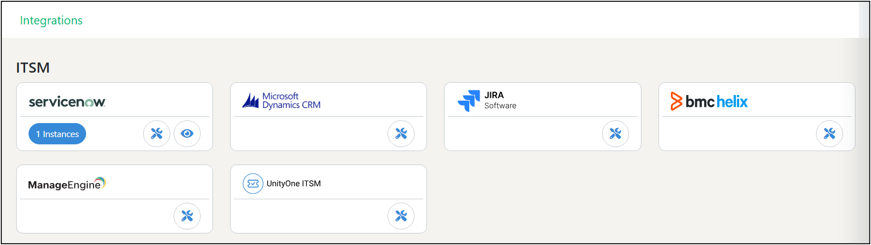
How to integrate your ServiceNow ITSM platform into UnityOne AI
- 1. To add your ITSM to UnityOne AI, navigate to Menu > Unity Setup > Integration
- 2. From the integration page, click on the ‘Integrate’ icon that is available beside the ServiceNow logo.
- 3. Add the name of your ITSM, URL type, Account for, instance URL, username, and password
- 4. Finally, click on ‘Submit’ and your account will be added to UnityOne AI.
- 5. Finally, click on ‘Submit’ and your account will be added to UnityOne AI.
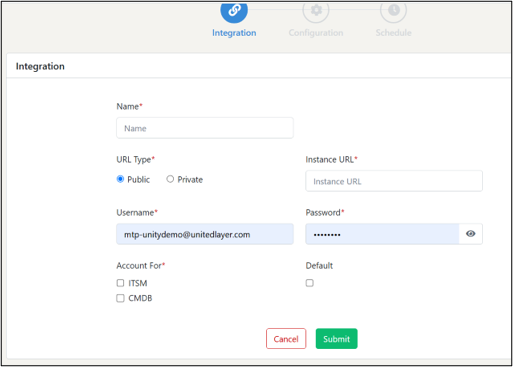
How to integrate your Microsoft Dynamics CRM into UnityOne AI
- 1. To add your Microsoft Dynamics CRM to UnityOne AI, navigate to Menu > Unity Setup > Integration
- 2. From the integration page, click on the ‘Integrate’ icon that is available beside the Microsoft Dynamics CRM logo.
- 3. Add the name of your Microsoft Dynamics CRM, CRM URL, Client ID, Tenant ID, Account ID, Access type from the accordion, and Password
- 4. Finally, click on ‘Submit’ and your account will be added to UnityOne AI.
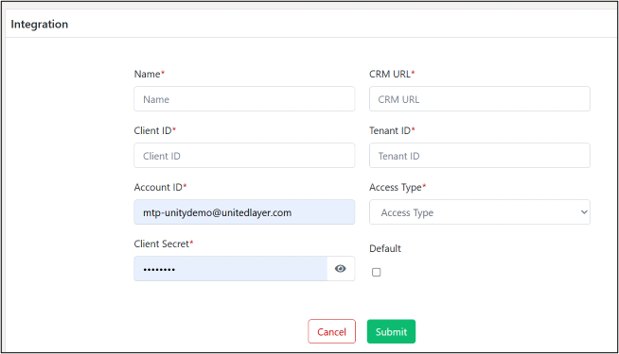
How to integrate your Jira System into UnityOne AI
- 1. To add your Jira System to UnityOne AI, navigate to Menu > Unity Setup > Integration
- 2. From the integration page, click on the ‘Integrate’ icon that is available beside the Jira System logo.
- 3. Add the name of your Jira System, Email, Access type, Jira URL, and API token.
- 4. Finally, click on ‘Submit’ and your account will be added to UnityOne AI.
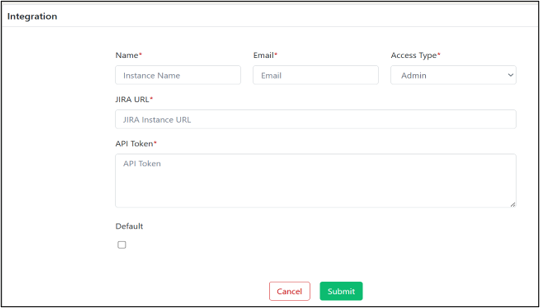
How to integrate your BMC Helix into UnityOne AI
- 1. To add your BMC Helix to UnityOne AI, navigate to Menu > Unity Setup > Integration
- 2. From the integration page, click on the ‘Integrate’ icon that is available beside the BMC Helix logo.
- 3. Add the name of your BMC Helix instance, Account for, Username, and Password.
- 4. Finally, click on ‘Submit’ and your account will be added to UnityOne AI.
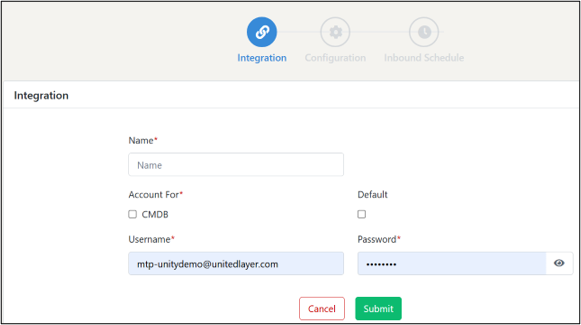
How to integrate your Manage Engine ITSM into UnityOne AI
- 1. To add your Manage Engine ITSM to UnityOne AI, navigate to Menu > Unity Setup > Integration
- 2. From the integration page, click on the ‘Integrate’ icon that is available beside the Manage Engine logo.
- 3. Add the name of your Manage Engine instance, Account for, URL type, Instance URL, Client ID, Client Password, and Client code.
- 4. Finally, click on ‘Submit’ and your account will be added to UnityOne AI.
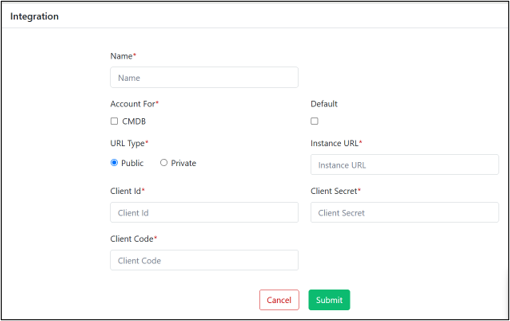
How to integrate your UnityOne ITSM into UnityOne AI
- 1. To add your UnityOne ITSM to UnityOne AI, navigate to Menu > Unity Setup > Integration
- 2. From the integration page, click on the ‘Integrate’ icon that is available beside the UnityOne logo.
- 3. Add the name of your Instance, Description, Ticket ID Prefix, Status, and Fields.
- 4. Finally, click on ‘Submit’ and your account will be added to UnityOne AI.
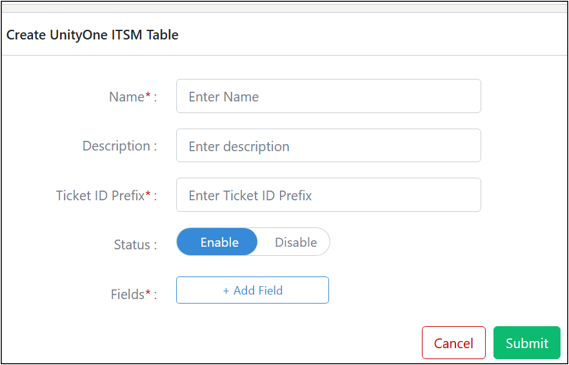
11.5.2 Public Clouds

How to integrate your Azure account into UnityOne AI
- 1. To add your Azure account to UnityOne AI, navigate to Menu > Unity Setup > Integration
- 2. From the integration page, click on the ‘Integrate’ icon that is available beside the Azure logo.
- 3. Select any box and add the name of your Client ID, Tenant ID, Client password, and Subscription ID.
- 4. Click on ‘Next’ and proceed to filters.
- 5. Fill all the details and click on submit.
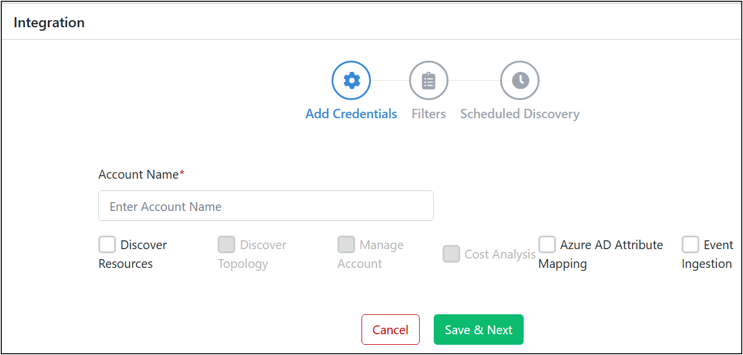
How to integrate your Amazon Web Services account into UnityOne AI
- 1. To add your AWS account to UnityOne AI, navigate to Menu > Unity Setup > Integration
- 2. From the integration page, click on the ‘Integrate’ icon that is available beside the AWS logo.
- 3. Select Discover resources and fill the Access key and Secret key.
- 4. Click on ‘Next’ and proceed to filters.
- 5. Fill all the details and click on submit.
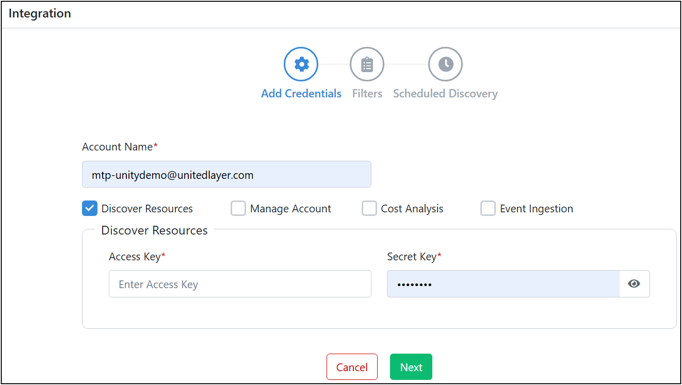
How to integrate your Google Cloud account into UnityOne AI
- 1. To add your GCP account to UnityOne AI, navigate to Menu > Unity Setup > Integration
- 2. From the integration page, click on the ‘Integrate’ icon that is available beside the GCP logo.
- 3. Select any box and add the name of your Email ID, Service Account info and Project ID.
- 4. Click on ‘Next’ and proceed to filters.
- 5. Fill all the details and click on submit.
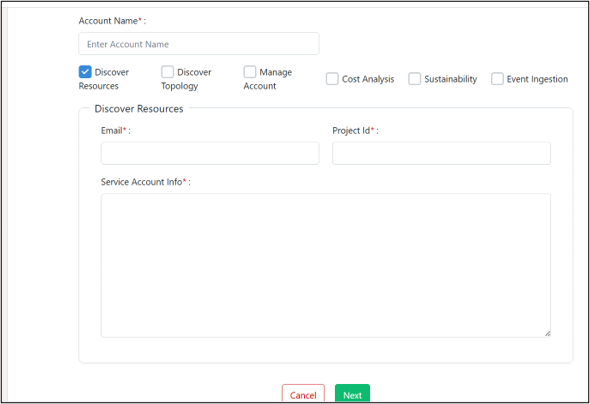
How to integrate your Oracle Cloud account into UnityOne AI
- 1. To add your Oracle Cloud account to UnityOne AI, navigate to Menu > Unity Setup > Integration
- 2. From the integration page, click on the ‘Integrate’ icon that is available beside the OCI logo.
- 3. Select any box and add the name of your User ID, Tenancy ID, Region, Fingerprint, and Private key.
- 4. Click on ‘Next’ and proceed to filters.
- 5. Fill all the details and click on submit.
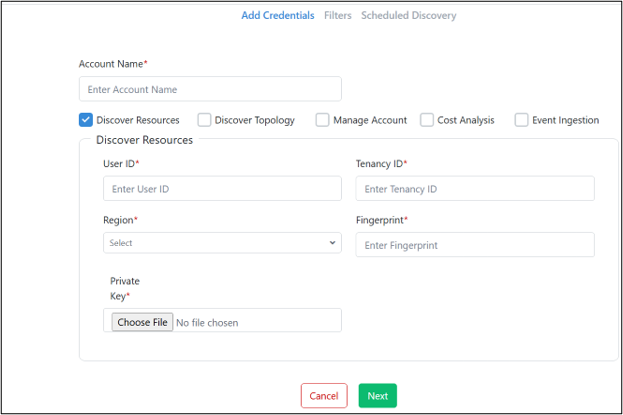
11.5.3 Private Cloud
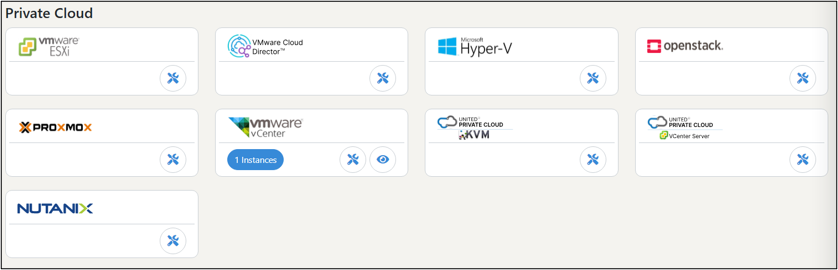
How to integrate your VMware ESXi account into UnityOne AI
- 1. To add your VMware ESXi account to UnityOne AI, navigate to Menu > Unity Setup > Integration
- 2. From the integration page, click on the ‘Integrate’ icon that is available beside the VMware ESXi logo.
- 3. Add the name of your Cloud type, Cloud name, Datacenter, and Collector.
- 4. Finally, click on ‘Save’ and your account will be added to UnityOne AI.
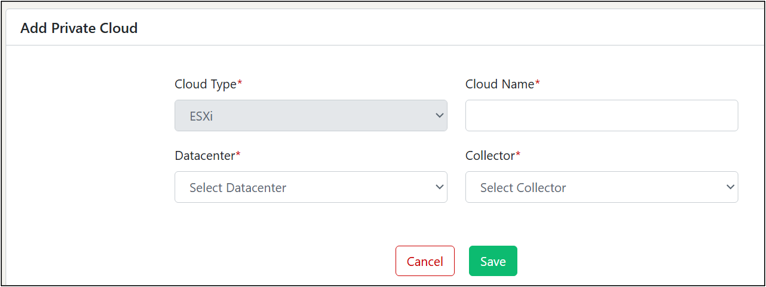
How to integrate your VMware Cloud Director account into UnityOne AI
- 1. To add your VMware Cloud Director account to UnityOne AI, navigate to Menu > Unity Setup > Integration
- 2. From the integration page, click on the ‘Integrate’ icon that is available beside the VMware Cloud Director logo.
- 3. Add the name of your Cloud type, Cloud name, Datacenter, vCloud URL, Username, Password, Organization, and Collector name.
- 4. Finally, click on ‘Save’ and your account will be added to UnityOne AI.
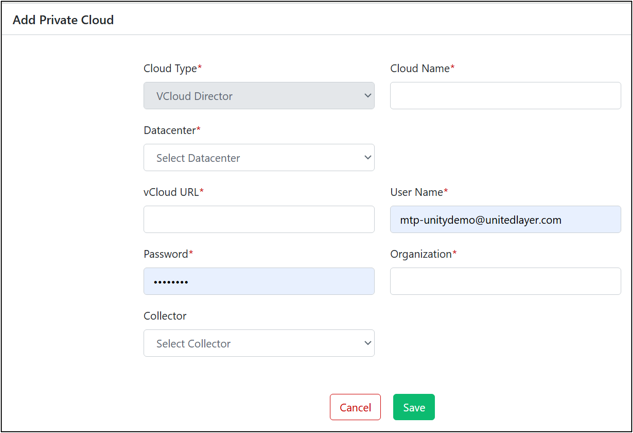
How to integrate your Microsoft HyperV account into UnityOne AI
- 1. To add your Microsoft HyperV account to UnityOne AI, navigate to Menu > Unity Setup > Integration
- 2. From the integration page, click on the ‘Integrate’ icon that is available beside the Microsoft HyperV logo.
- 3. Add the name of your Cloud type, Cloud name, Datacenter, Host Address, Username, Password, Domain, and Collector.
- 4. Finally, click on ‘Save’ and your account will be added to UnityOne AI.
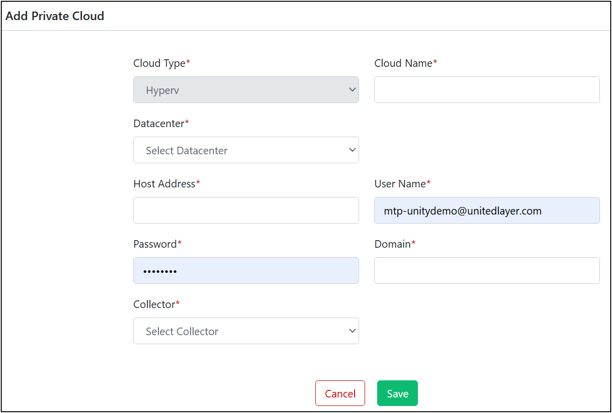
How to integrate your OpenStack account into UnityOne AI
- 1. To add your OpenStack account to UnityOne AI, navigate to Menu > Unity Setup > Integration
- 2. From the integration page, click on the ‘Integrate’ icon that is available beside the OpenStack logo.
- 3. Add the name of your Cloud type, Cloud name, Datacenter, Auth URL, Username, Password, Project name, User Domain, Project Domain, and Collector.
- 4. Finally, click on ‘Save’ and your account will be added to UnityOne AI.
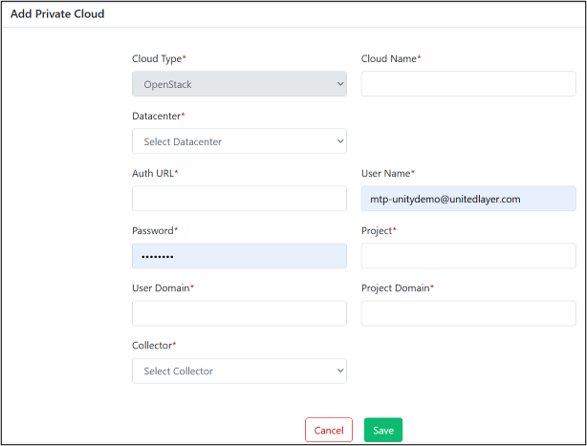
How to integrate your Proxmox account into UnityOne AI
- 1. To add your Proxmox account to UnityOne AI, navigate to Menu > Unity Setup > Integration
- 2. From the integration page, click on the ‘Integrate’ icon that is available beside the Proxmox logo.
- 3. Add the name of your Cloud type, Cloud name, Datacenter, Host Address, Username, Password, and Collector.
- 4. Finally, click on ‘Save’ and your account will be added to UnityOne AI.
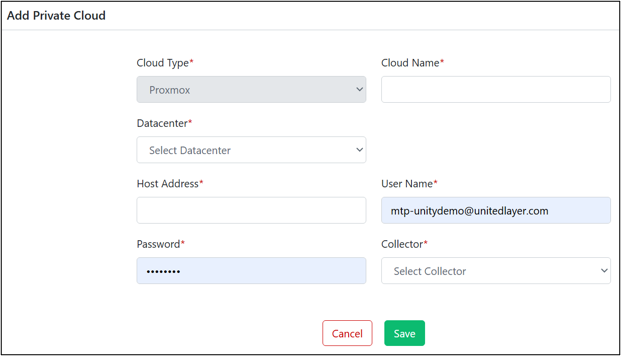
How to integrate your VMware vCenter account into UnityOne AI
- 1. To add your VMware vCenter account to UnityOne AI, navigate to Menu > Unity Setup > Integration
- 2. From the integration page, click on the ‘Integrate’ icon that is available beside the VMware vCenter logo.
- 3. Select any box and add the name of your Datacenter, Host name, Username, Password, Resource Pool Name, and Collector.
- 4. Finally, click on ‘Save’ and your account will be added to UnityOne AI.
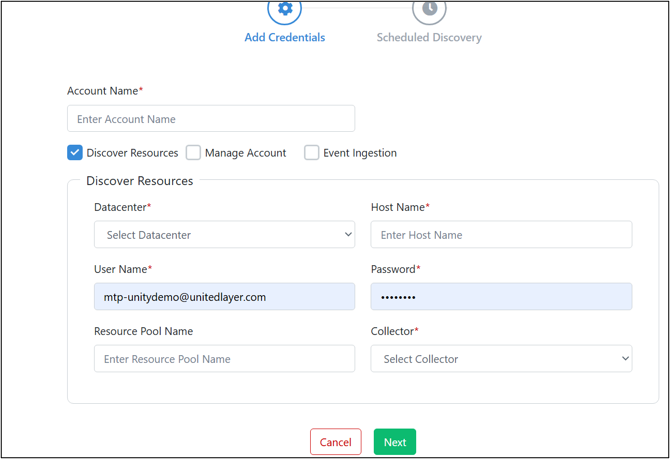
How to integrate your KVM account into UnityOne AI
- 1. To add your KVM account to UnityOne AI, navigate to Menu > Unity Setup > Integration
- 2. From the integration page, click on the ‘Integrate’ icon that is available beside the KVM logo.
- 3. Add the name of your Cloud type, Cloud name, Datacenter, Host Address, Username, Password, and Collector.
- 4. Finally, click on ‘Save’ and your account will be added to UnityOne AI.
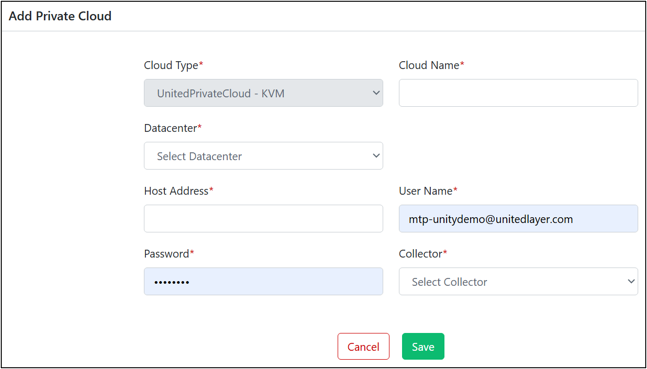
How to integrate your Nutanix account into UnityOne AI
- 1. To add your Nutanix account to UnityOne AI, navigate to Menu > Unity Setup > Integration
- 2. From the integration page, click on the ‘Integrate’ icon that is available beside the Nutanix logo.
- 3. Add the name of your Cloud name, Datacenter, Host name, Collector, Credential, and Protection Domain name.
- 4. Finally, click on Next, add the filters, and your account will be added to UnityOne AI.
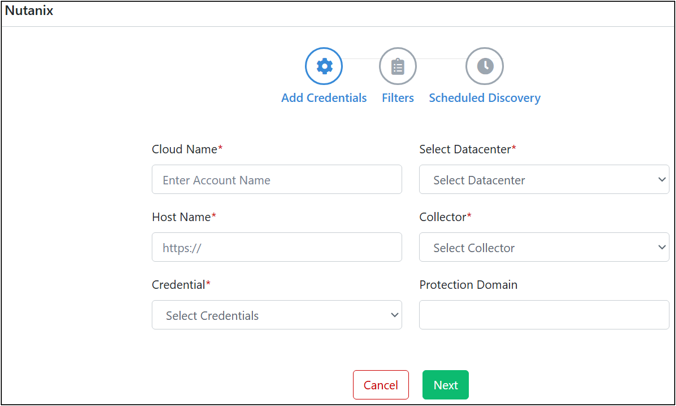
Note:If you get an error after clicking submit, please ensure again that all the provided information is correct and if the issue persists, contact the UnityOne AI support team.
11.6 FinOps Building Blocks
This page displays all FINOPs Building Blocks created within the system. It provides a centralized view of business units, cost centers, associated applications, license models, and allocated budgets. This helps users quickly review, manage, and update financial cost structures linked to workloads and services.
The Search Bar allows users to quickly find a building block by code, business unit, cost center, or application.
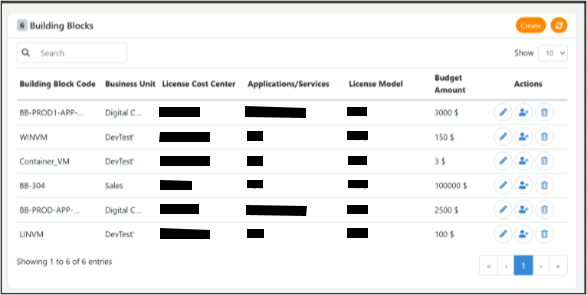
Each row represents a single FINOPs Building Block with key attributes:
1. Building Block Code: Unique identifier assigned to each building block.
2. Business Unit: The department or team owning the associated cost (e.g., Digital, DevTest, Sales).
3. License Cost Center: Cost center responsible for licensing and operational charges. .
4. Applications/Services: The specific application or service mapped to the building block (e.g., Order Management, ABC).
5. License Model: The pricing model used (e.g., PAYG—Pay as You Go).
6. Budget Amount: The allocated monthly or yearly budget for the building block.
11.6.1 How to create a building block
On the top right hand of the building block page, click on the ‘Create,’ fill in the details below:
- 1. Open the FINOPs Building Block Section
- 2. Enter all required information such as Business Unit, Cost Center, Tags, Environment, Workload Type, Deployment Type, Virtualization Type, Applications/Services, Building Block Code, and Description.
- 3. Specify the License Model, License Cost Per Core/VM, Purchase Cost, Maintenance Cost, Billing Currency, Budget Amount, Budget Period, Allocation Type, and Allocation Strategy.
- 4. Click Save & Next to move to the FINOPs Components step.
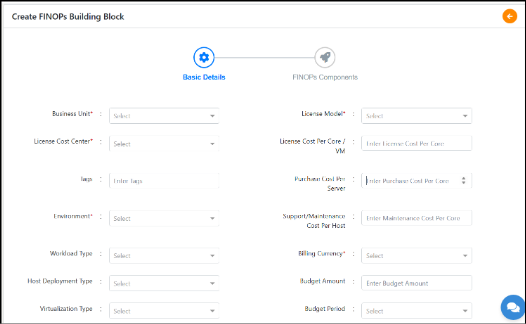
11.7 Cost Plan
11.7.1 Cost Model
This page displays all pricing models configured for different datacenters, regions, and resource types. It helps users understand how costs are calculated and allows administrators to enable, disable, or update pricing policies.
11.7.1.1 How to create a Cost Model
- 1. Open the cost model page
- 2. Click the create icon on top right corner.
- 3. Name: Enter a descriptive name for the cost model.
- 4. Datacenters: Select the datacenter(s) where the model applies
- 5. Region: Choose the region of the datacenter.
- 6. Plan Type: Select the pricing category (CPU Only, Memory Only, Disk Only, combined plans).
- 7. Price Unit: Choose billing duration (Minute, Hourly, Daily, Monthly).
- 8. Allocation: Choose how the cost should be applied (Always / Conditional).
- 9. Cost ($): Enter the cost amount for this model.
- 10. Click Save to create the new model.
After saving, use the Enable button in the Status column to activate the pricing model.
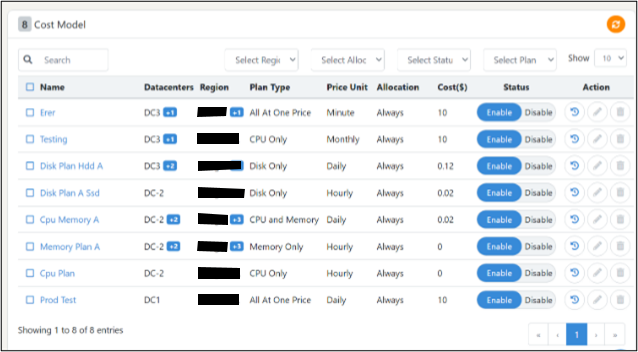
11.7.2 Resource Model
This page displays all available resource configurations across different cloud types, datacenters, and regions. Each resource model defines a specific CPU, memory, and storage combination along with its associated cost. This helps users understand pricing for individual resource profiles used across various clouds.
11.7.2.1 How to create a resource model
- 1. Open resource model page
- 2. Click the create icon on top right corner.
- 3. Name: Provide a unique name for the resource model (e.g., pc‑mini, cost test).
- 4. Cloud Type: Select the cloud platform (Custom, VMware, Nutanix, etc.).
- 5. Region: Choose the region where this resource model applies.
- 6. Datacenters: Select one or more datacenters associated with the model.
- 7. CPU: Enter the number of vCPUs.
- 8. Memory: Enter the memory size (e.g., 1 GB, 4 GB).
- 9. Storage (Root): Define the root disk size (e.g., 20 GB, 300 GB).
- 10. Cost Model: Select a cost model that determines pricing for this resource.
- 11. Cost ($): The system may auto‑calculate cost based on the cost model or allow manual entry.
- 12. Click Save to add the new model to the list.
After creation, click Enable in the Status column to activate the model so it can be used during provisioning and costing.
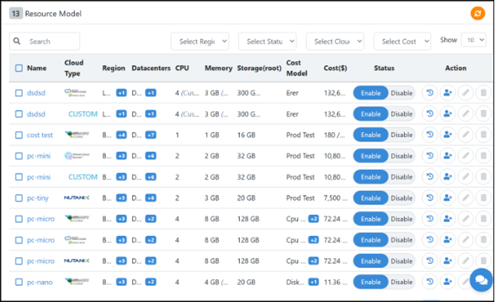
11.8 Budget
This page allows users to define, monitor, and manage cloud budgets for different cloud providers, projects, or accounts. It provides visibility into allocated budgets, active periods, and the status of each budget entry.
11.8.1 How to create a budget
- 1. Open the budgets page.
- 2. Click the create icon on top right corner.
- 3. Name: Enter a meaningful budget name (e.g., Azure Lab Budget).
- 4. Scope: Select where the budget applies — Cloud or Cloud Account.
- 5. Period: Choose the budget cycle — Monthly or Yearly.
- 6. Start Date / End Date: Select the validity period for the budget.
- 7. Budget Amount ($): Enter the total amount allocated for the selected period. Click Save to create the budget.
The new entry will now appear in the Budgets table.
Use the Enable button in the Status column to activate the budget for monitoring and alert
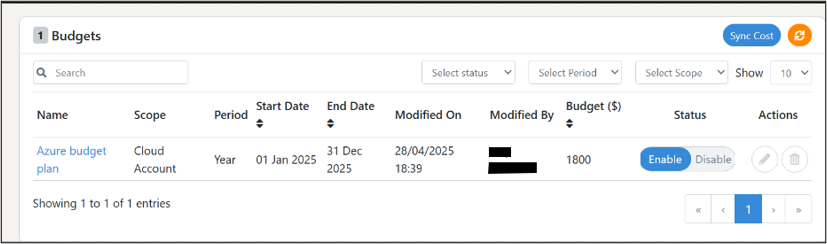
11.9 Policy
A Policy is a predefined rule or set of rules that govern how the platform behaves, how resources are managed, or how users interact with the system. Policies help enforce consistency, compliance, and operational control across environments.
11.9.1 How to create a policy
To add a policy, click on ‘create policy’ from the top right-hand side then fill the details mentioned below:
1. Name: In this field you must enter policy name.
2. Description: In this field you must enter the description of the policy
3. Type: In this field you must enter the type of policy
4. Scope : In this field you must enter the scope of the policy
5. Select user groups: In this field you must select the user group
6. Select users: In this field you must select the user
Click on ‘Create’ to add your policy details successfully.
Notef you get an error after clicking submit, please ensure again that all the provided information is correct and if the issue persists, contact the UnityOne AI support team.
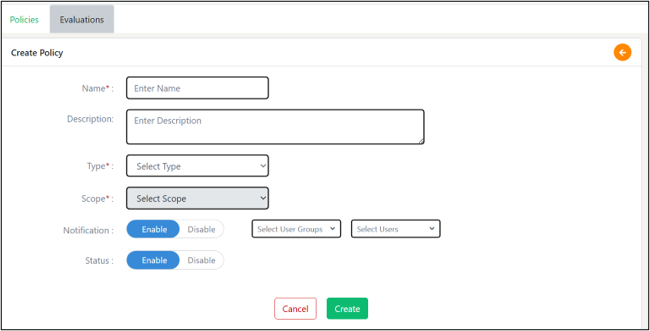
11.9.2 Evaluation
Evaluation refers to the process by which the system checks whether the defined policy rules and conditions are being met. It determines how and when the platform validates resources, actions, or configurations against the policy.
11.9.2.1 How to evaluate the policy
- 1. Open the evaluations page.
- 2. Use the Select Policy dropdown to choose the policy you want to evaluate.
- 3. Select the resource scope on which the policy will run (e.g., Private Cloud, Public Cloud, Service Catalog).
- 4. Click the Evaluate or Run Evaluation button (depending on UI).
- 5. View the Evaluation Result.
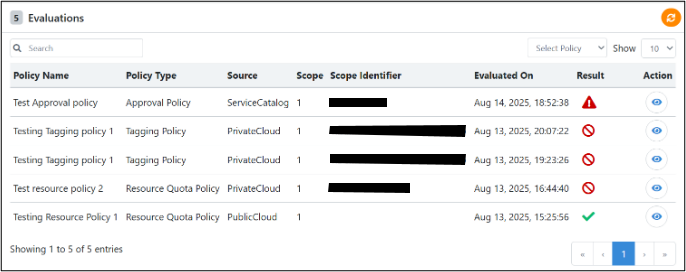
11.10 Notification
You can use this section to manage your notification settings, or you can also add new group notifications based on alert types.
To navigate this section, click on Menu > Unity Setup> Notification
11.10.1 How to create new group notifications:
To create a new group notification, click on the button ‘Create Group’ from the top of the page. Once you click on the button, a new pop-up will open. Enter the following details within the pop-up:
1. Group Name: In this field you must name a new group.
2. Users: In this field you must type the email ID of your unpractised users.
3. Alert Type: In this field, you must select the alert type from the drop-down. (Critical/Info/Warning).
4. Mode: This will come with a default email mode.
Click on ‘Submit’ to create a new group notification alert.
NoteIf you get an error after clicking submit, please ensure again that all the provided information is correct and if the issue persists, contact the UnityOne AI support team.
On the page, you can find the details of existing notification groups such as: Group name, users, alert type, mode, and its status.
Action Buttons:
1. Enable/Disable: From this action you can enable or disable the group notification alert of the group name.
2. Edit: This action button will help you in editing the details of notification group.
3. Delete: This action button will assist you to delete the notification group.
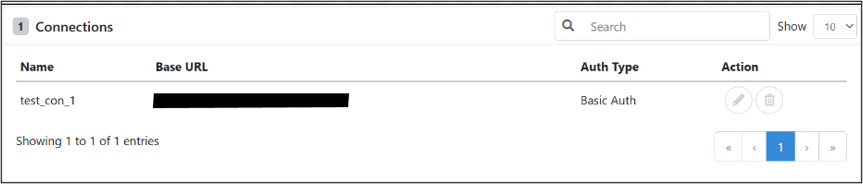
NoteYou can disable all enabled notifications by clicking on the button ‘Disable all notification' which is present on the top-right hand side corner.
11.11 Connections
This page displays all external system connections configured within the platform. These connections allow the platform to integrate with third‑party services such as ServiceNow, ticketing systems, or other external APIs.
11.11.1 How to create a connection
- 1. Open the connection page
- 2. Click the create icon on top right corner
- 3. Name: Enter a meaningful name for the connection (e.g., Dev ServiceNow, Basic Connection).
- 4. Base URL: Enter the API base URL of the external system (e.g.,https://devxxxxx.service-now.com).
- 5. Auth Type: Select the authentication method:
- No Auth – No authentication required
- Basic Auth – Username + Password
- OAuth 2.0 – Token‑based authentication
- 6. Click Save to add the connection to the list.
Once created, the new connection appears in the table
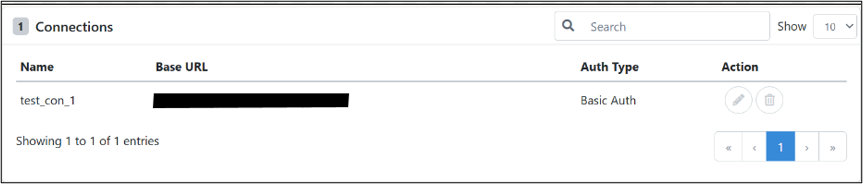
11.12 Custom Attributes
This page allows users to define additional metadata fields for different resource types such as Databases, VMware, Firewalls, and more. These attributes help capture extra information that is not part of the default system fields.
This is useful when organizations need custom labels, identifiers, numeric values, or Boolean flags for reporting, automation, or configuration purposes.
11.12.1 How to create custom attributes
- 1. Open the custom attributes page
- 2. Click the create button on the top right corner
- 3. Name: Enter a unique identifier for the attribute.
- 4. Resource Type: Select the resource category (e.g., Database, VMware, Firewall).
- 5. Value Type: Choose the input type: Char, Integer, Choice, and Boolean
- 6. Default Value: (Optional) Enter a default field value
- 7. Click Save to add the custom attribute.
It will now appear in the Custom Attributes list.
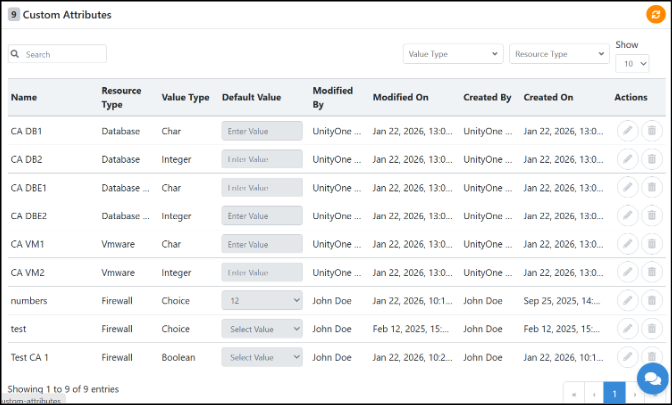
Filters at the top allow sorting by Value Type and Resource Type. The Show dropdown controls how many entries are displayed per page.
11.13 Query Statistics
This page provides insights into how user queries are performing within the system. It helps administrators track success rates, failure trends, reaction feedback, and query performance over time. The page has two main sections:
11.13.1 Query Success Ratio
This chart shows how many queries were successful vs. failed over a selected time range (e.g., Last 15 Days). It helps identify stability and performance of system responses.
1. Green Line - Successful queries
2. Red Line - Failed queries
11.13.2 Like vs Dislike Trend
This chart displays user feedback trends (Like / Dislike) across recent months. This helps evaluate user satisfaction with the system’s responses.
1. None - No feedback
2. Like - Positive feedback
3. Dislike - Negative feedback
11.13.3 Query Statistics Table
This table lists details of each query processed:
1. Query ID – Unique ID assigned to each query
2. User – The user who submitted the query
3. Query – The text of the query
4. Module – Module where the query was raised
5. Status – Success or Failure
6. Token Used – Tokens consumed to process the query
7. Response Time (Ms) – Time taken to generate the response
8. Reaction – User feedback (Like, Dislike, None)
If there are no entries yet, the table shows “No Queries available.”
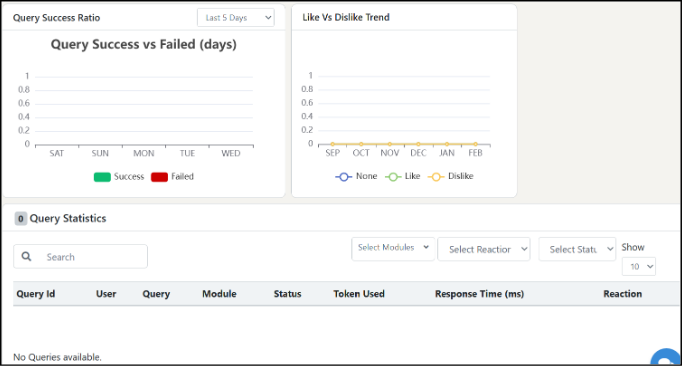
12. Report An Issue
You can report an issue by clicking the button (logo) in the top right corner, which will prompt a popup. Fill out the information below to report an issue with the Unity support team:
1. Subject Line - In this, you will get a default subject line that includes the navigation path.
2. CC - Here, you can add any email address to notify anyone about the issue.
3. Priority - You can select the priority levels like critical, high, normal, and low.
4. Description - You can briefly describe your issue in this section.
5. Meta - The UnityOne AI support team uses this non-editable data to understand more about the issue.
6. Attachments - You can use this option to attach any file or screenshot, which will further help the UnityOne AI support team to get more clarity on the issue.
7. Send - Once you click the send button, it will automatically raise a support ticket with the UnityOne AI support team.